

Contacts
Navigate to https://aicpanel.smsit.ai/home
Overview of SMS-iT's Contact Section:
SMS-iT's Contact Section is a game-changing solution for businesses looking to revolutionize their contact management and customer engagement strategies. With its intuitive interface and powerful features, the Contact Section empowers you to effortlessly organize, manage, and communicate with your contacts, all from one centralized platform. Key benefits of SMS-iT's Contact Section:
1. Streamlined Contact Organization: Easily create and manage groups to segment your contacts based on various criteria, such as demographics, interests, or acquisition channels. This allows for targeted marketing campaigns and personalized customer experiences.
2. Efficient Contact Search: The highly responsive search bar enables you to find specific contacts instantly by name, phone number, or group, saving you valuable time and effort.
3. Bulk Contact Upload: Import large numbers of contacts using CSV files, making it easy to expand your customer base and keep your contact list up-to-date.
4. Comprehensive Contact Actions: Engage with your contacts through various channels, including text messages, emails, and voice messages. View customer timelines, edit contact information, and create tasks to ensure seamless communication and follow-up.
5. Customizable Contact View: Tailor the Contact Section to your preferences by adding or removing columns, ensuring that you have access to the most relevant information for your business needs.
6. Enhanced Customer Insights: Leverage the platform's SMART TOOLS to gain valuable insights into your customers' behavior, preferences, and journeys. These insights enable you to make data-driven decisions and optimize your customer acquisition and retention strategies.
7. Increased Efficiency and Productivity: By consolidating your contact management and communication tools into one user-friendly platform, SMS-iT's Contact Section saves you time and resources, allowing you to focus on growing your business and delivering exceptional customer experiences.
Unlock the full potential of your customer relationships with SMS-iT's Contact Section.
Click on "Sales"
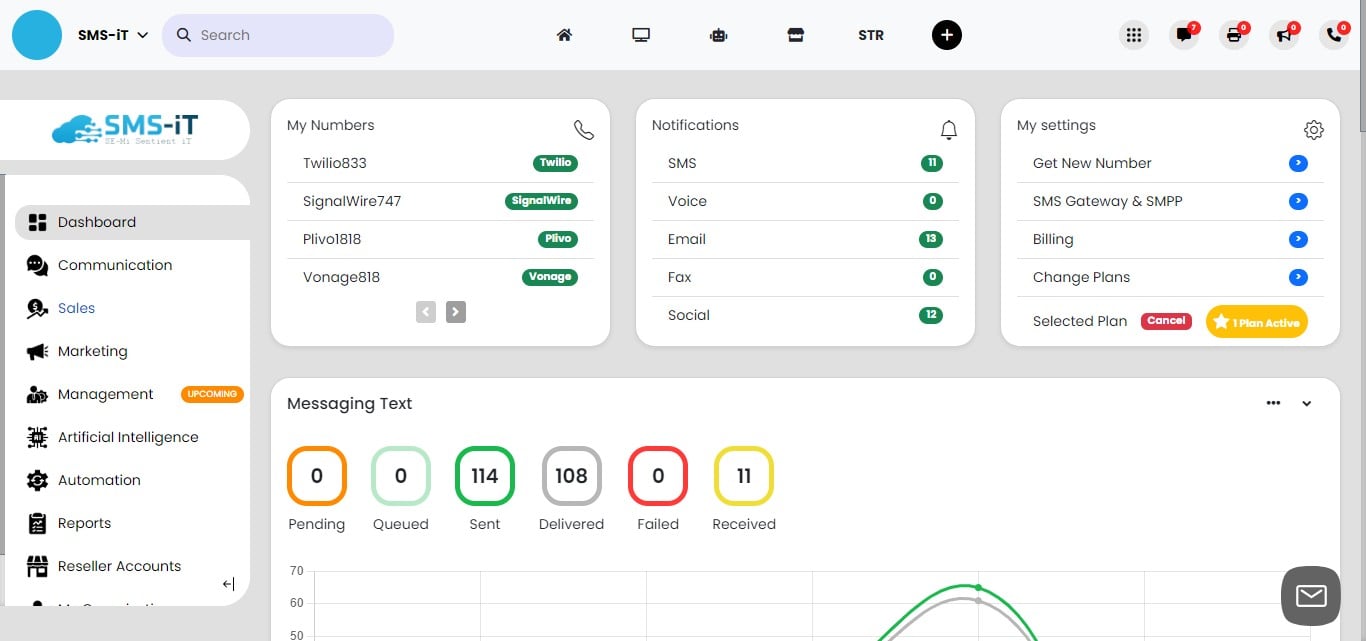

Click on "Contact"
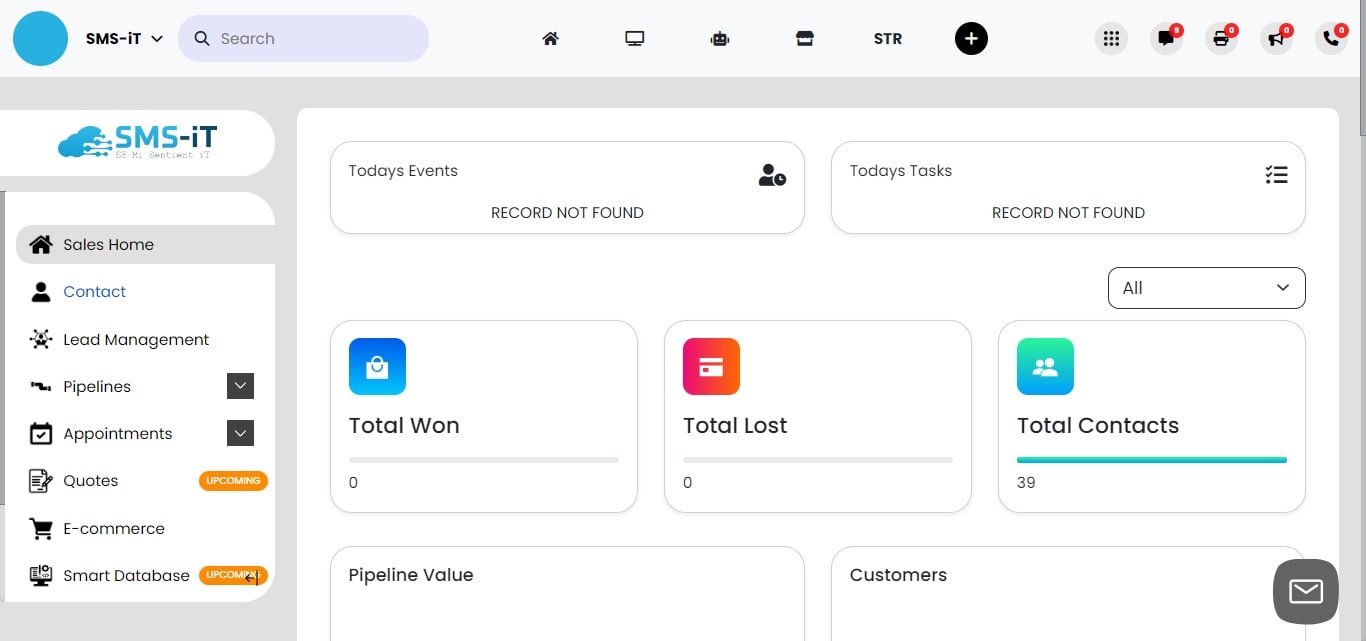
Contact Search
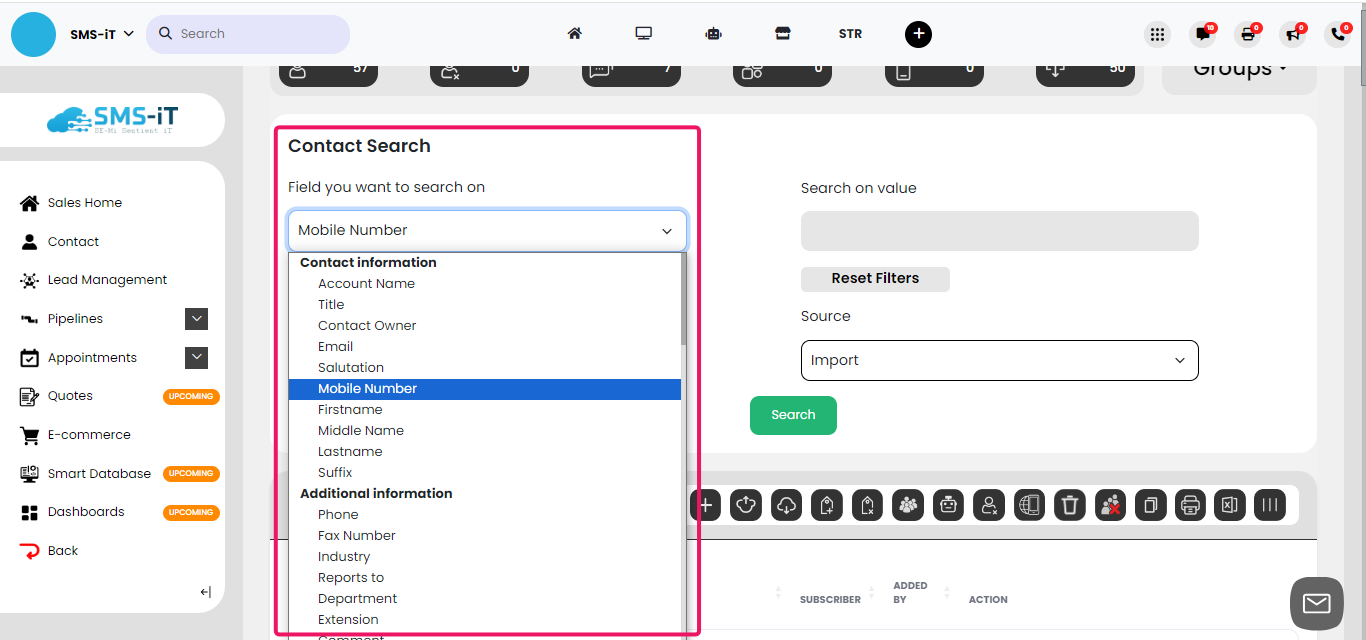
We will explore the search options.
From the pull-down menu, select the field you'd like to search, such as " "First Name," "Last Name," or "Mobile Number."
Enter the search value in the selected field. For example, if searching for a phone number, input the country code and area code. If searching for a first name, enter the name, such as "Joe."
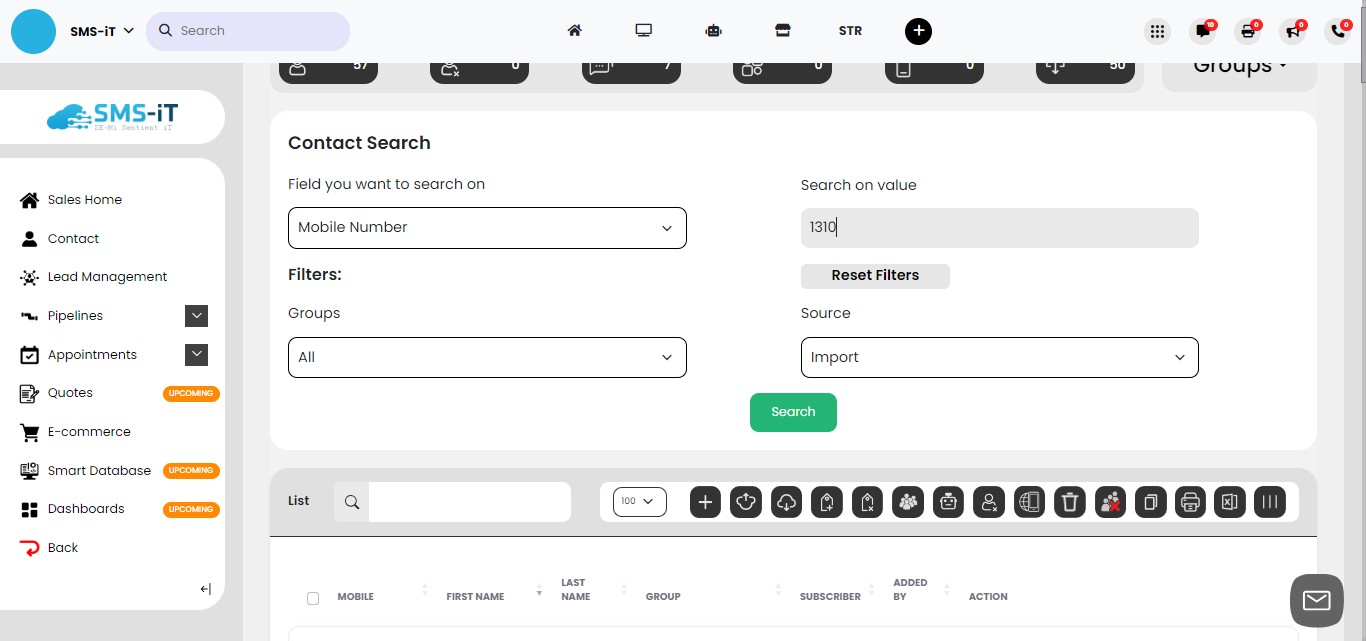
You can also search for contacts by groups, which serve as the entry point for your customers and clients within the system.
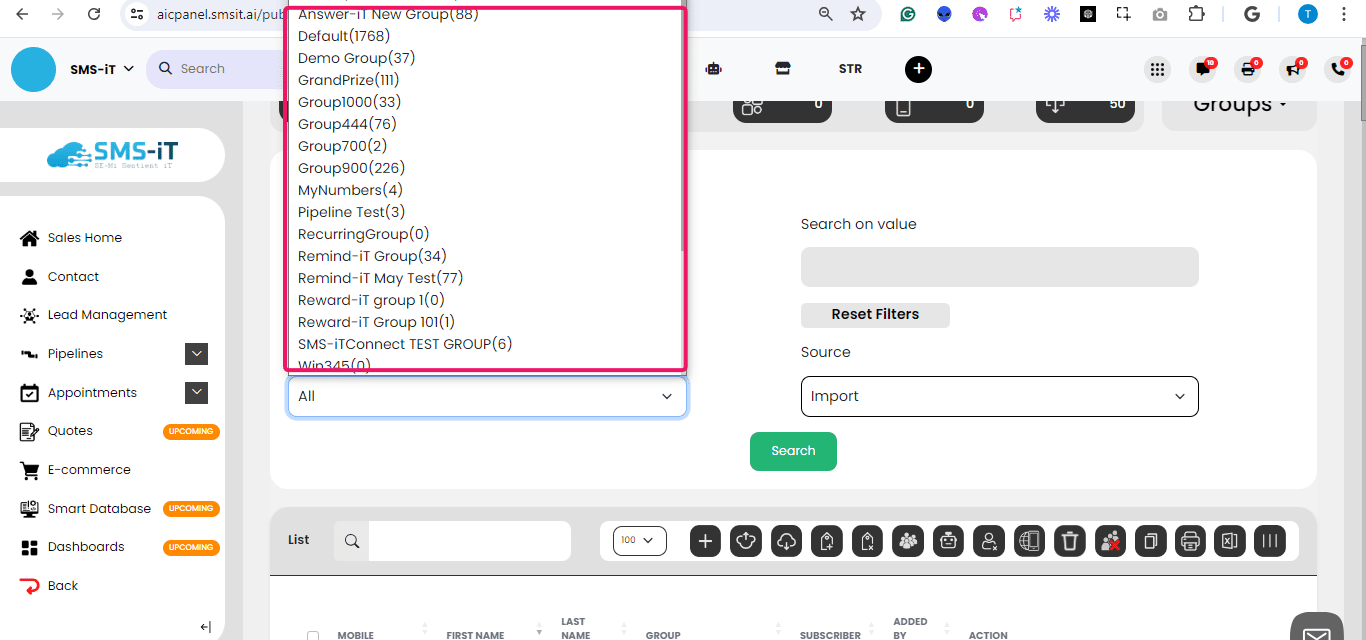
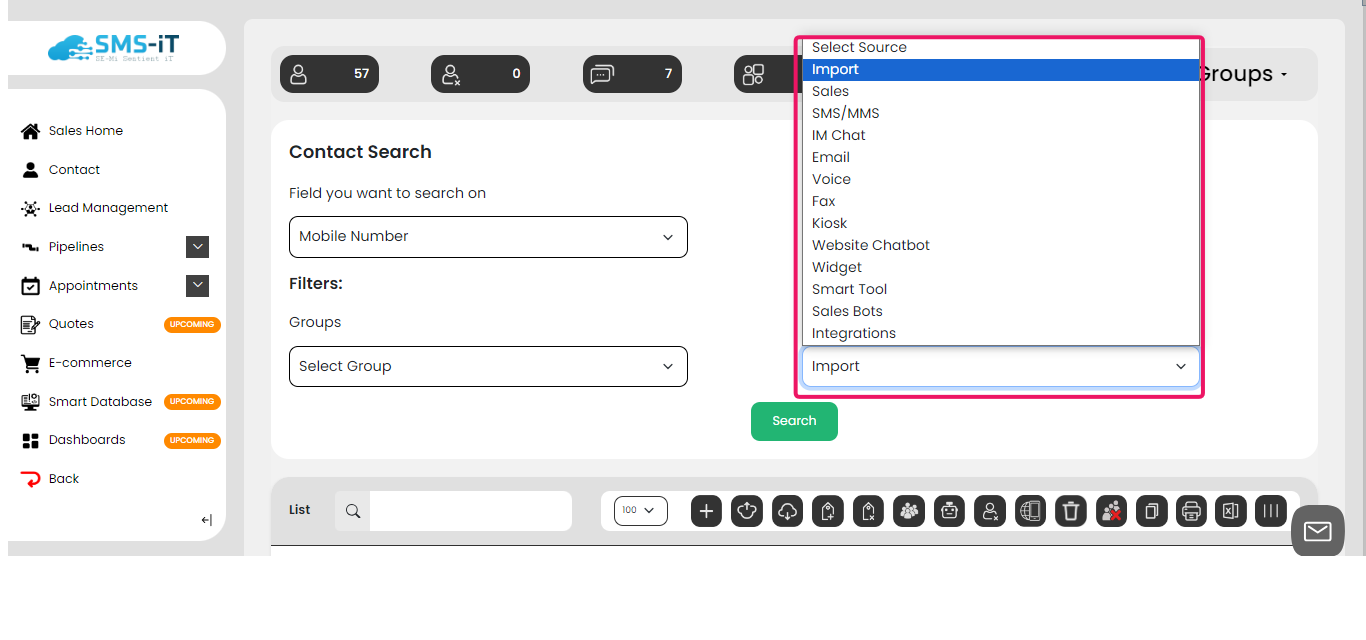
Another search option is to look for contacts based on how you acquired them, such as through a specific marketing campaign or event.
Groups
Groups serve as the entry point for your customers and clients within the system, facilitating the creation of individual customer profiles. Leveraging these groups, you can activate various SMART TOOLS tailored for customer acquisition and retention. Moreover, you can initiate campaigns designed to guide each customer along their distinct customer journey.
Within the Contact Section, you can perform various actions on your groups, including adding new groups, merging existing groups, managing active groups, and archiving inactive groups.
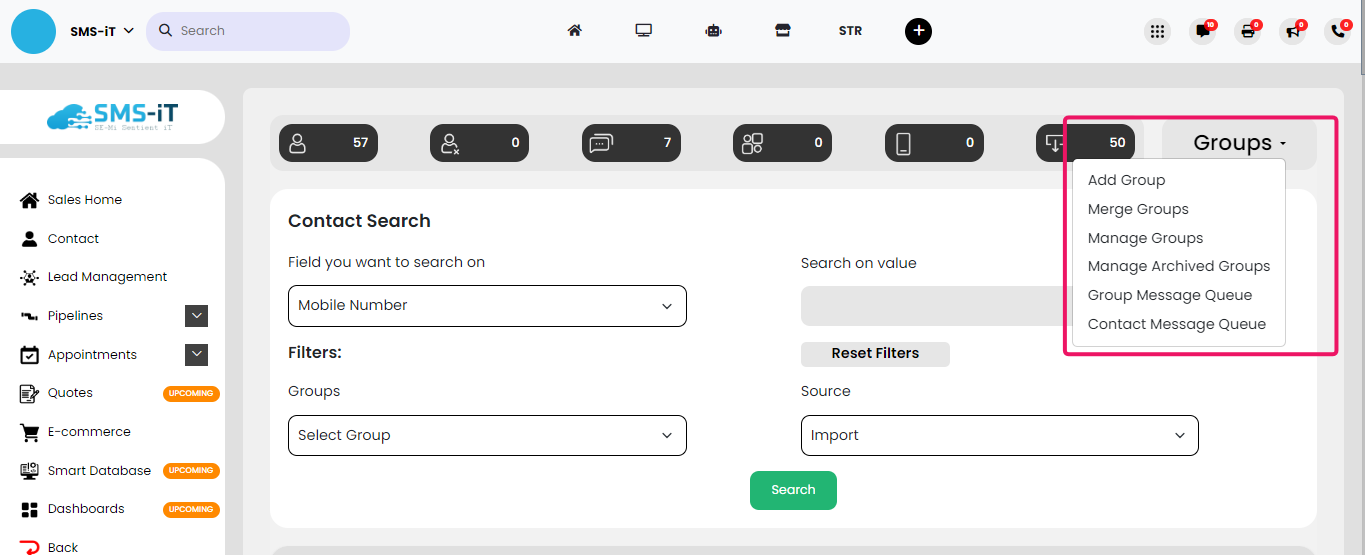
To Add a group please visit this in-depth tutorial on adding a group: https://training.smsit.ai/guides/eac32a1d-ba4a-451e-8472-4816c85eb363
Merge a group
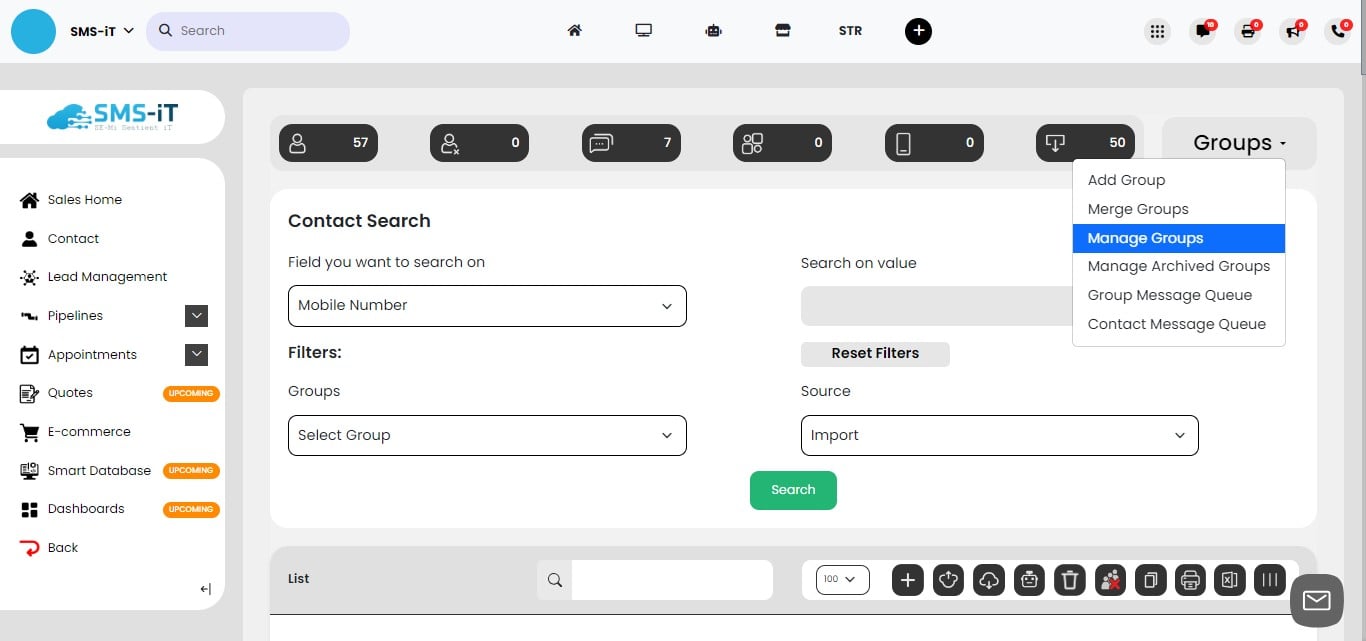
To merge groups, click on the "Groups" tab and then select "Merge Groups" from the available options.
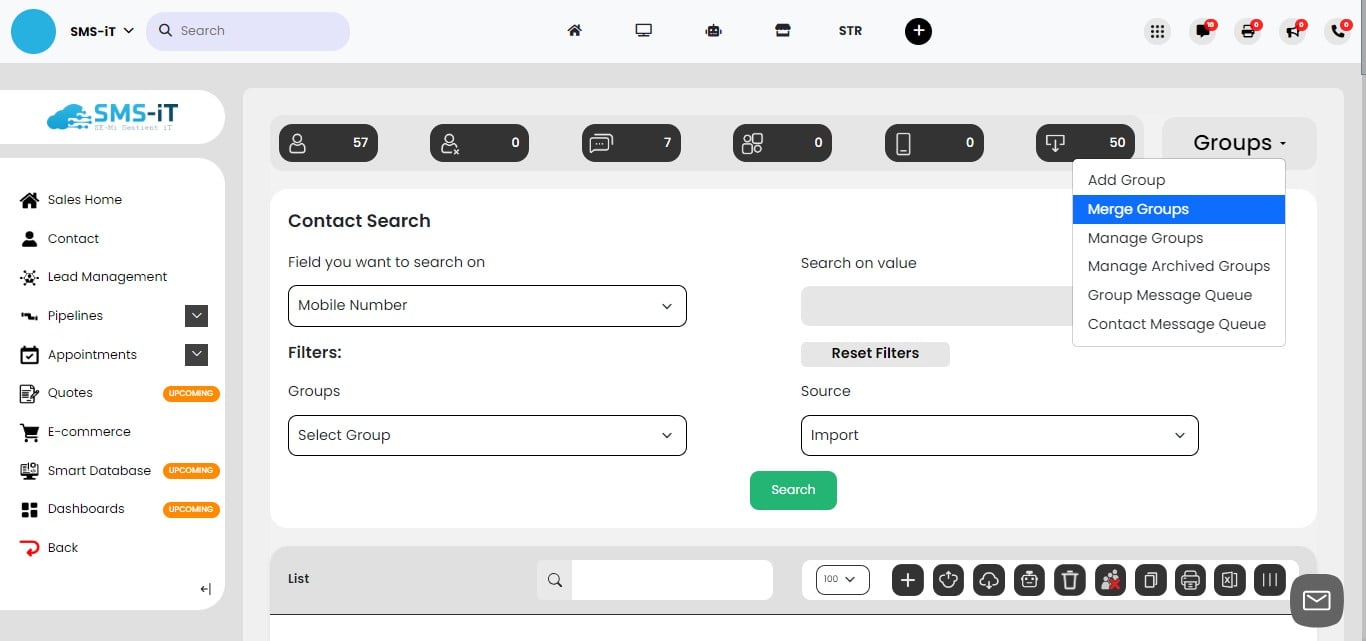
Click on the "Select Group" button to choose the groups you want to merge.
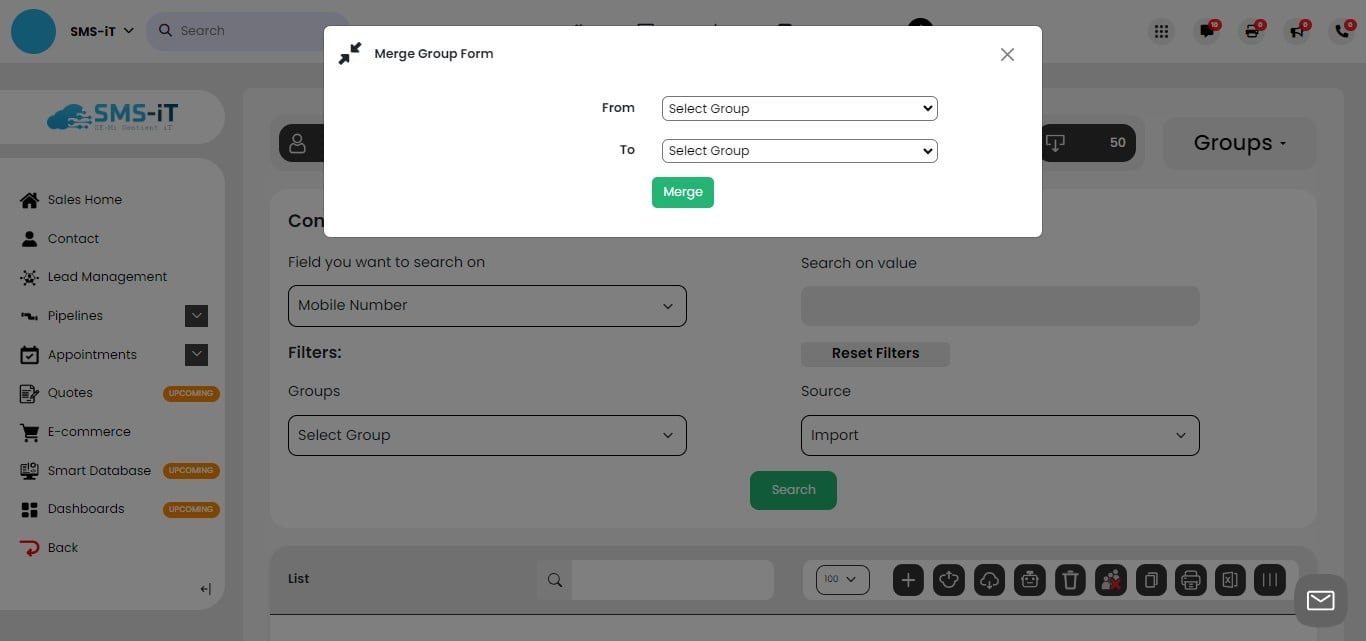
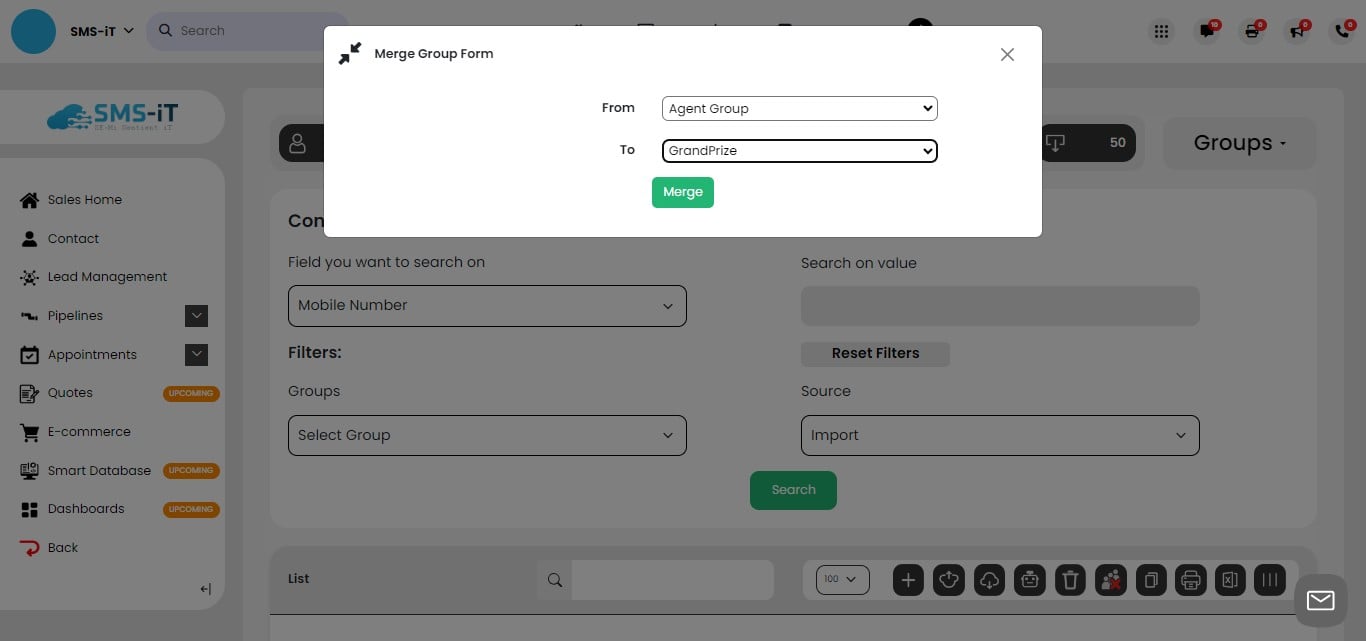
From the pull-down menus, select the "From" group and the "To" group, then click on "Merge." The contacts from the "From" group will now be added to the "To" group.
Manage a group
To manage your groups, click on the "Manage Groups" button within the "Groups" tab.
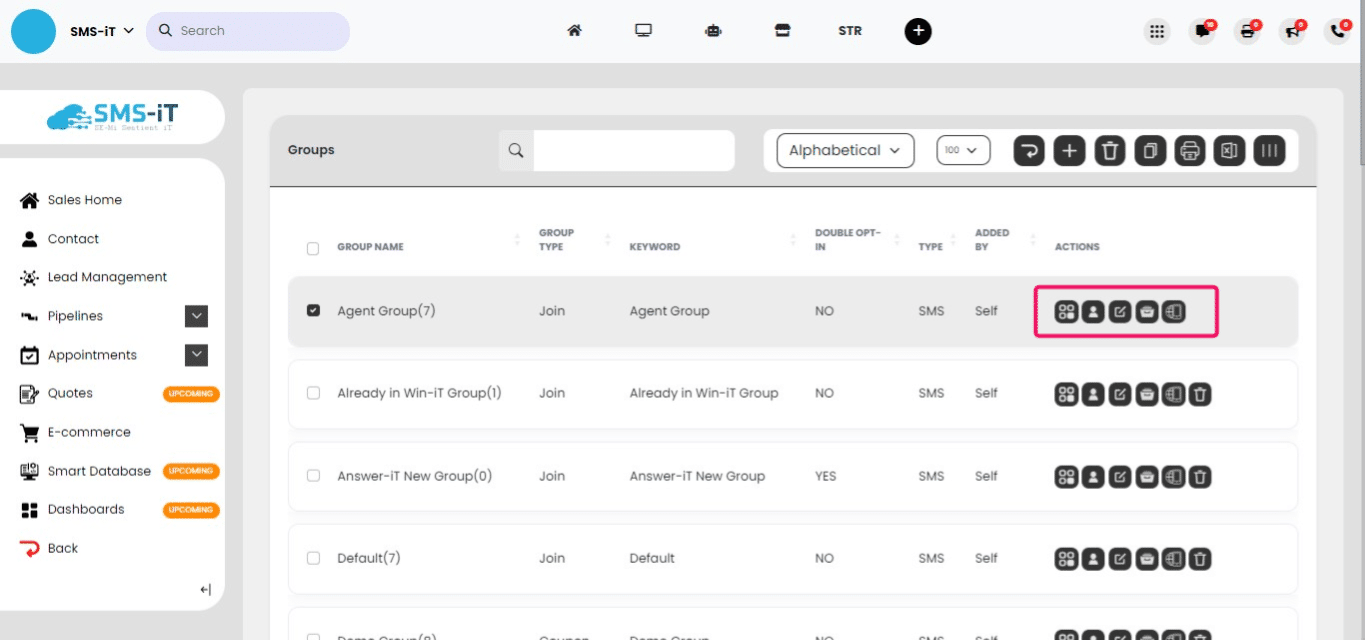
The "Manage Groups" page allows you to view your groups, archive inactive groups, edit group details, and view or edit the contacts within each group. For a more in-depth tutorial on managing groups, please see the provided link. https://training.smsit.ai/guides/eac32a1d-ba4a-451e-8472-4816c85eb363
Manage archived groups
An archived group is a group that you no longer actively use but want to keep in your system for future reference or potential reactivation. Archiving inactive groups helps declutter your workspace, making it easier to focus on your current projects and campaigns. By keeping these groups archived, you maintain access to valuable data and can easily unarchive them if the need arises, without having to recreate the group from scratch.
Click on "Manage Archived Groups"
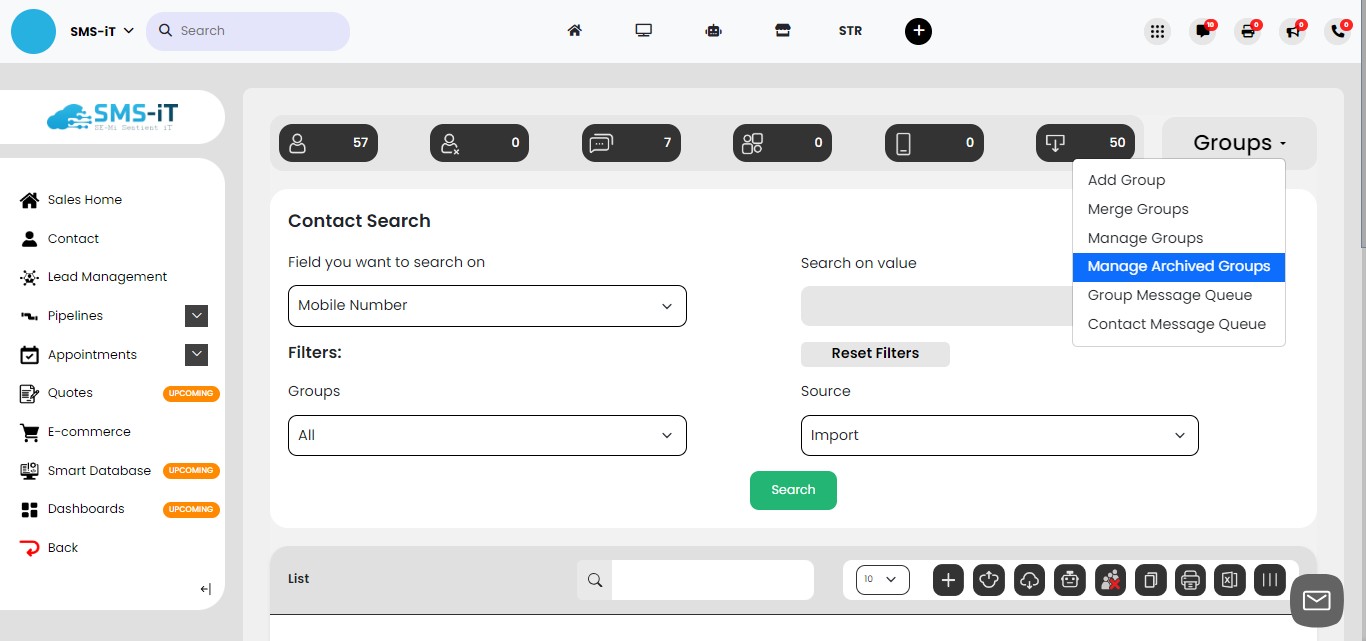
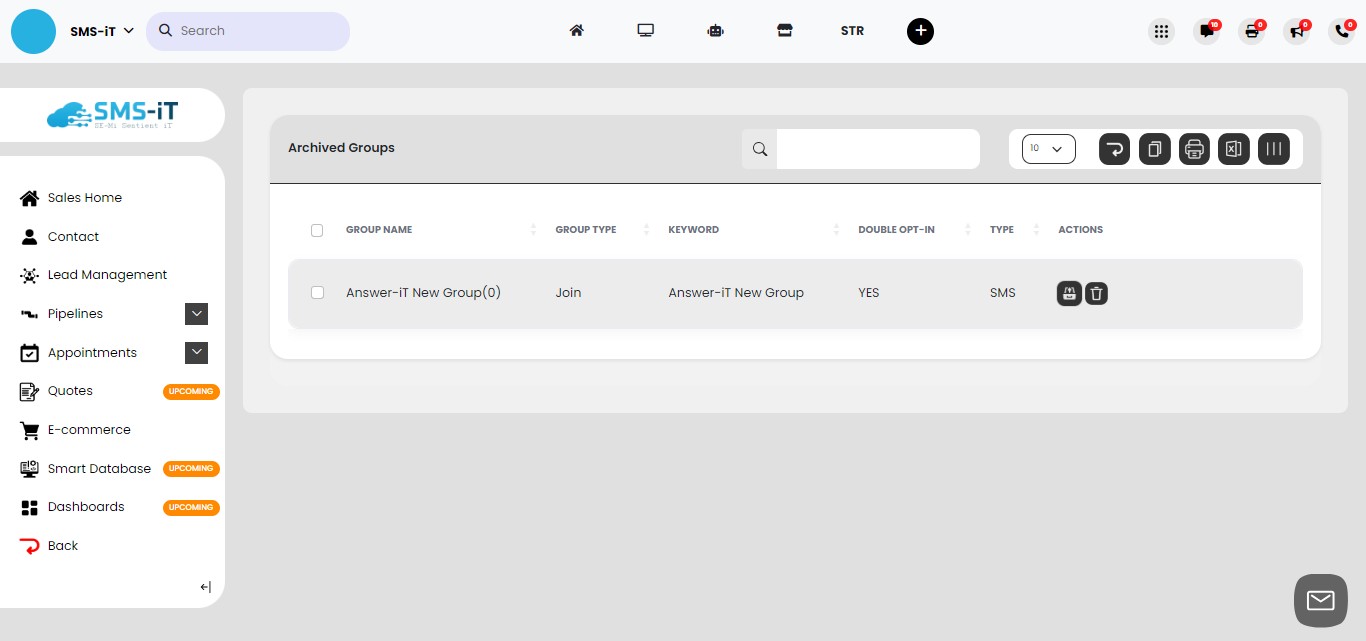
In the "Manage Archived Groups" section, you can either unarchive a group to make it active again or permanently delete it from the system.
In the next section, we will explore all the available actions within the contact list, providing a comprehensive overview of the features and functionalities designed to enhance your contact management experience.
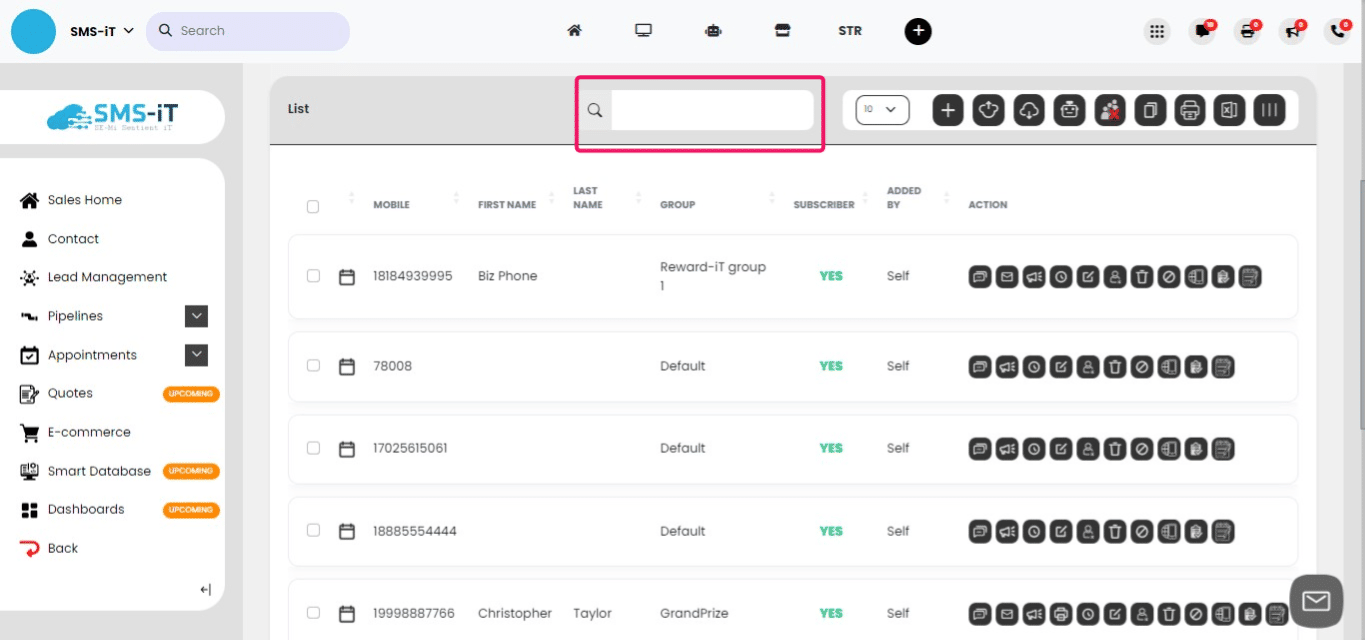
Search Bar
The search bar in the Contact Section is highly responsive. You can input a phone number, name, or group, and the system will display relevant results after just two digits or letters are entered. Use this feature to quickly find specific contacts.
Add a contact
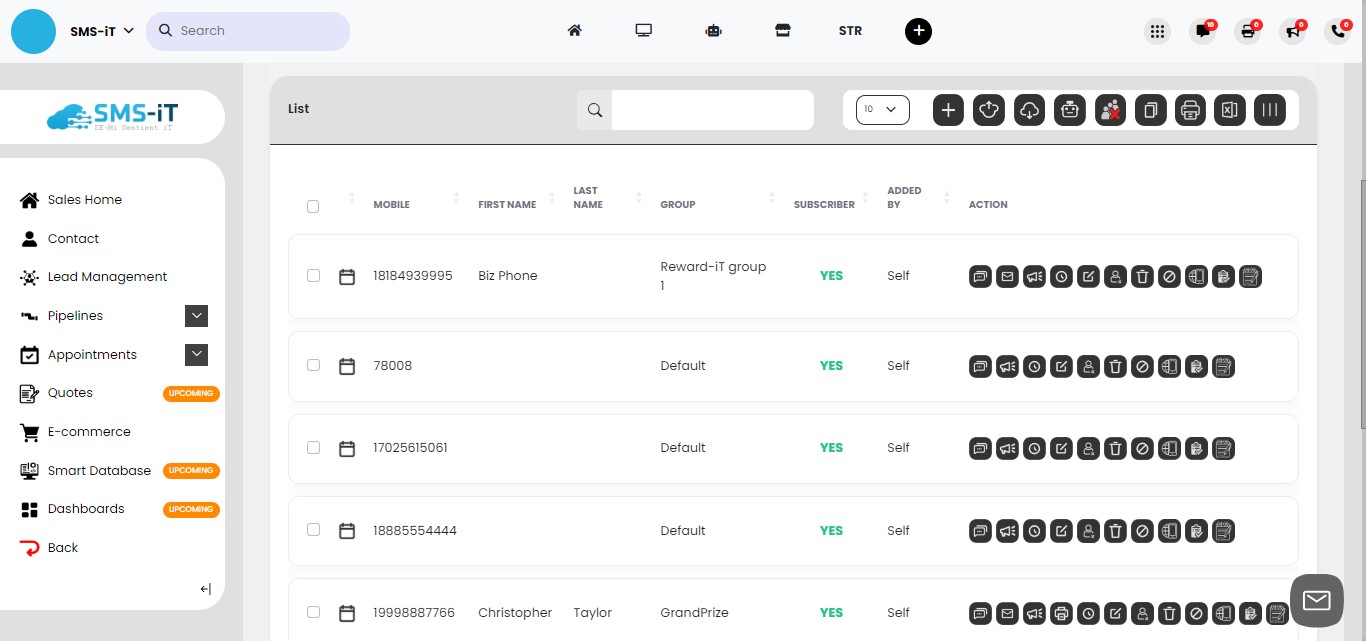
To add a new contact, click on the "+" sign. For an in-depth tutorial on adding a contact, please see the provided link. https://training.smsit.ai/guides/3ea3f3d3-c45e-4ecc-bffe-586c84845124
Upload contacts
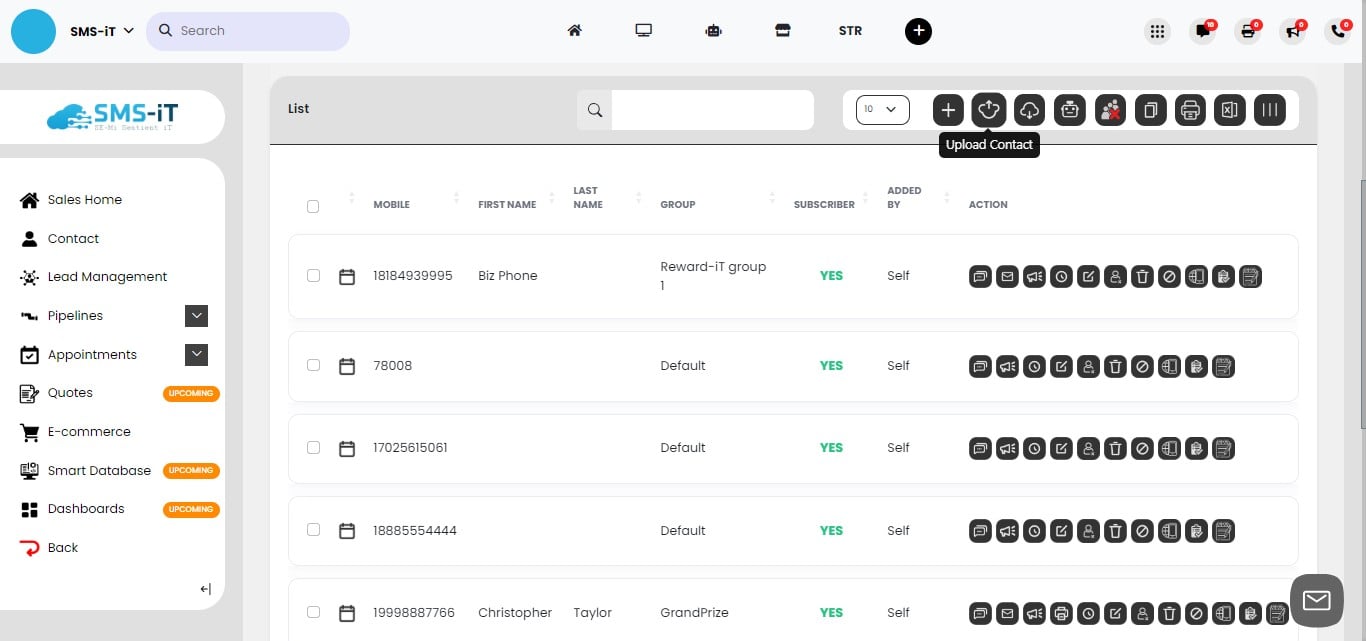
To upload multiple contacts at once, click on the "Upload Contact" button.
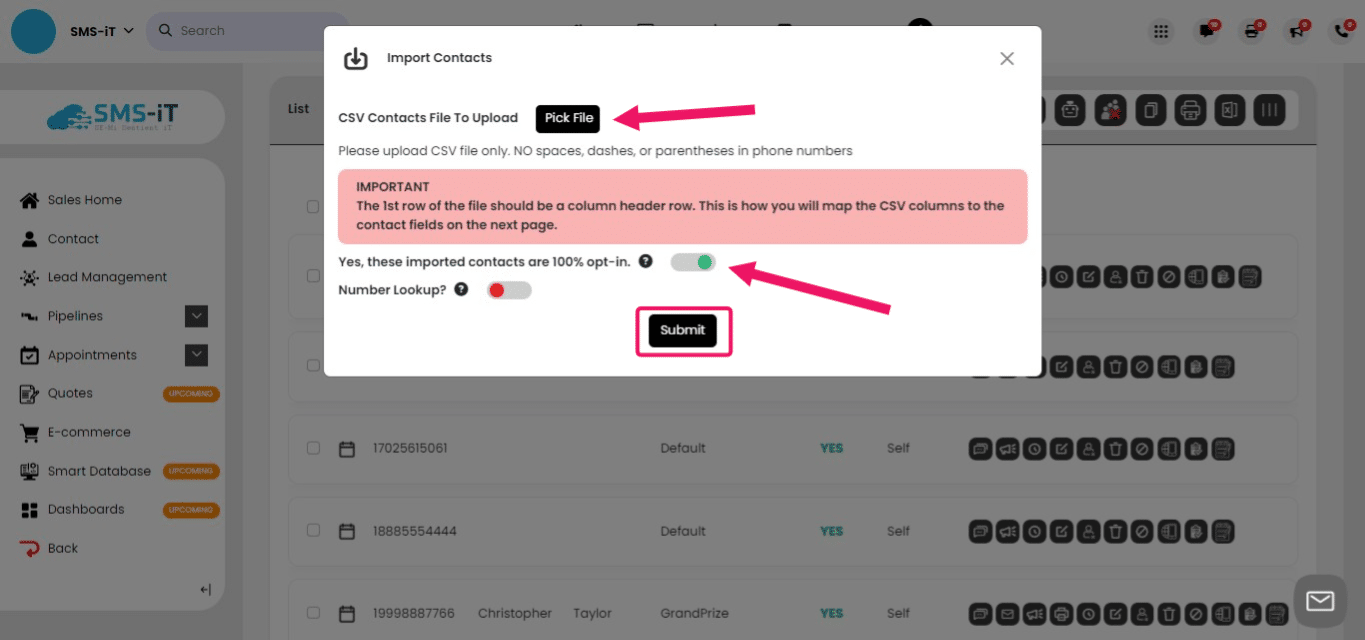
In the "Upload Contact" section, click on "Pick File" and select a CSV file containing your contacts. After uploading, you'll be able to map your contacts' fields to the Add Contact page. Once mapped, click "Submit." Note: You must toggle on "Yes, these imported contacts are 100% opted in."
Export contacts
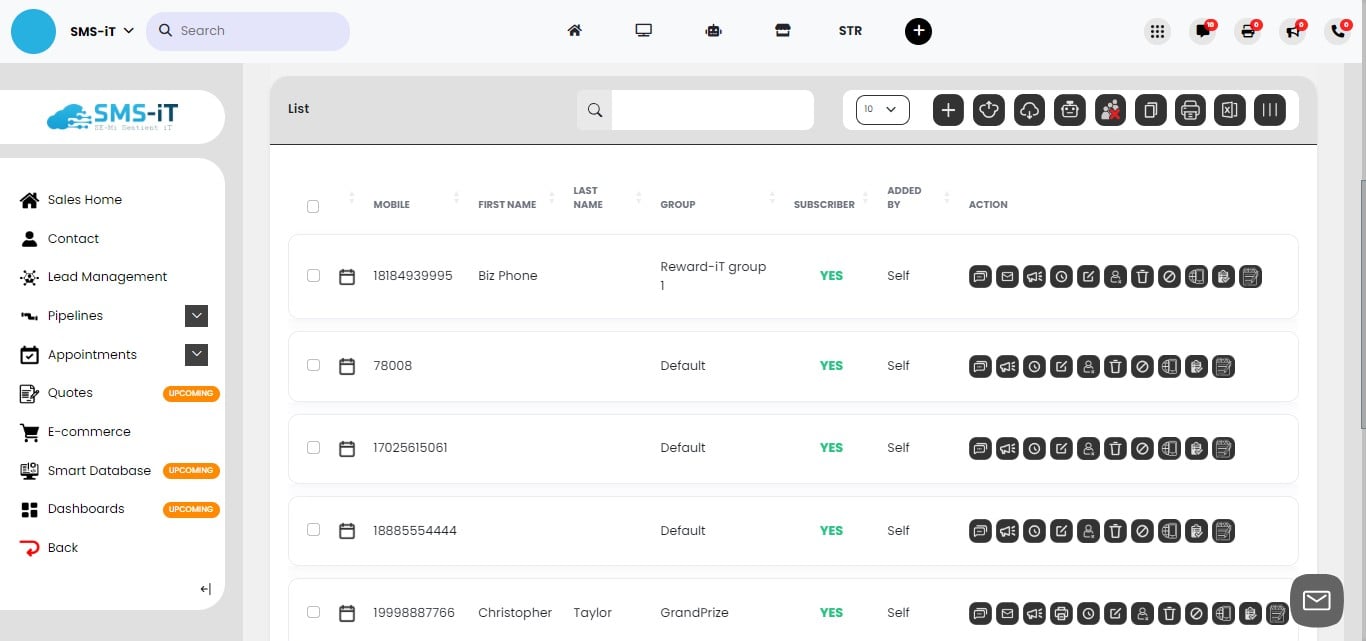
To export your contacts, click on the "Export Contacts" button. This will download a CSV file containing your contacts' information to your local hard drive.
Delete all
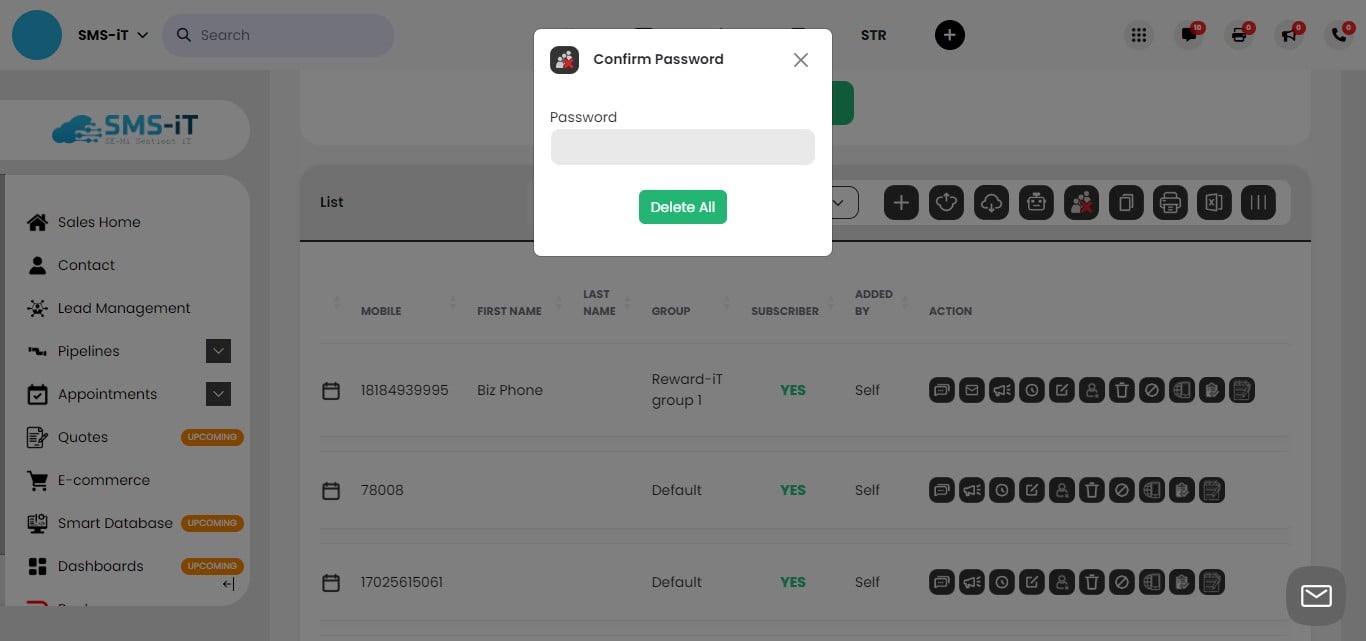
The "Delete All" button will permanently remove all contacts from your system.
As a safety measure, the "Delete All" action is password-protected. To proceed with deleting all contacts, enter your password and click on the "Delete All" button.
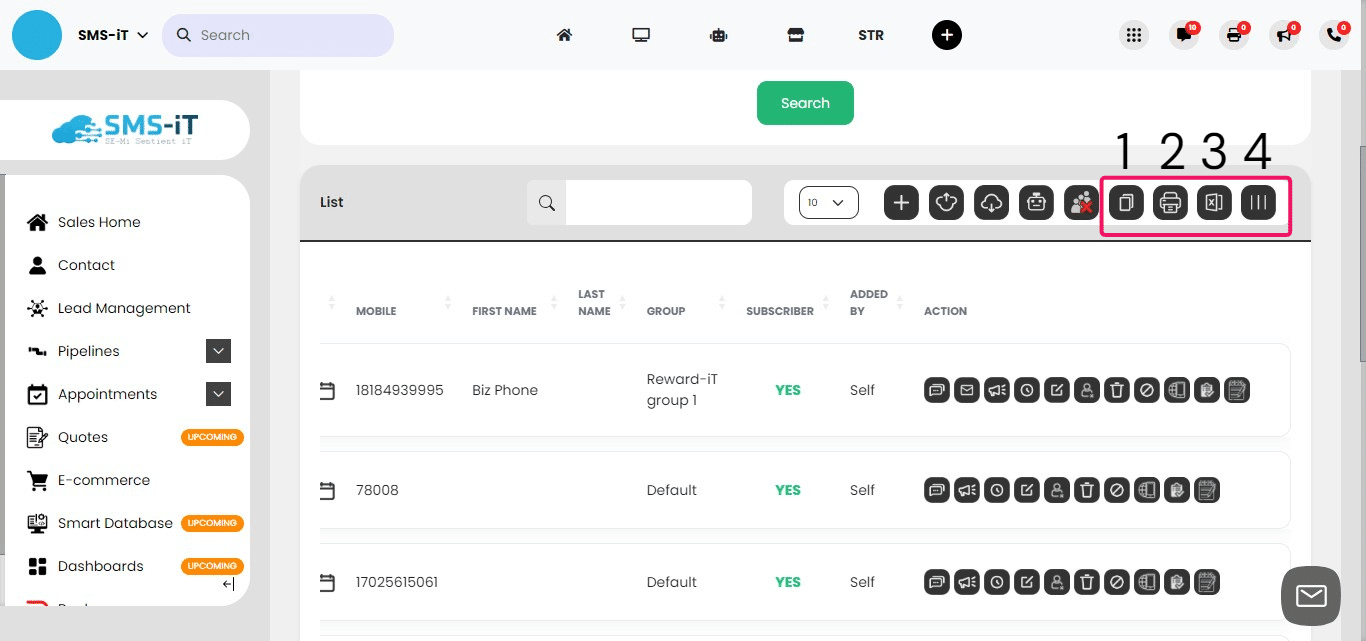
Copy, Print, Download, Columns
1. Copy selected contacts to the clipboard 2. Print selected contacts 3. Download only the columns currently shown 4. Add or remove columns from the view
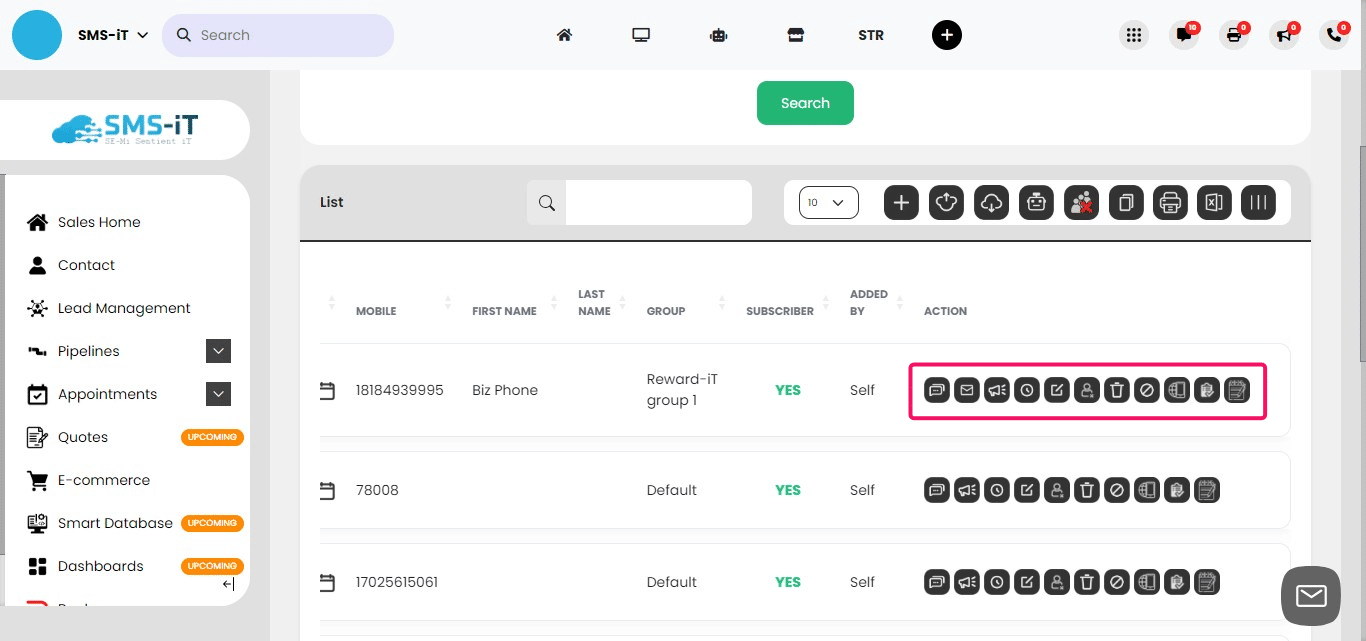
Individual Contact Actions
This section focuses on the various actions you can perform for each contact within your SMS-iT Contact Section. These actions are designed to streamline your communication and management processes, enabling you to efficiently engage with and maintain accurate information for your individual contacts.
In this section, we will review the action buttons available for individual contacts.
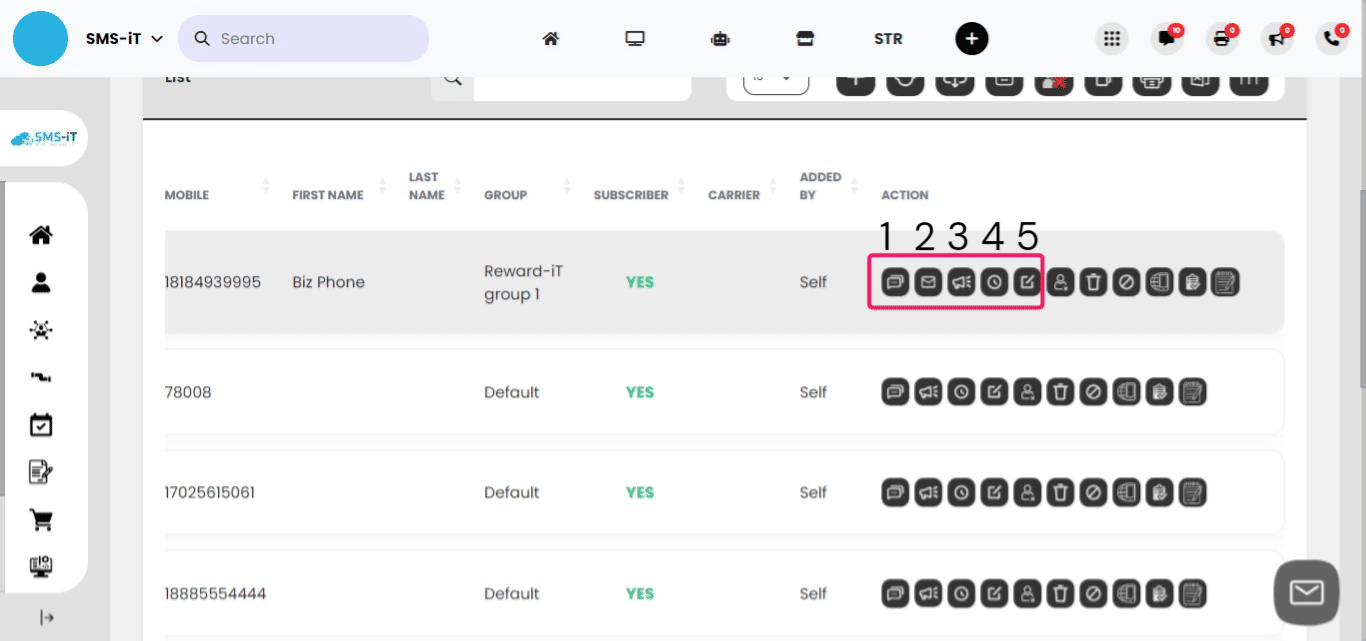
1. Send a text message to the contact 2. Send an email to the contact 3. Send a voice message to the contact 4. View the customer's timeline 5. Edit the customer's contact information
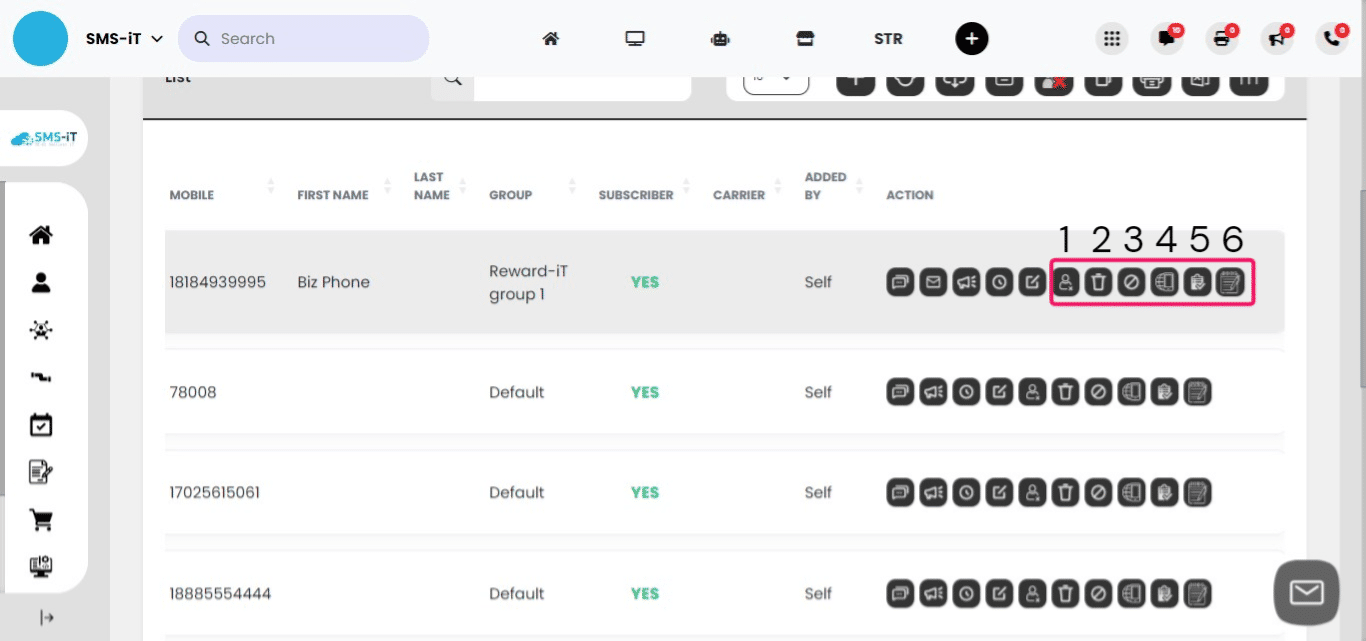
Additional action buttons for individual contacts include:
1. Unsubscribe a contact from communications 2. Delete a contact from the system 3. Delete the chat history with a contact 4. Perform a number lookup (verify the number and show the carrier) 5. Create a task related to the customer 6. Access the notepad for the contact
SMS-iT's Contact Section is a powerful and user-friendly tool that streamlines contact management for businesses of all sizes. By leveraging the platform's intuitive features, such as group management, responsive search, and individual contact actions, you can efficiently organize and engage with your customers. The Contact Section's ability to create targeted campaigns and guide customers along their unique journeys makes it an invaluable asset for customer acquisition and retention. Invest in SMS-iT today and take your contact management to the next level!