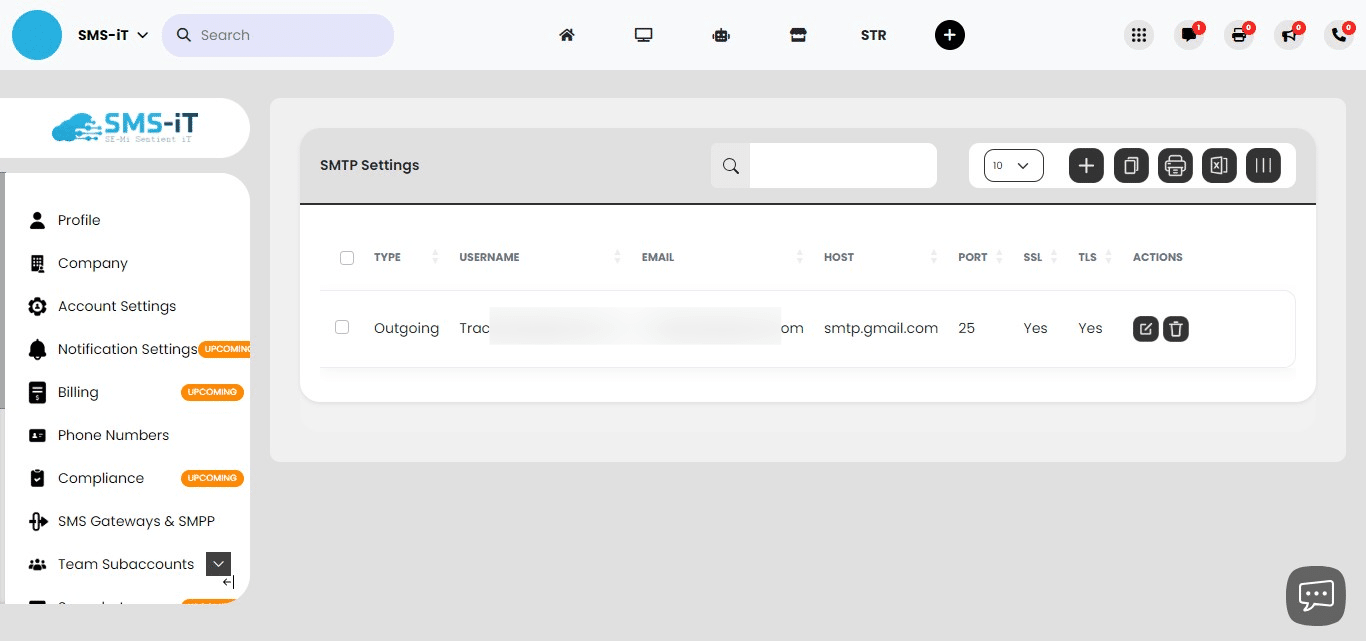

8. SMTP
Navigate to https://aicpanel.smsit.ai/home
The SMS-iT CRM platform's email integration feature offers significant benefits for marketing agencies, small businesses, solo entrepreneurs, and professionals. Users can streamline their workflow, improve client management, and enhance overall productivity by centralizing email communication within the CRM system. This integration allows for more efficient tracking of client interactions, personalized communication, and better organization of business correspondence, ultimately leading to improved customer relationships and business growth.
C
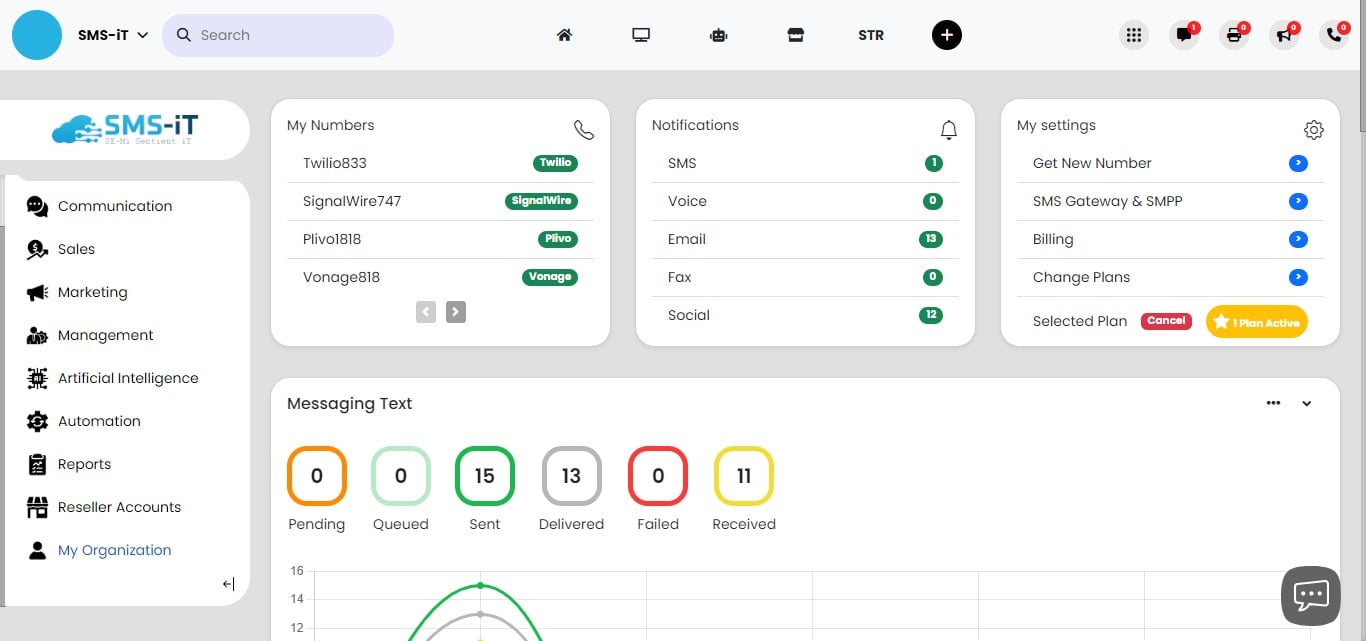
Click on "My Organization"

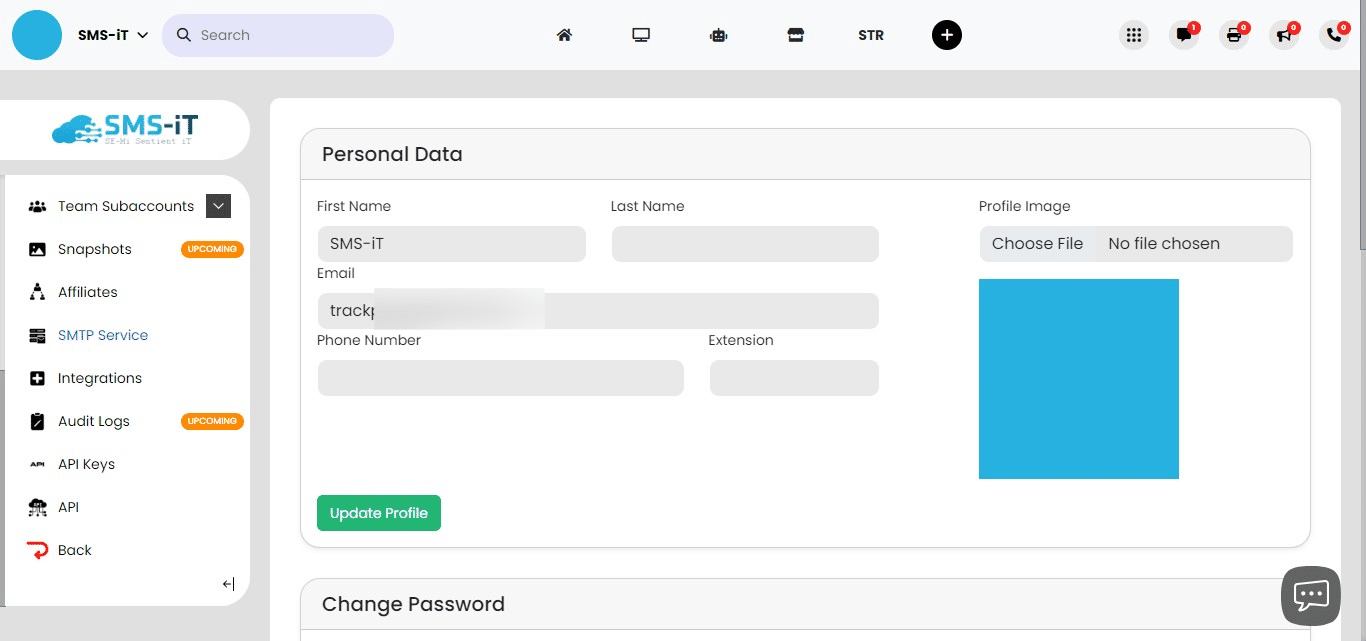
Click on "SMTP Service"
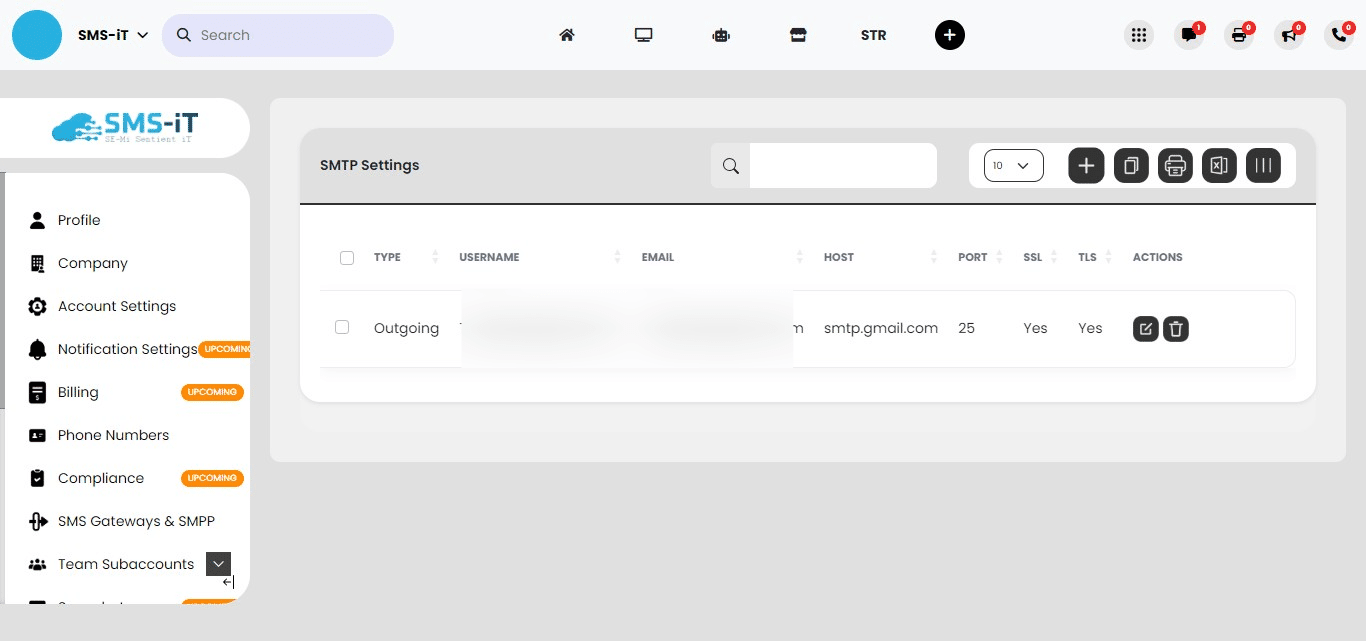
Click the "+" to add your SMTP credentials
Enter your credentials for incoming SMTP:
If you're adding a Gmail account, please refer to our separate guide at: https://training.smsit.ai/guides/97dae1d2-49aa-4504-9dbf-ba5b6e3bc028. For other email providers, input the required information as prompted.
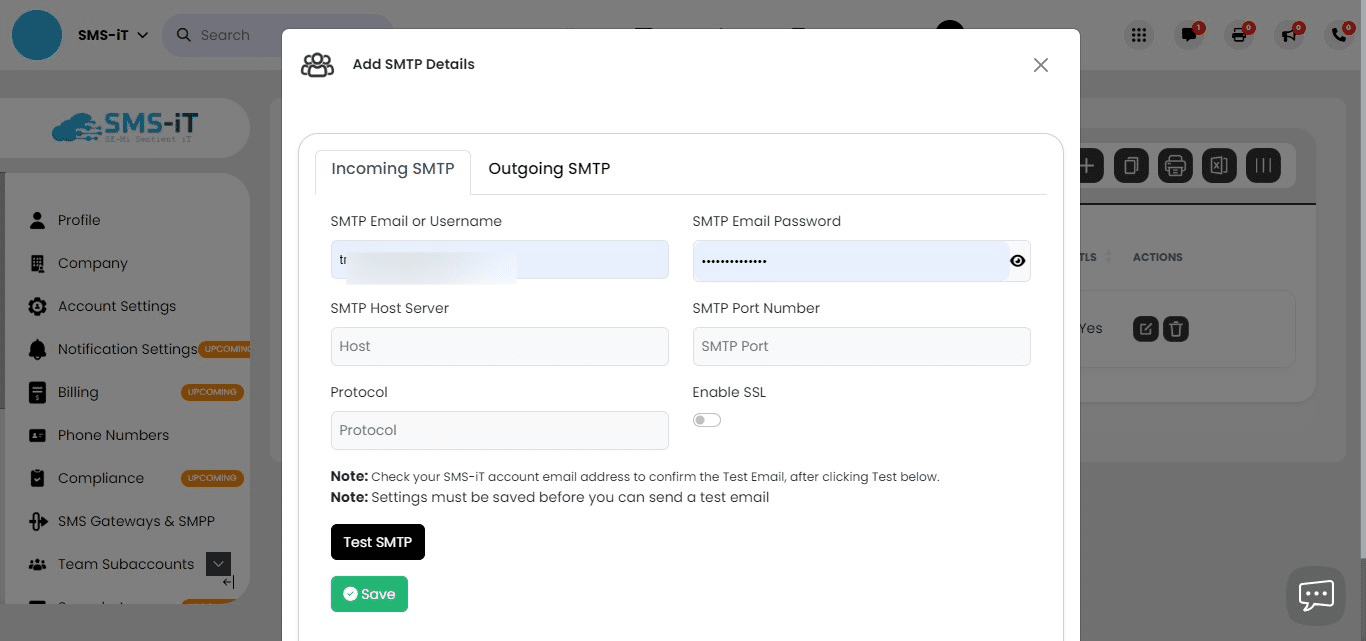
After configuring incoming SMTP, click on the "Outgoing SMTP" tab to set up your outgoing email settings.
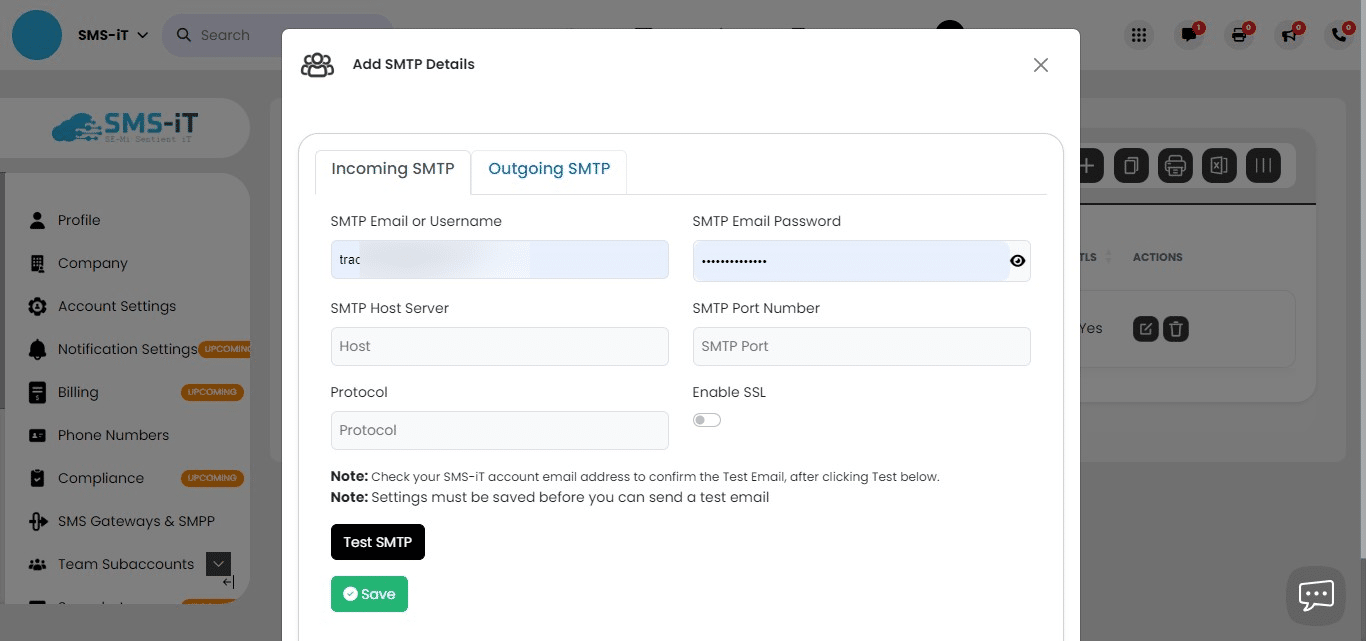
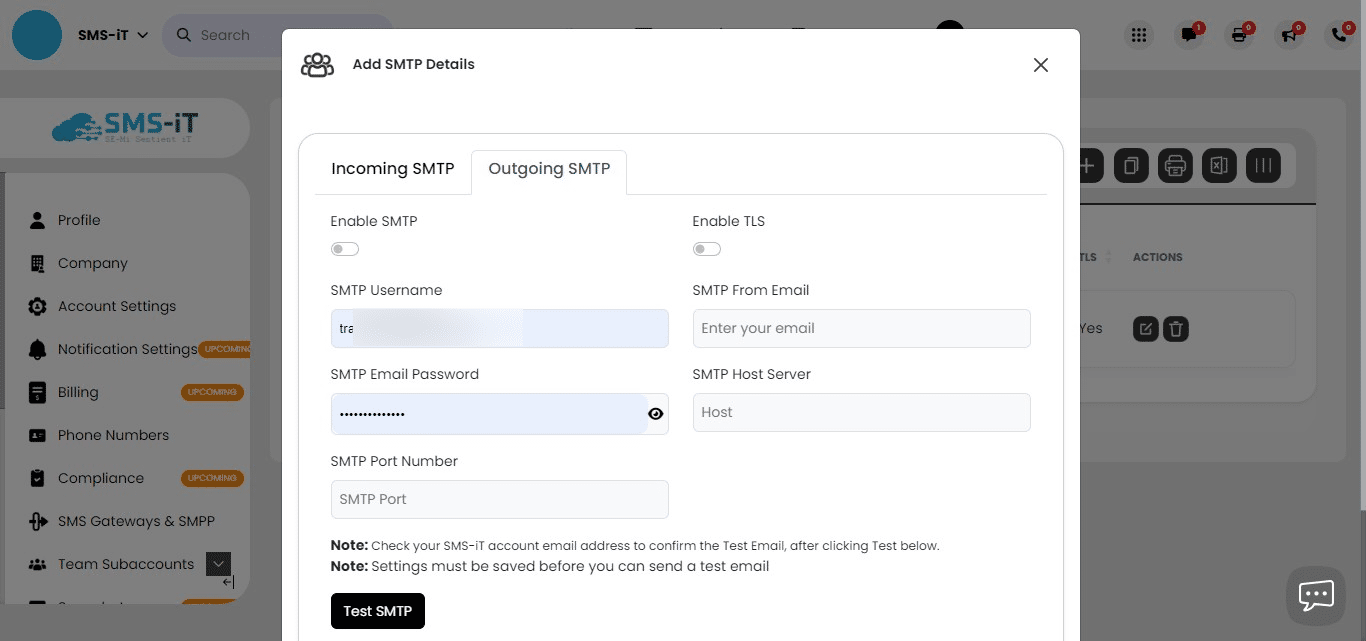
** Enter your credentials for outgoing emails:**
Provide the necessary information such as server address, port, username, and password. Ensure all details are accurate to enable proper email functionality.
After entering all required information:
Click "Save" to store your SMTP settings. Click "Test SMTP" to verify your configuration. If successful, you will receive a test email confirming correct setup.
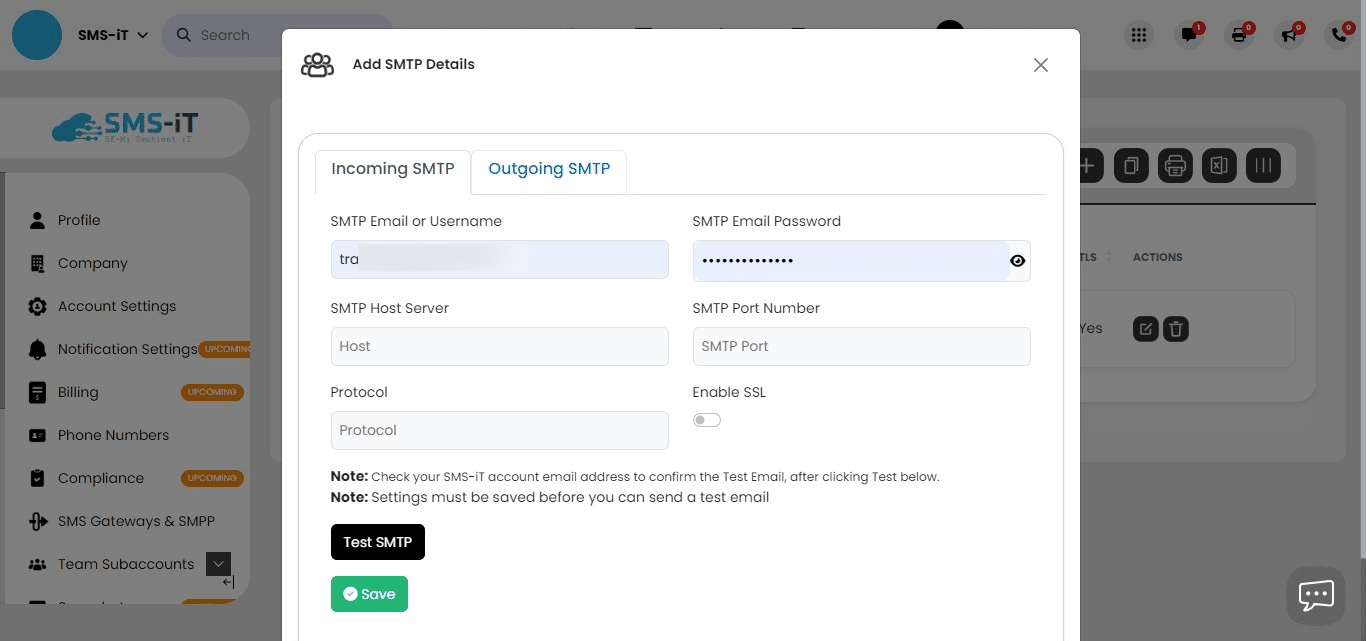
Congratulations! You have successfully saved and tested your email account. - Your configured SMTP settings are now ready for use across the SMS-iT CRM system. - You can now send and receive emails directly through the platform.