

1. Profile
Navigate to https://aicpanel.smsit.ai/home
Setting up your profile in SMS-iT CRM is essential for personalizing your account and ensuring efficient communication within the platform. Follow these steps to configure your profile settings and optimize your user experience.
Click on "My Organization"
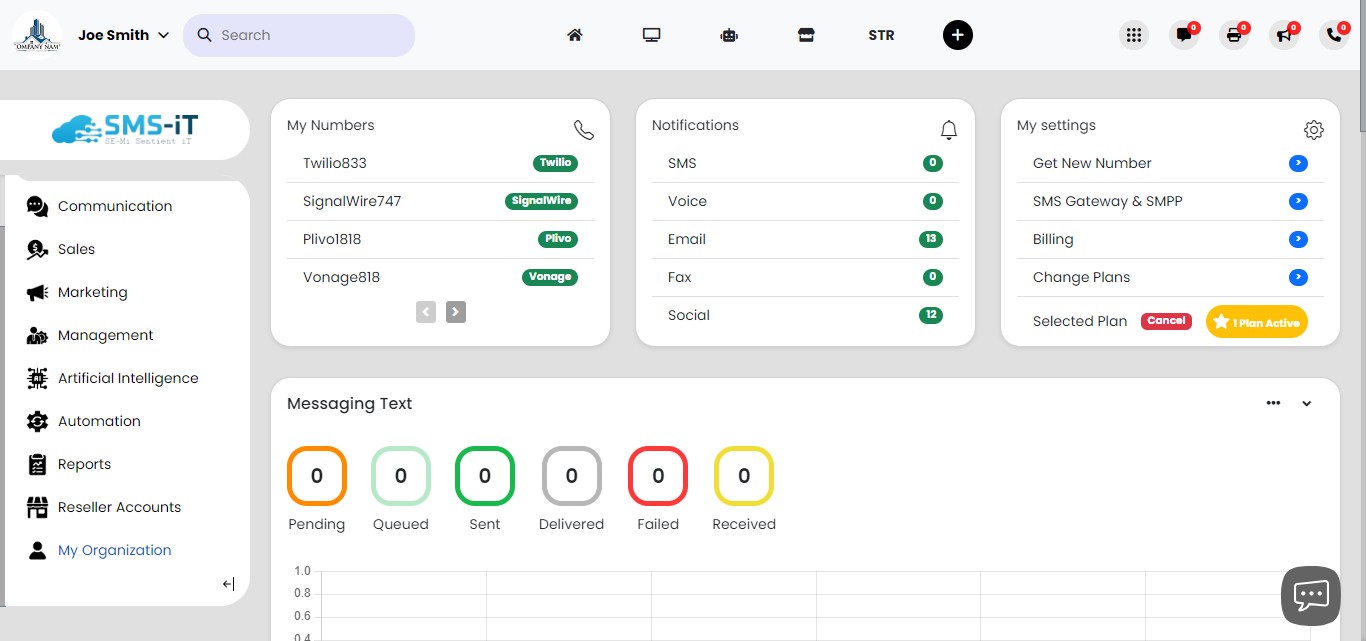

Configuring Personal Data: 1. Enter your First Name and Last Name. 2. Upload a Profile Image by clicking on the image placeholder and selecting a file. 3. Provide your Email address and Phone Number. 4. If applicable, enter your Extension. 5. Your profile image, first name, and last name will appear in the upper-left corner of the CRM interface. Click "Save Profile" or "Update Profile" to save your information.

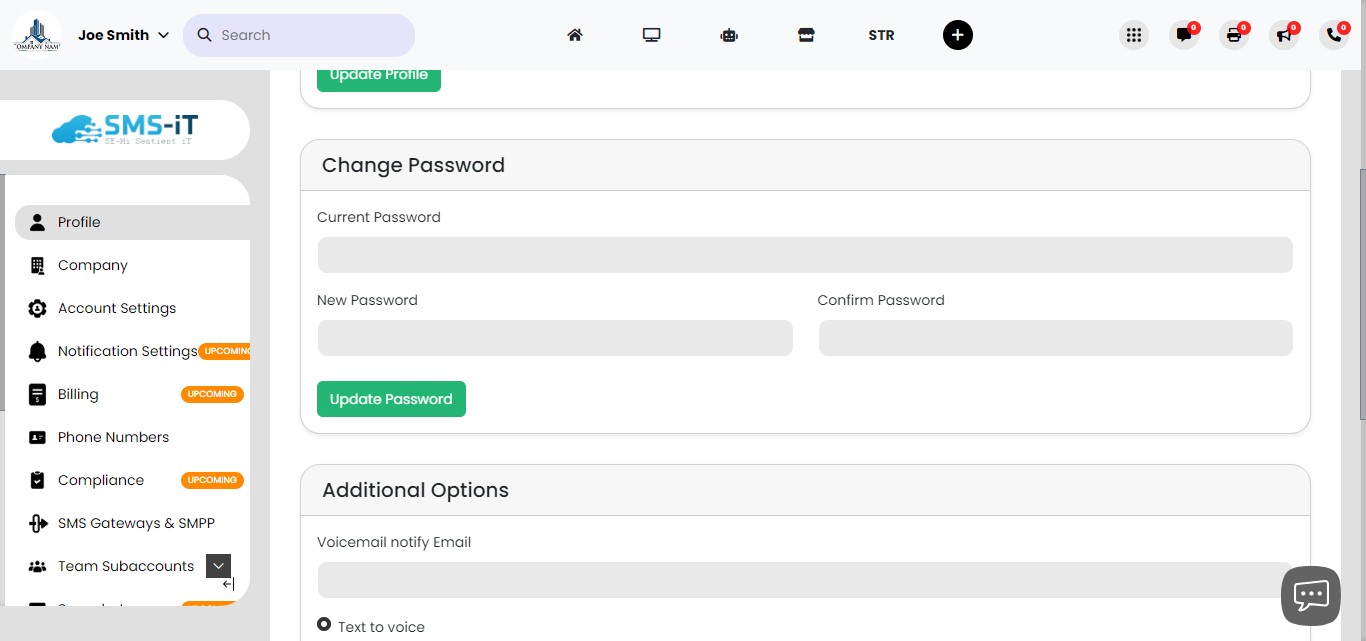
Changing Your Password: 1. Enter your current password in the designated field. 2. Type your new password in the "New Password" field. 3. Re-enter the new password in the "Confirm Password" field. 4. Click "Save" or "Update" to confirm the password change.
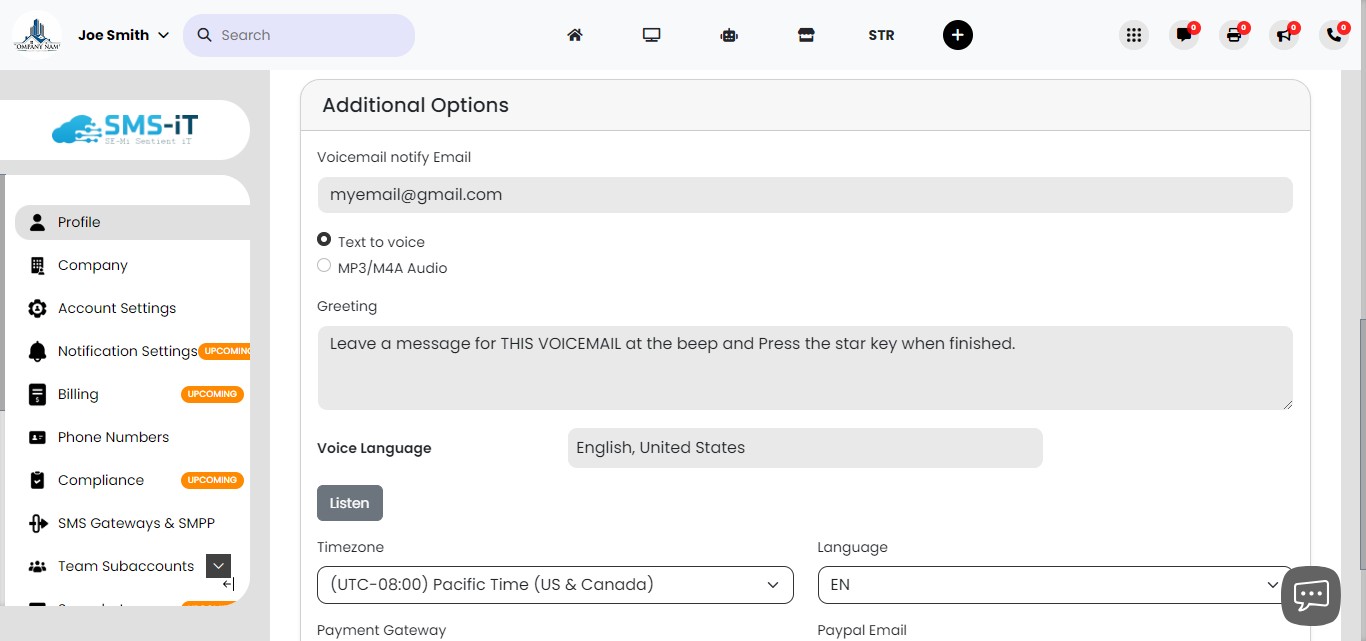
Setting Up Voicemail and Notifications: In the "Additional Options" section, set up your voicemail greeting: Use text-to-voice by typing your greeting. Upload an audio file of your recorded greeting. To receive email notifications for new voicemails: Enter your email address in the "Voicemail notify Email" field.
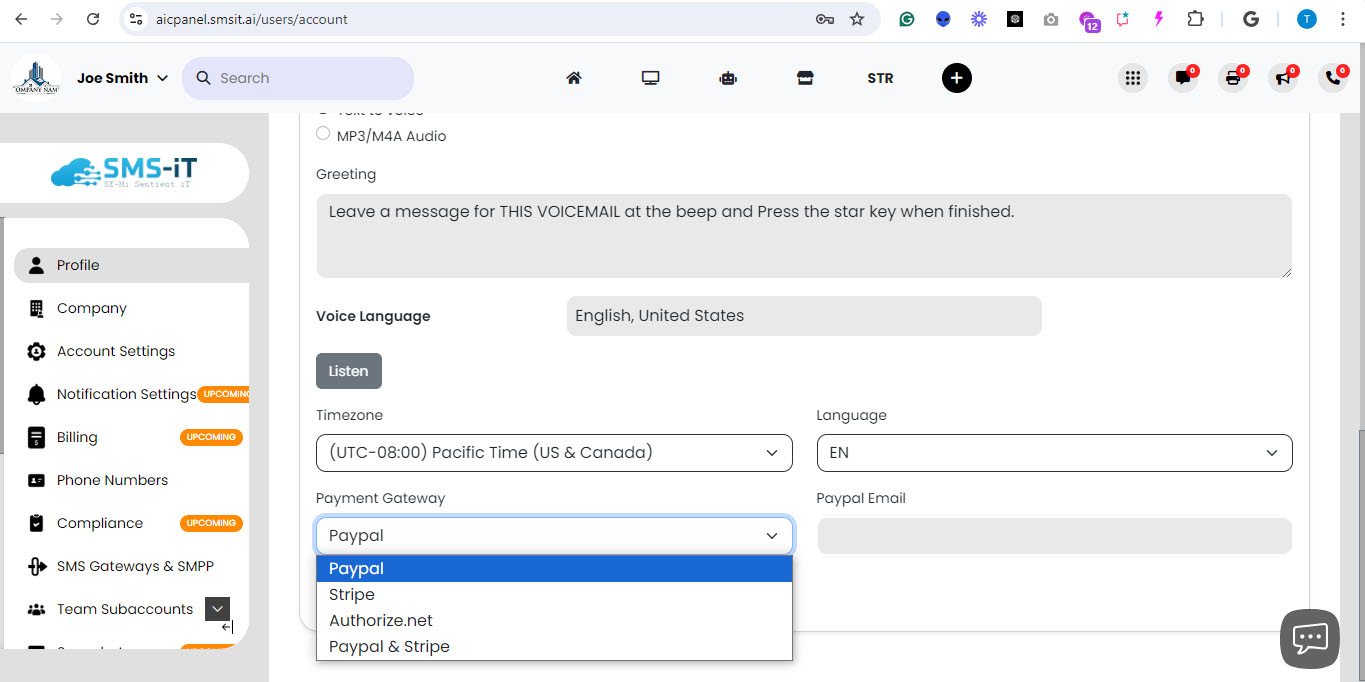
Configuring Payment Gateways:
Choose your preferred payment gateway(s) for client transactions: - PayPal - Stripe - Authorize.net - Both PayPal and Stripe
Select the desired gateway(s) from the pulldown menu. Enter the necessary credentials for each selected gateway. Save your payment gateway settings.
The Profile section of SMS-iT CRM allows users to personalize their accounts, enhance security, and streamline communication and payment processes. For solo entrepreneurs, marketing agencies, small businesses, and professionals like doctors and lawyers, setting up a complete profile ensures efficient client interactions, secure transactions, and a professional appearance within the CRM system. Proper configuration of voicemail and payment gateways can significantly improve client service and financial operations.