

6. Team Subaccounts
Navigate to https://aicpanel.smsit.ai/home
Team subaccounts enable you to connect your team members to your main SMS-iT CRM account. As the account owner, you have control over each team member's access and permissions. You can monitor your team's overall performance as well as individual team member performance.
Team subaccounts enable you to connect your team members to your main SMS-iT CRM account. As the account owner, you have control over each team member's access and permissions. You can monitor your team's overall performance as well as individual team member performance.
Additional benefits include: 1. Scalability: Easily add or remove team members as your business grows or changes, allowing for flexible team management. 2. Cost-effectiveness: Collaboration accounts are free and unlimited, helping you manage costs while expanding your team. 3. Customized access: Tailor permissions for each team member based on their role and responsibilities, ensuring they have the right tools for their job. 4. Enhanced security: Control who has access to sensitive information, reducing the risk of data breaches or unauthorized changes. 5. Accountability: Track individual team member performance and activities, promoting responsibility and allowing for targeted training or support. 6. Streamlined collaboration: Team members can work within the same system, improving communication and reducing the need for multiple software platforms. 7. Centralized management: Oversee all team activities from a single dashboard, simplifying administrative tasks and decision-making. 8. Flexibility: Choose between collaboration and standalone accounts to best suit your business structure and needs. 9. Audit trail: Maintain a clear record of user actions, which is crucial for compliance and quality control in professional services. 10. Client management: Use viewer accounts to provide clients with limited access, enhancing transparency and trust in your services.
These additional benefits highlight how team subaccounts can significantly improve efficiency, security, and collaboration for marketing agencies, small businesses, and professional practices using SMS-iT CRM.
Click on "My Organization"
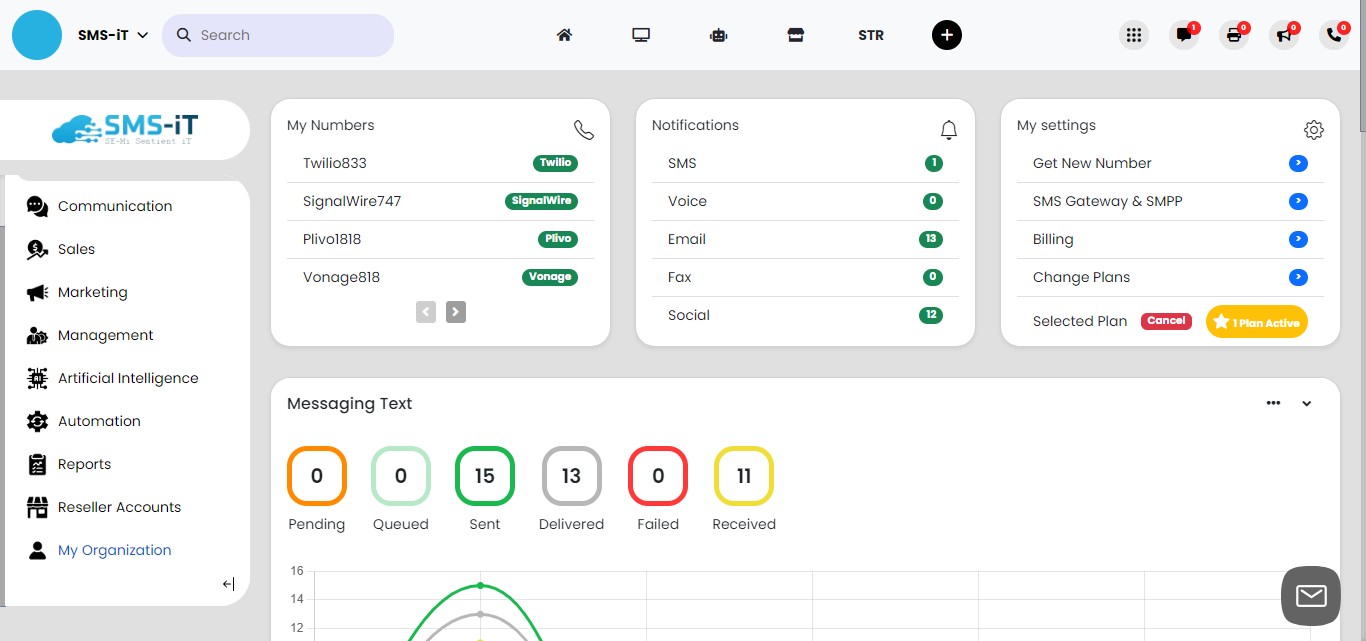

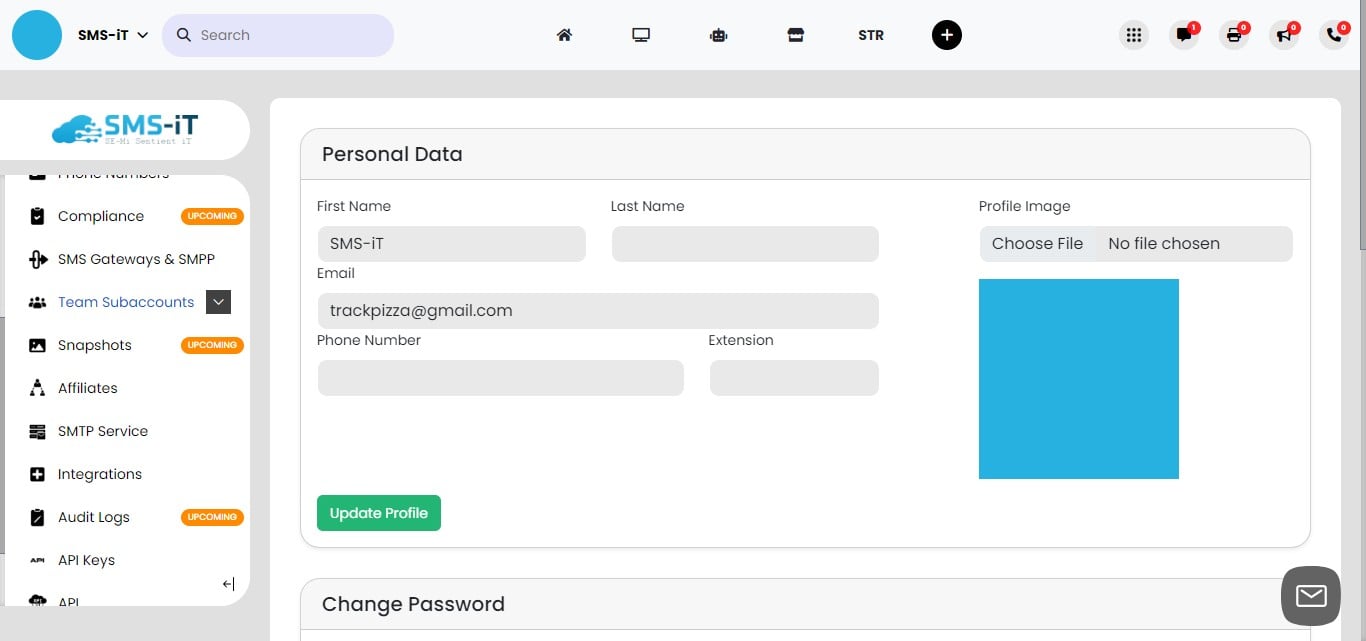
Click on "Team Subaccounts"
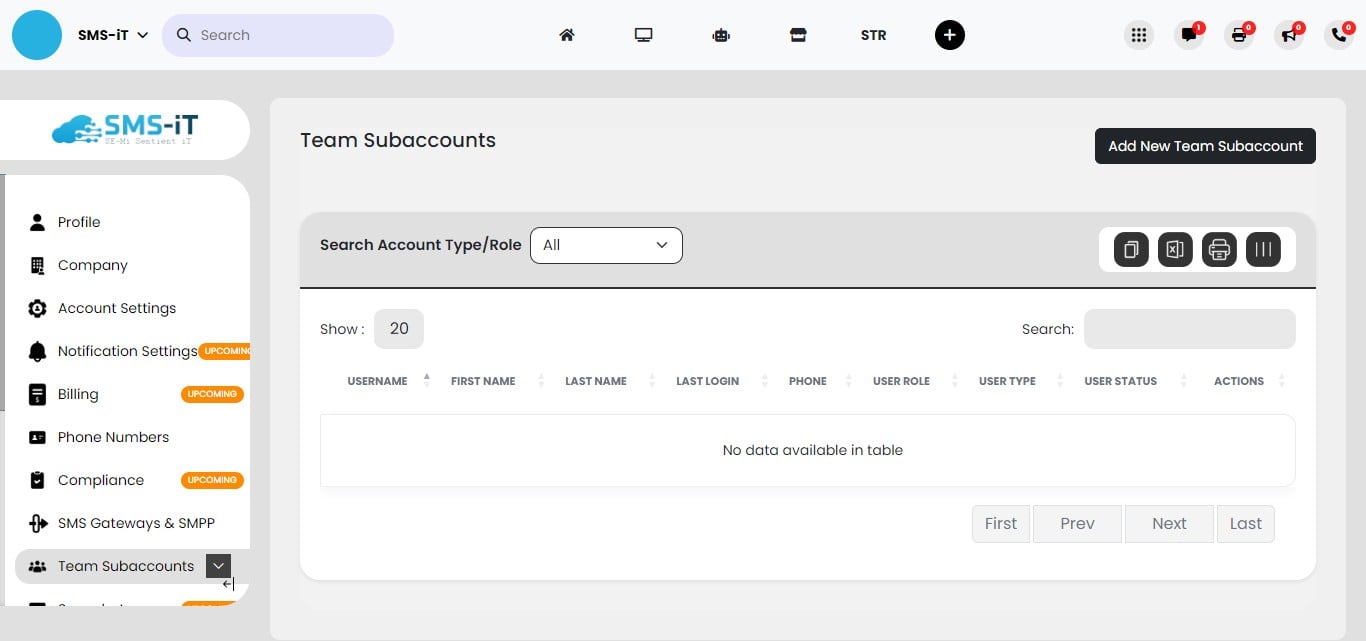
This dashboard displays your team members. Here, you can view, edit, and delete team subaccounts. To create a new team subaccount, follow the steps below.
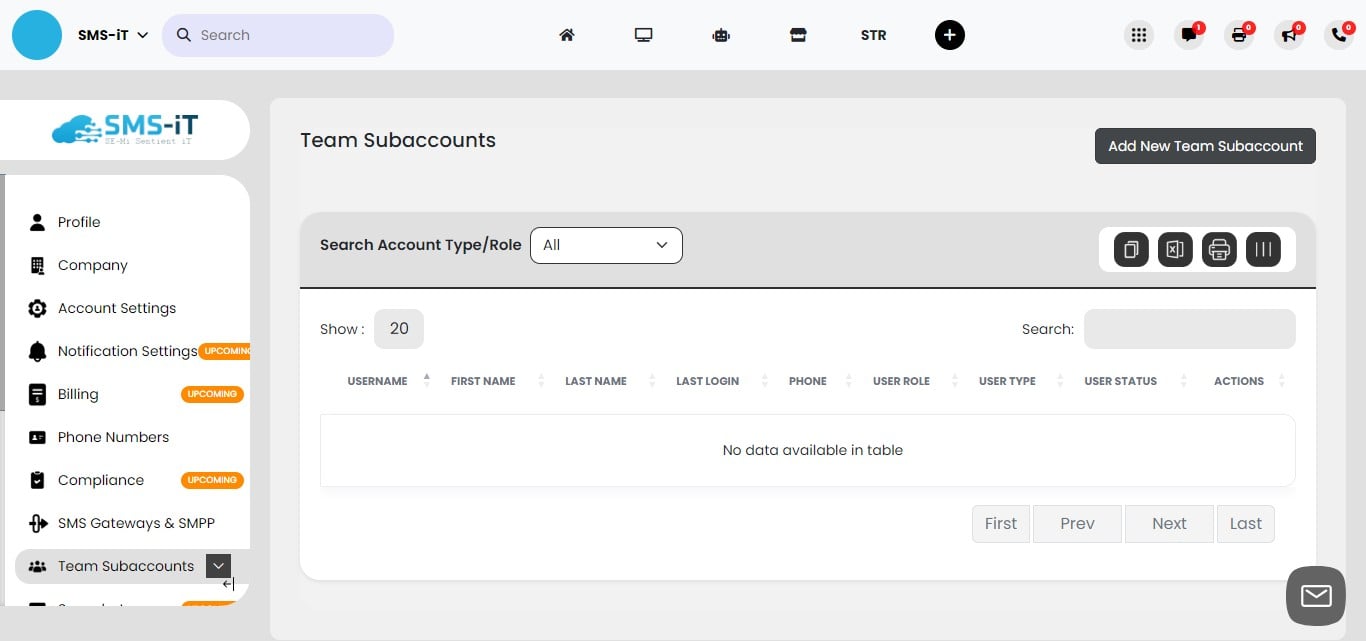
Create a team subaccount
Click on "Add New Team Subaccount"
User info
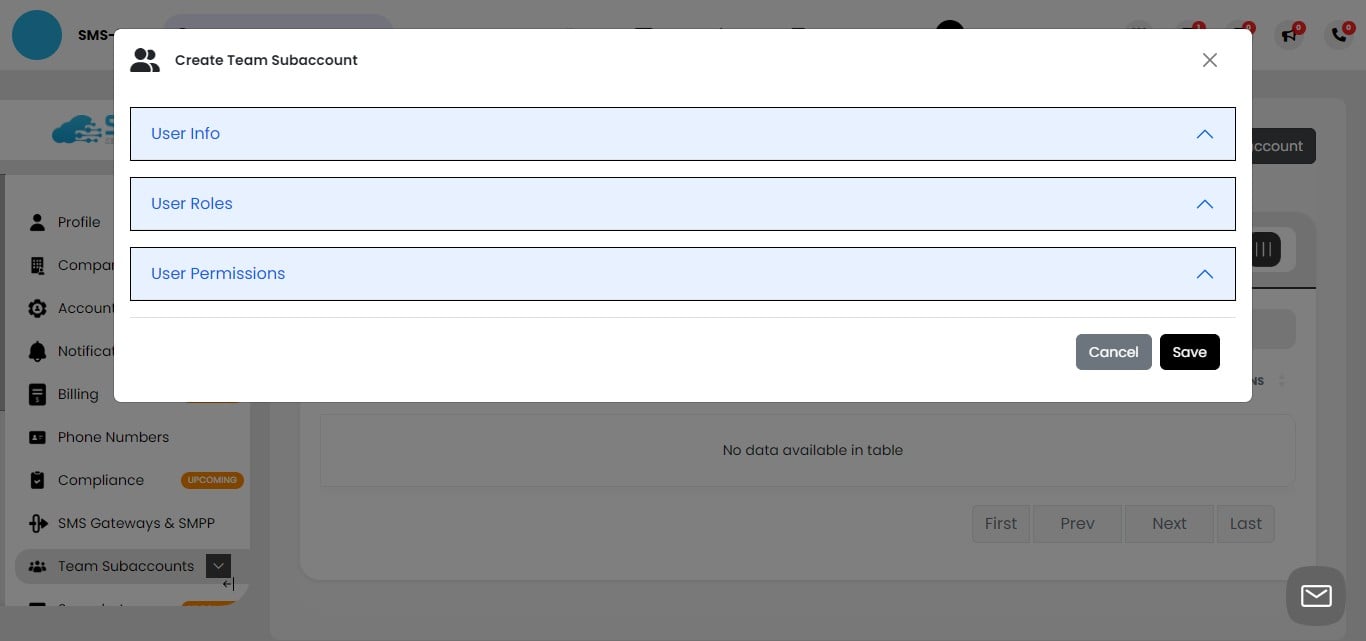
To start creating a team subaccount, click on the "User Info" tab.
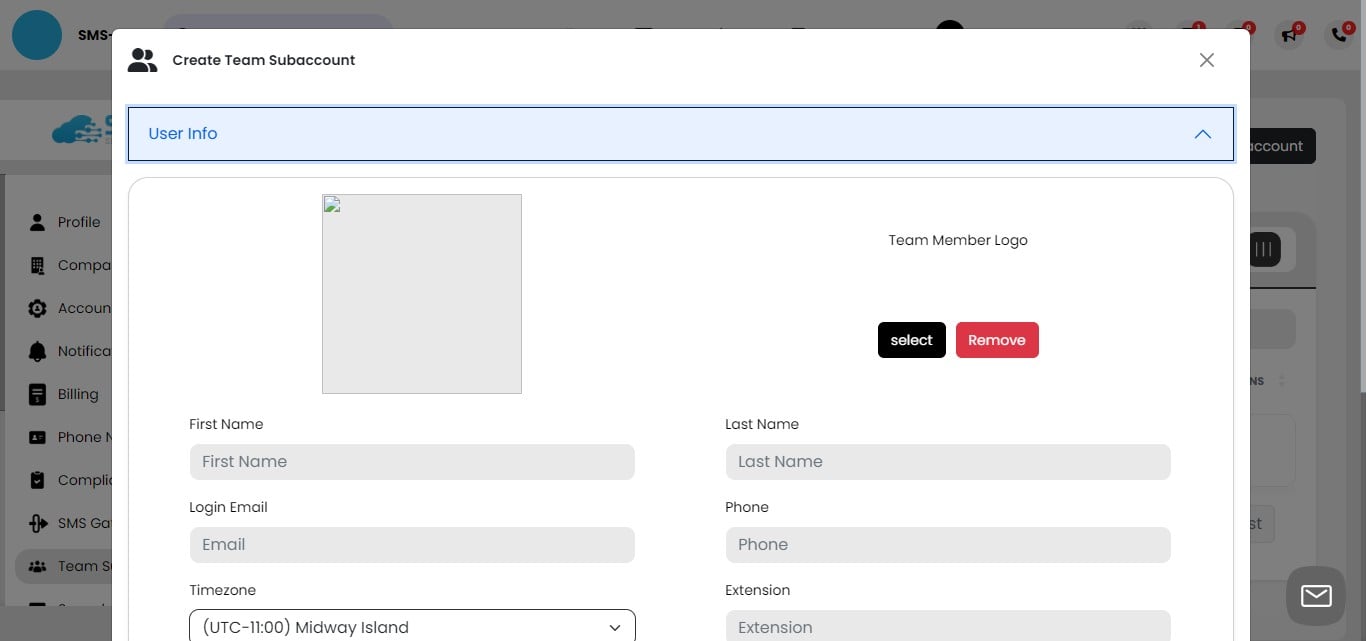
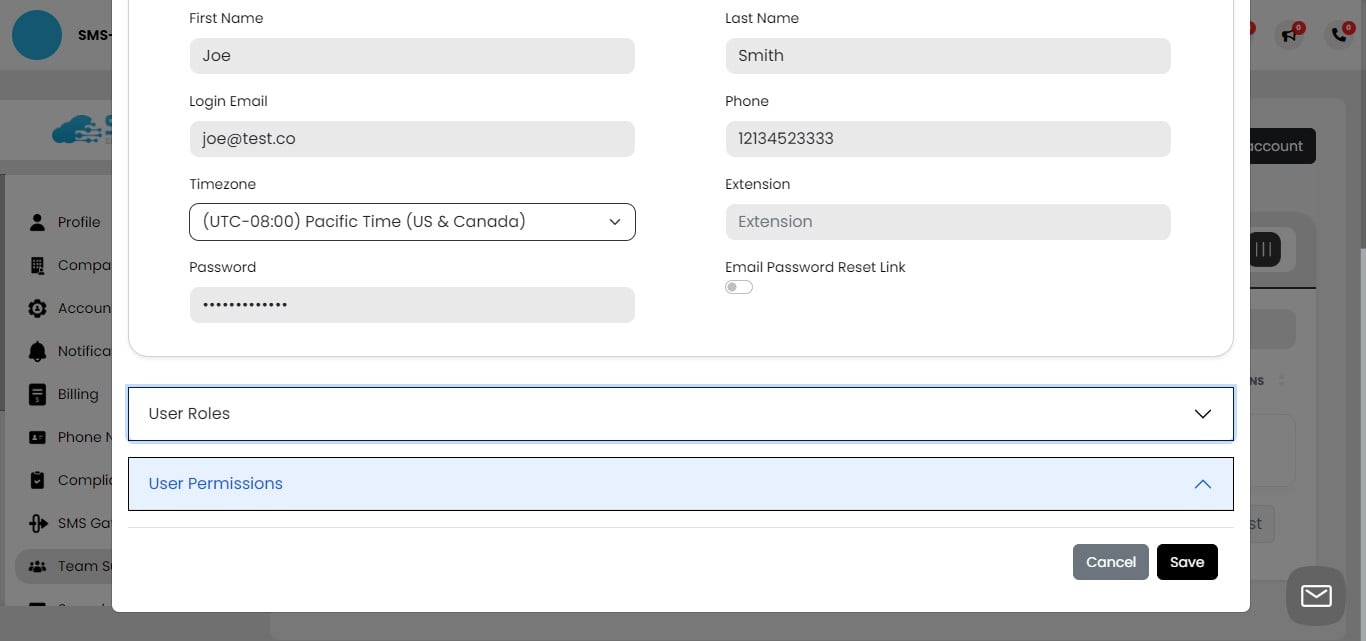
Fill in the required information for the team member, including their name, email, and other relevant details.
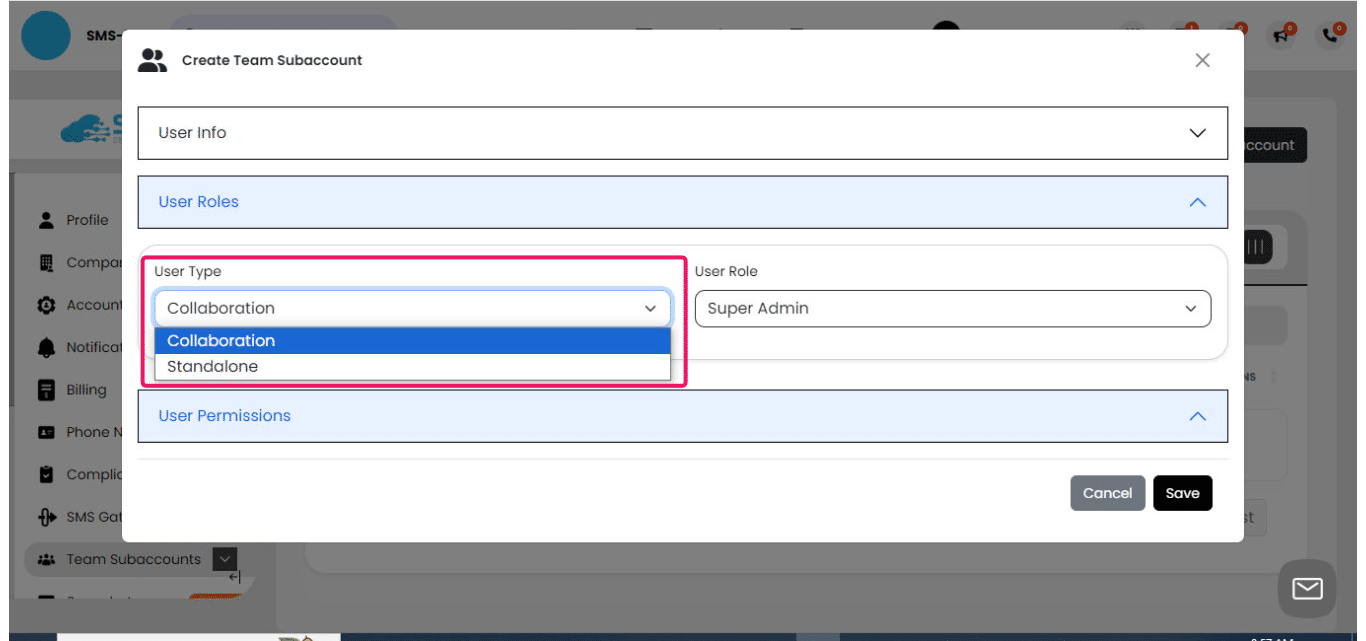
After completing the team member's user information, proceed to the "User Roles" section by clicking on the corresponding tab.
There are two options for user types:
Collaboration: This is for team members who will use the main account. Collaboration accounts are free and unlimited. Standalone: These users need to purchase their own SMS-iT plan. Standalone accounts allow users to have their own gateways, email accounts, and other resources.
Note: Both account types are visible to the main account holder.
User roles define the level of access and permissions for each team member:
Super Admin: Has the same rights as the main account holder. Admin: Can perform most functions but cannot access account payment settings. Editor: Can use the platform as a regular SMS-iT user. Staff: Has limited access to certain features. Viewer: Cannot edit the account; useful for new team member demos or client previews.
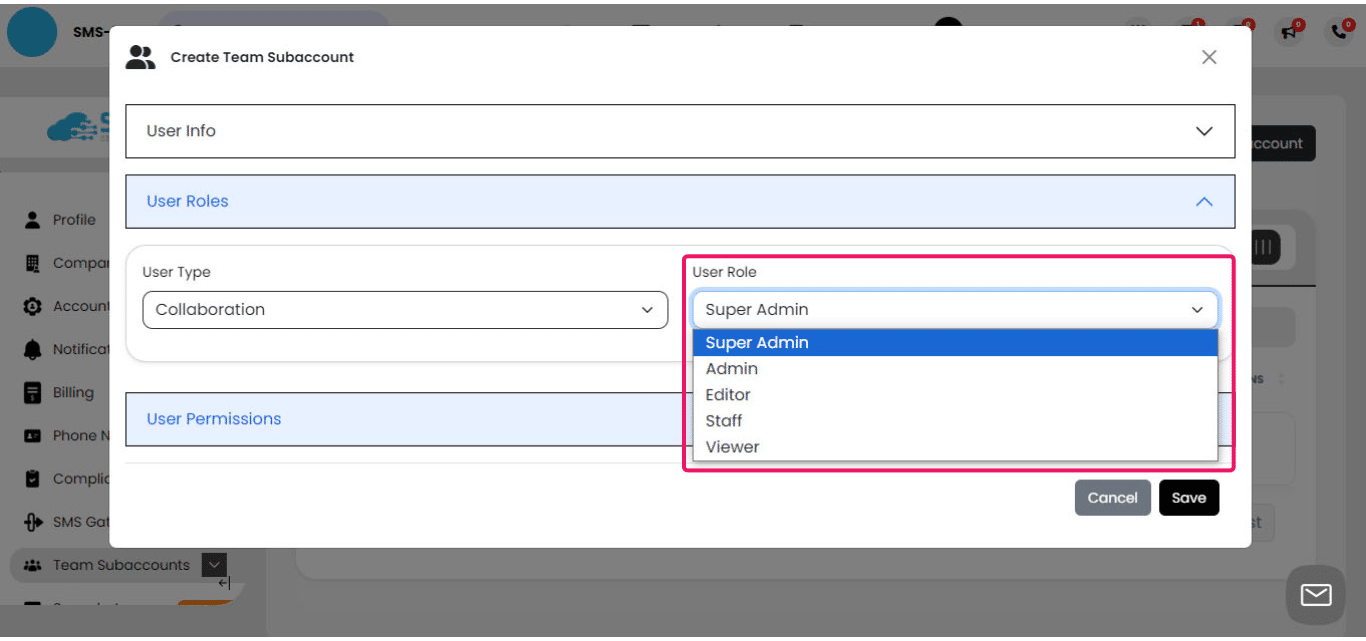
User Permissions
Click on "User Permissions"
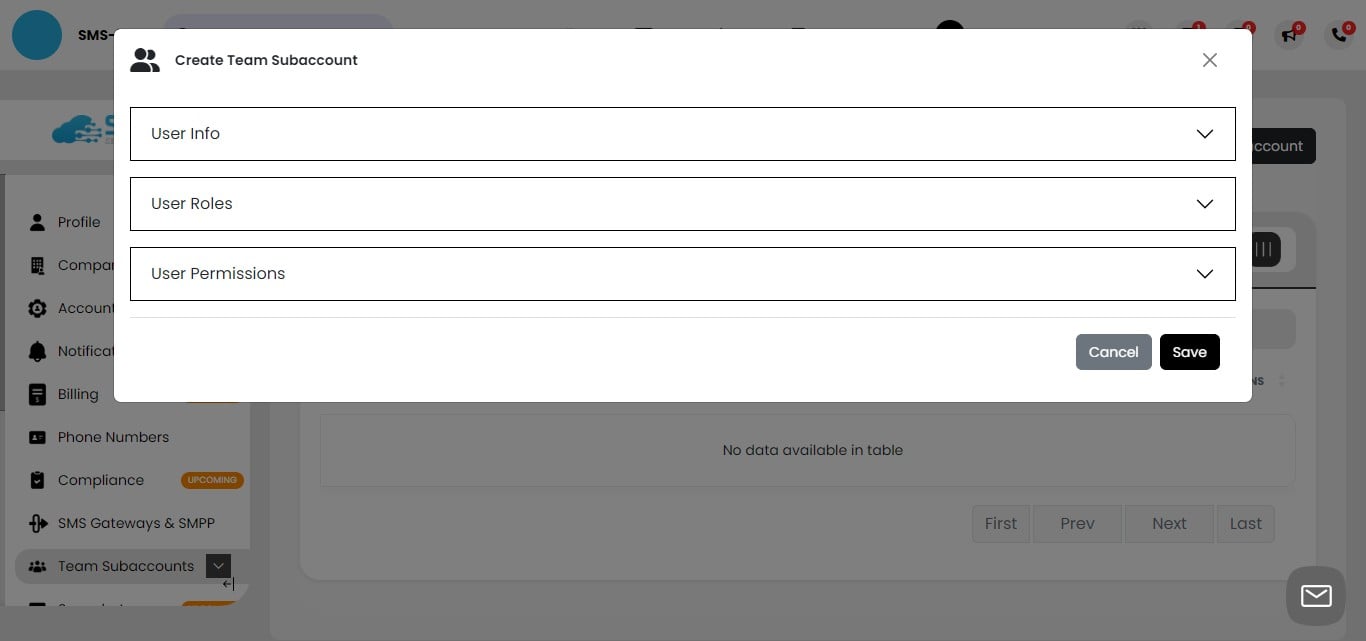
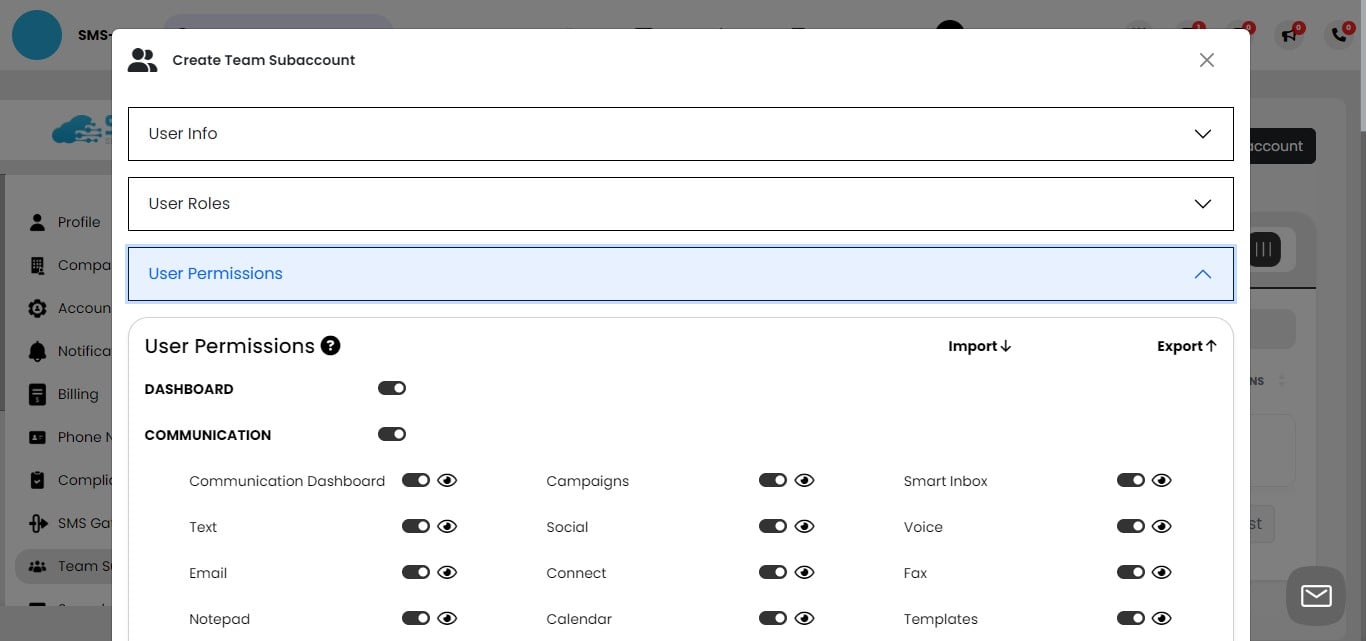
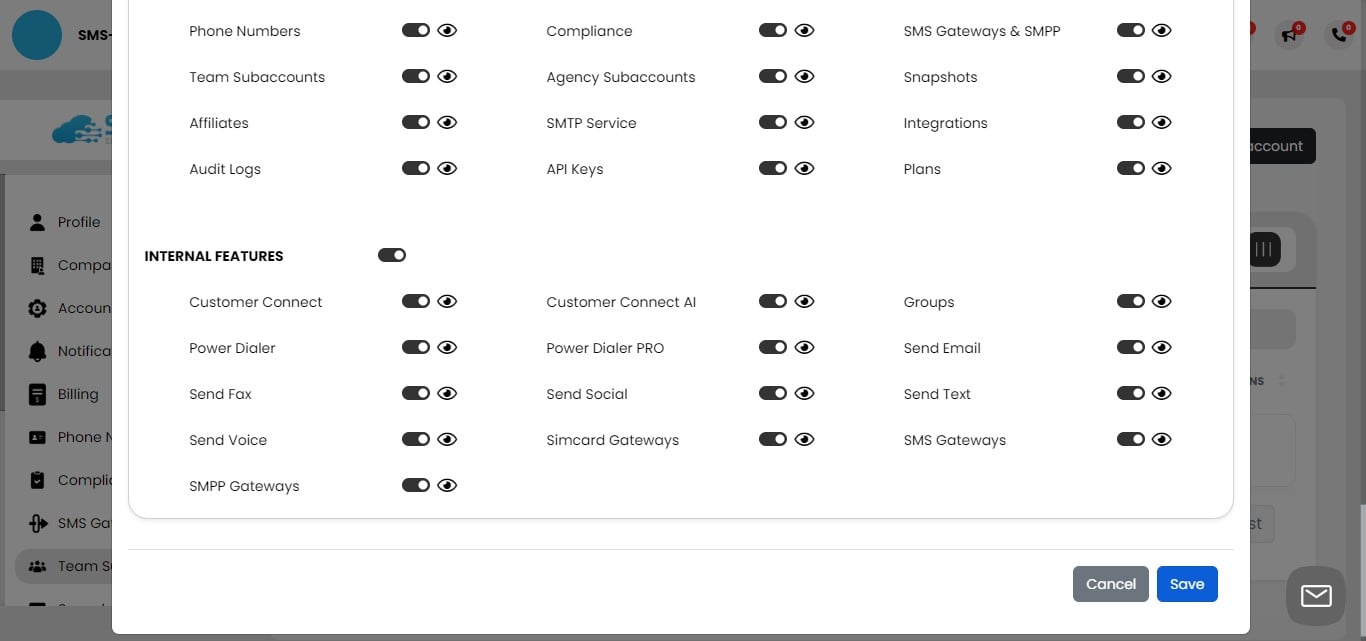
In the User Permissions section, you can customize access for each team member by toggling specific features on or off. For example, if a team member only needs to use bulk texting, you can enable those permissions while disabling access to email and other parts of the system.
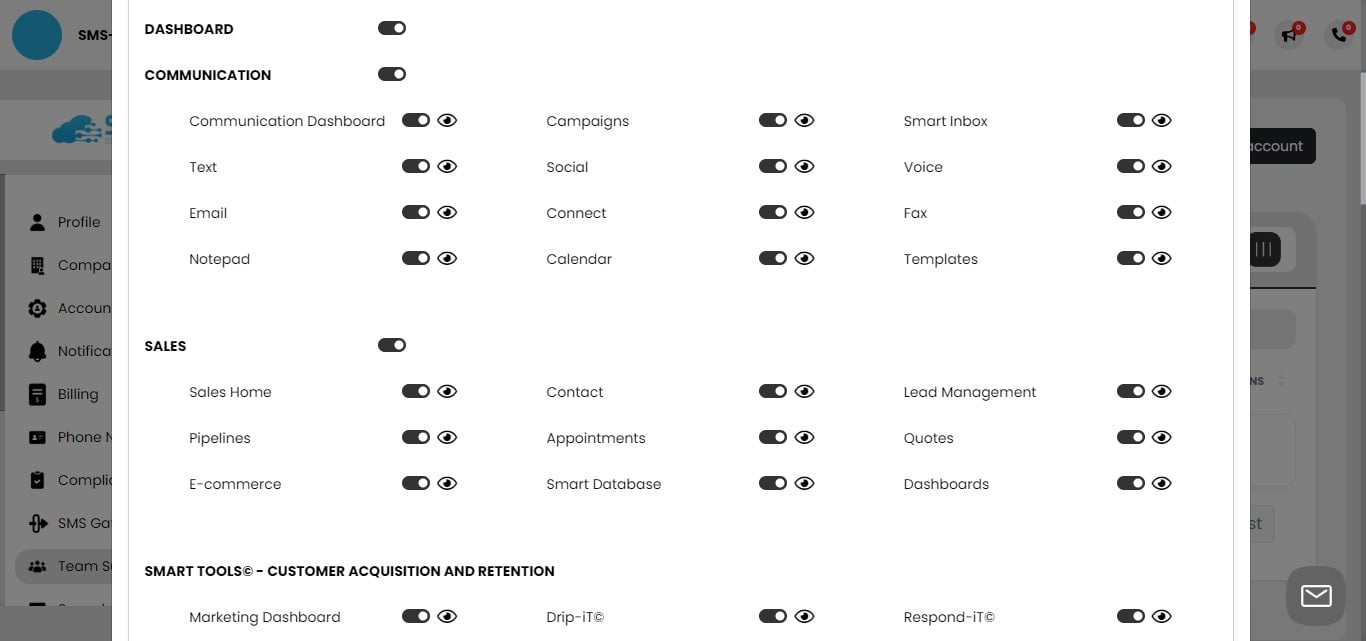
Continue scrolling through the permissions list, enabling or disabling access as needed for the team member. Note that team members can only access features available in the main account's plan. Features not included in your plan will appear grayed out in the permissions list.
After setting the appropriate permissions for the team subaccount, click the "Save" button to apply the changes.
You have successfully added a team member. You can now email them the email and password to set up their account.
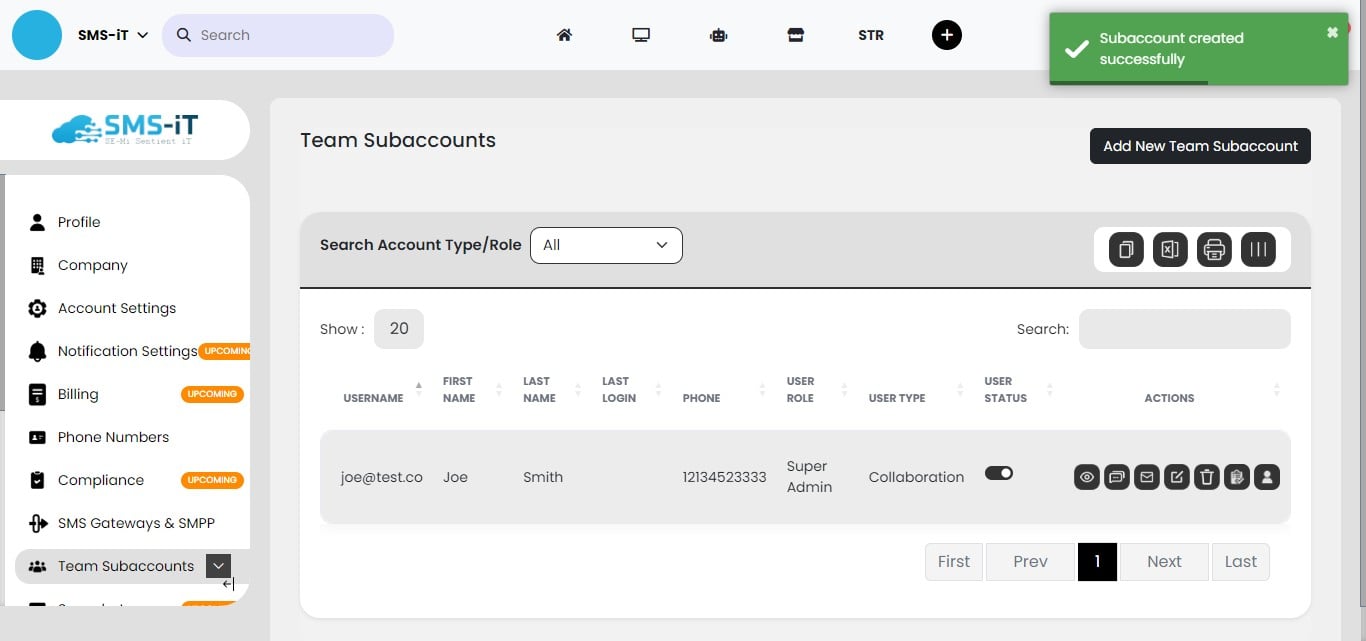
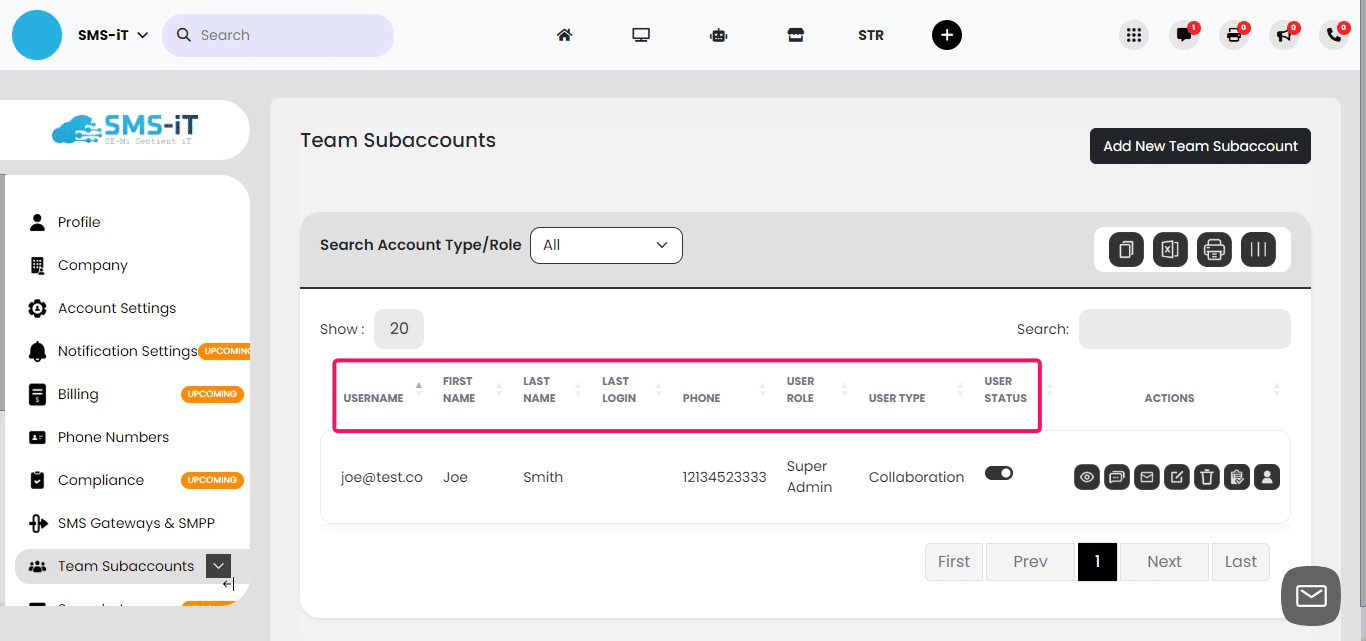
In the dashboard, you can view the following information for each team member:
Username (email) First and last name Last login Phone number User role User type User status (which you can toggle between active and inactive)
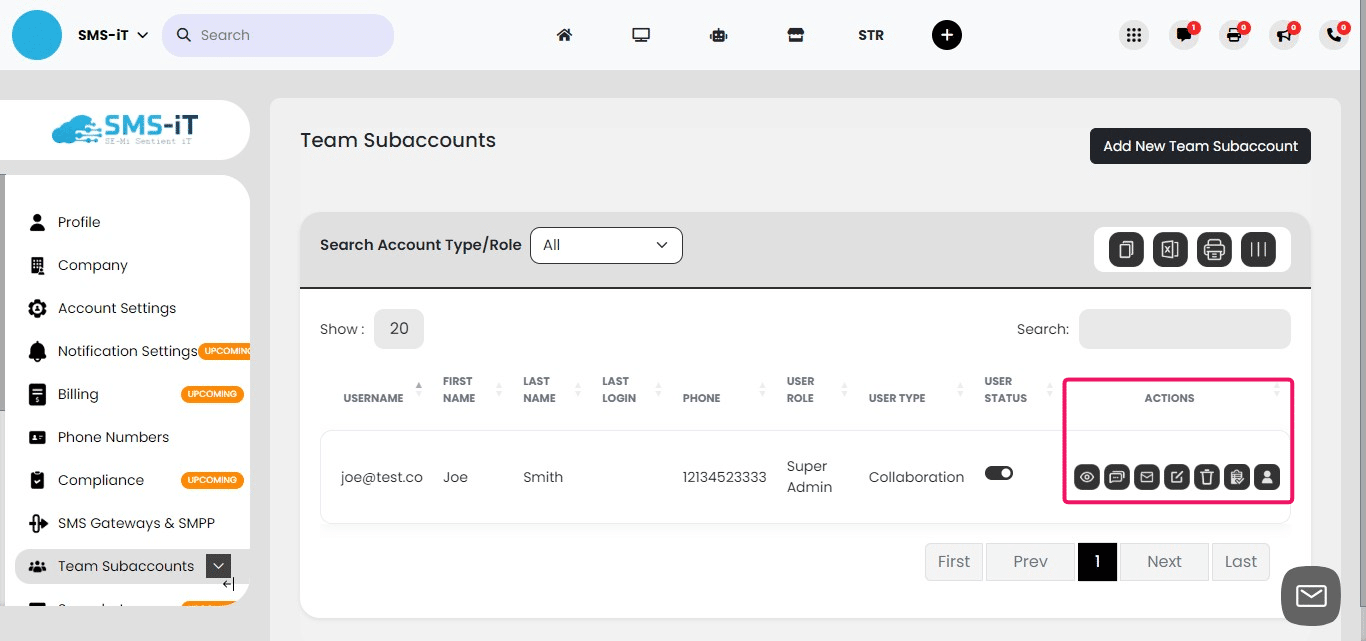
The Actions column provides several options for managing team members:
View user role and permissions Send a text message to the team member Email the team member Edit the team member's account Delete the account Create a task Access the team member's account
Summary: The Team Subaccounts feature in SMS-iT CRM allows businesses to efficiently manage team members' access and permissions. This functionality is particularly beneficial for marketing agencies, small businesses, and professional practices who need to collaborate with team members while maintaining control over their CRM system. By customizing user roles and permissions, business owners can ensure that each team member has the appropriate level of access, enhancing productivity and maintaining data security.