
Google Sheets: Setting up for SMS-iT CRM Import
This tutorial will guide you through the process of preparing your Google Sheets document for importing data into the SMS-iT CRM. This setup is essential for Campaigns and Lead Management within the system.
Open your Google Sheets document. Ensure you have the necessary data ready for import into SMS-iT CRM. This process will enable you to use your data for Campaigns and Lead Management within the CRM.
Share Google sheets
Make your Google Sheets sharable.
Click "Share"
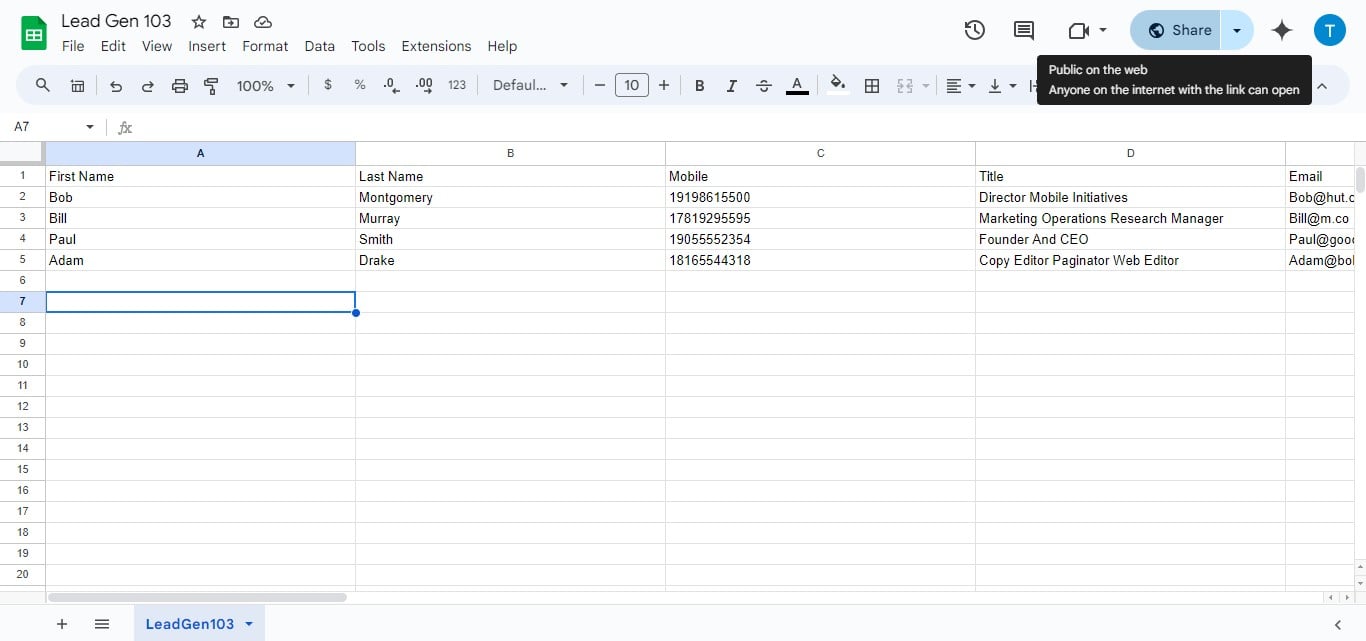

Click on "Anyone on the internet with the link can edit"
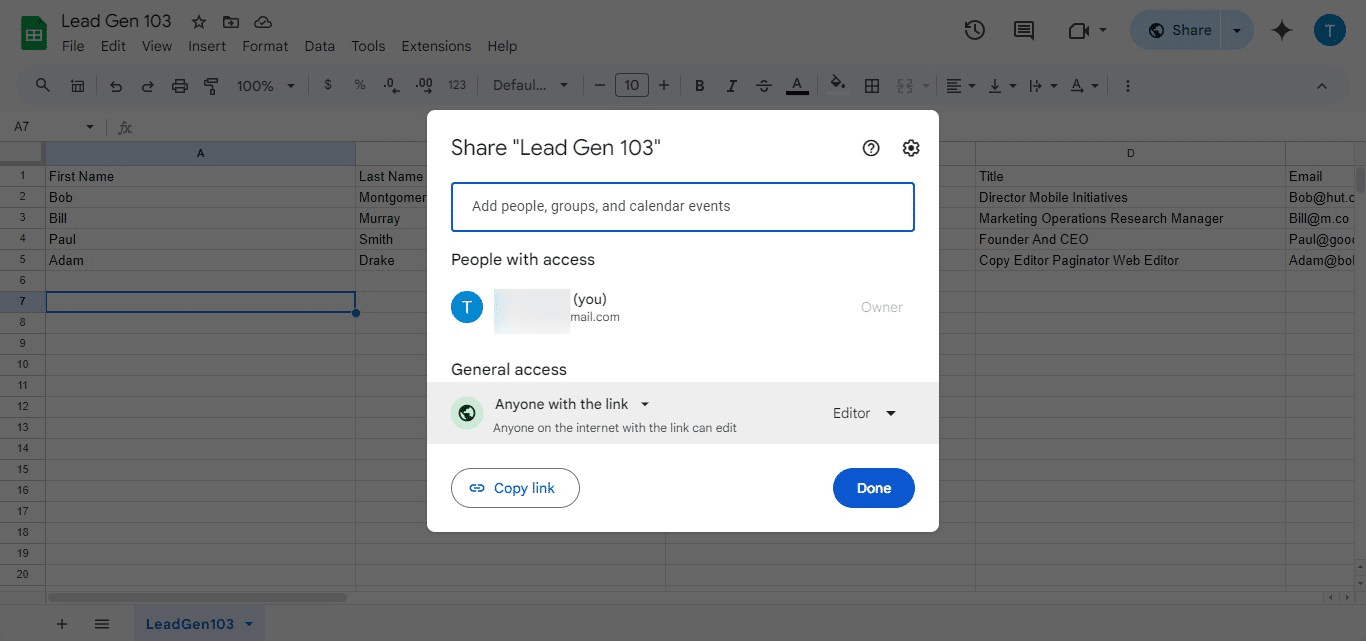
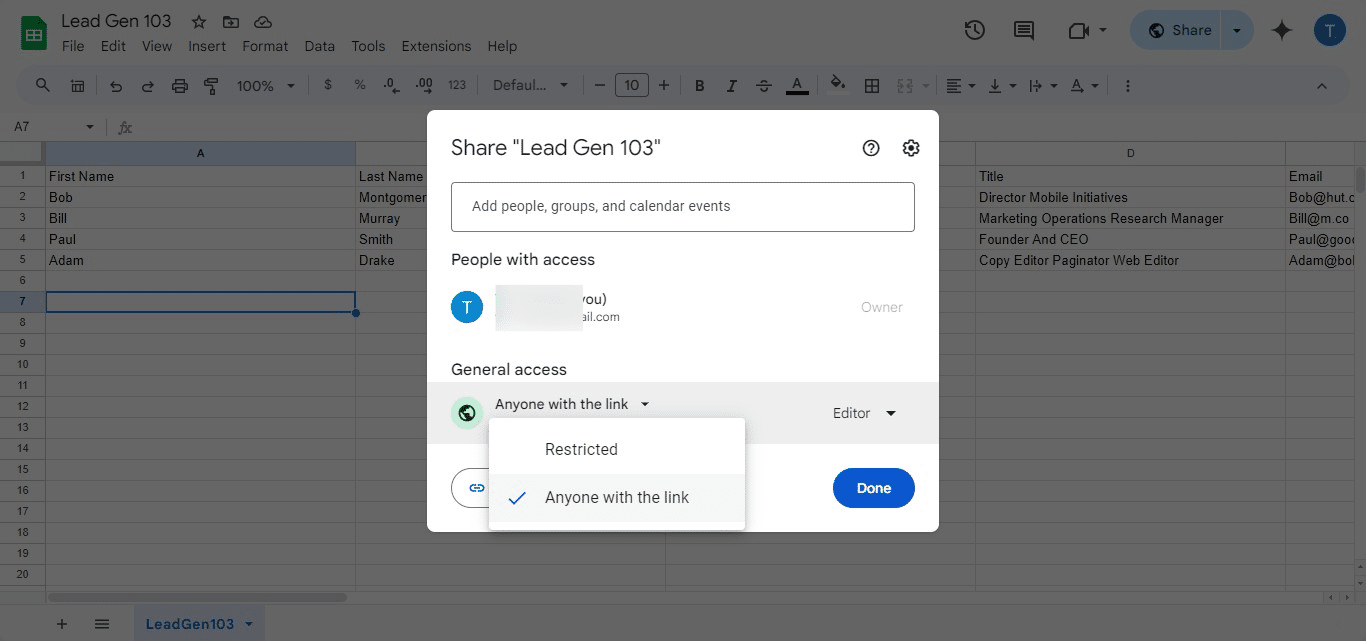
Click on "Anyone with the link"
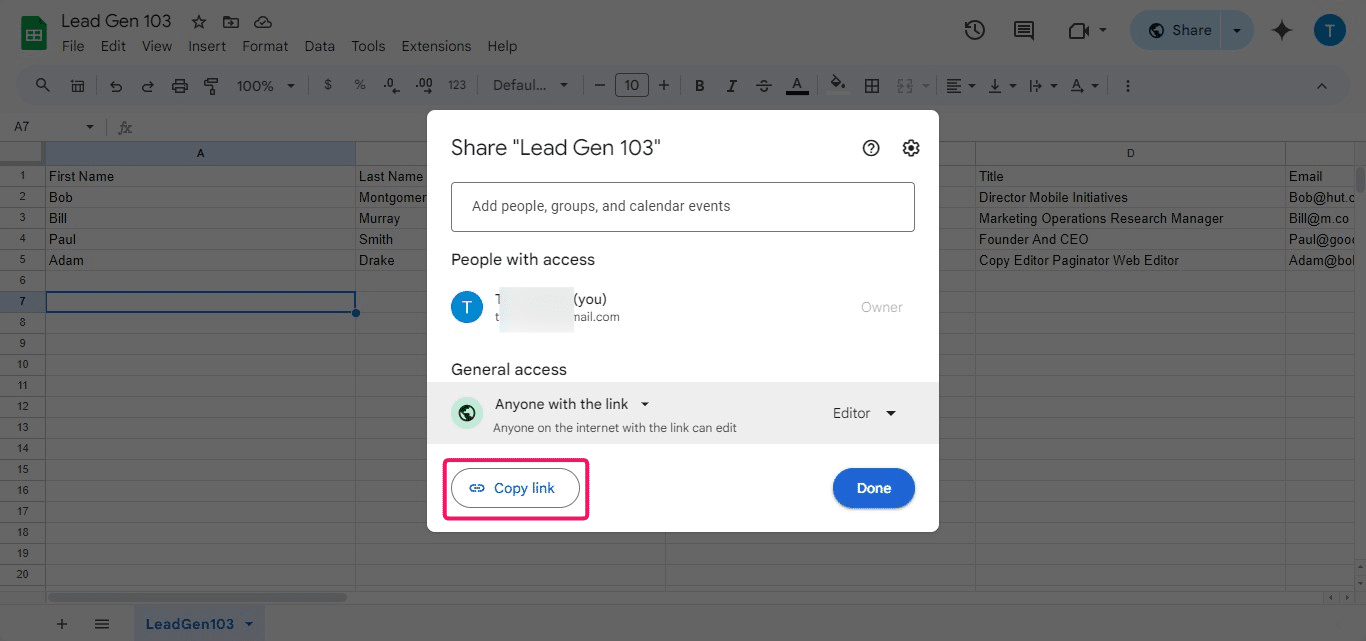
After selecting the appropriate sharing settings, click on "Done" to save your changes. You can also copy the shareable link from this popup if needed for later use.
Done 🚀
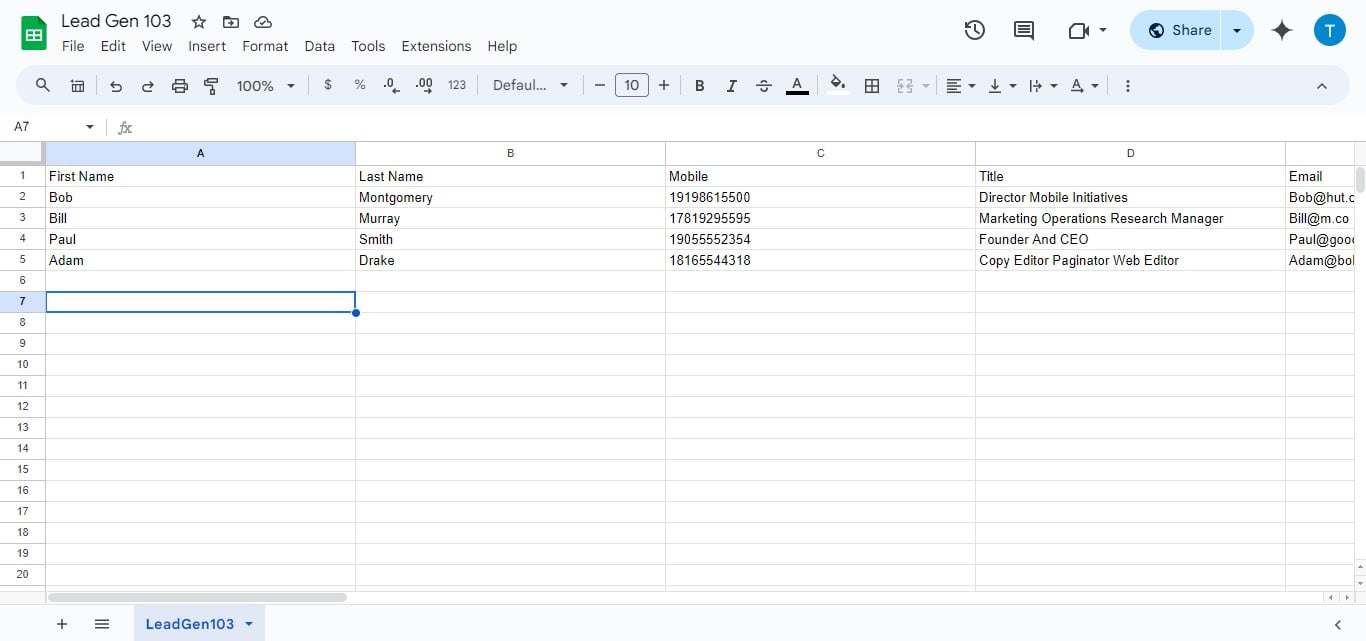
Formatting your sheet correctly
Formatting Your Sheet Correctly
Select all rows and columns in your Google Sheets document. Use the keyboard shortcut Ctrl+A (Windows) or Cmd+A (Mac) to quickly select all cells.
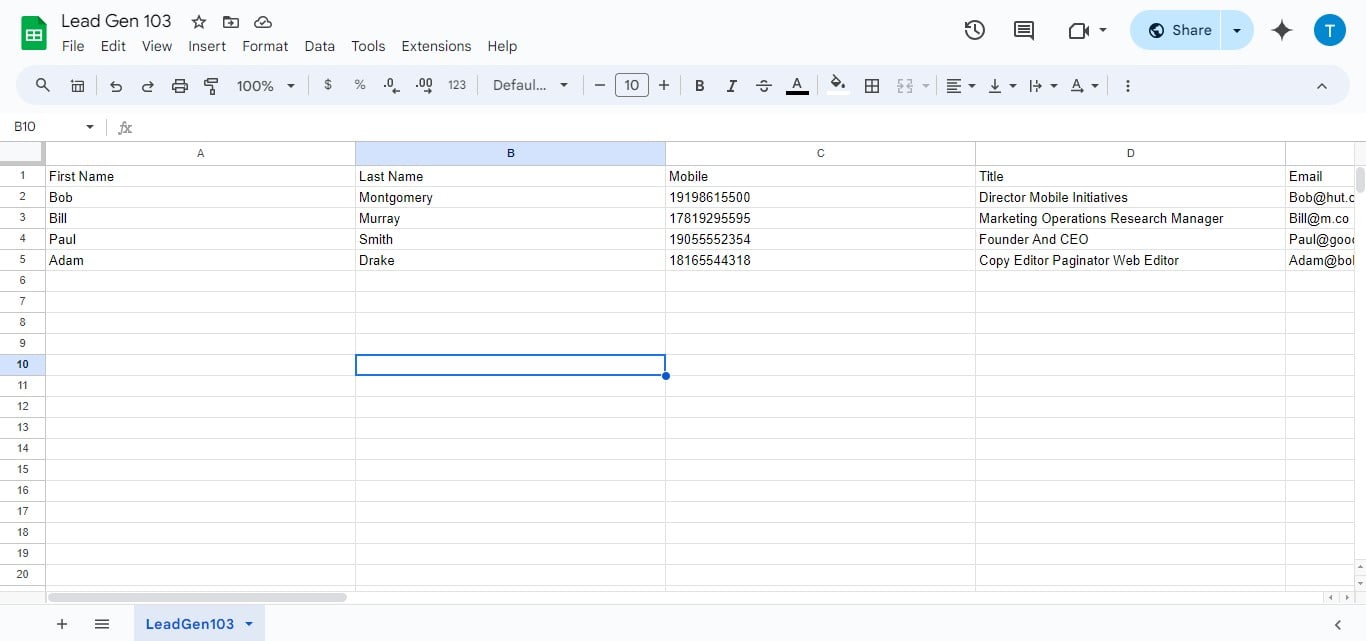
Verification Step: Ensure that all columns and rows are highlighted in blue, indicating they are selected.
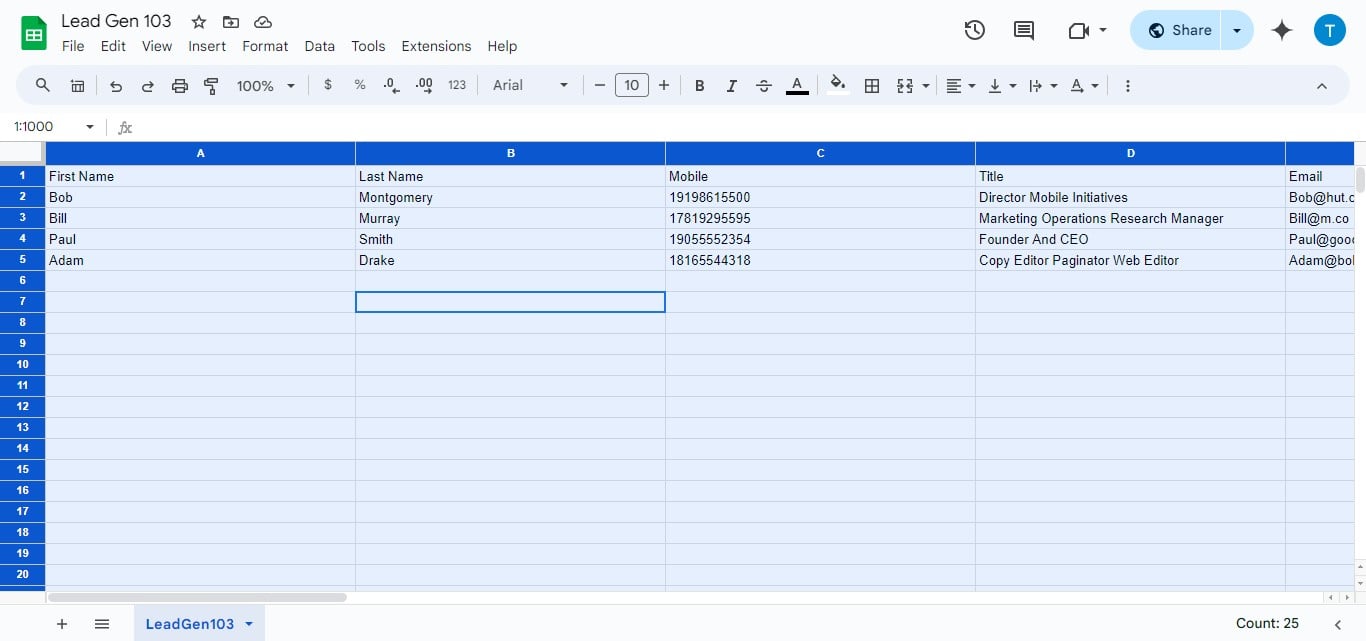
Click on "Format"
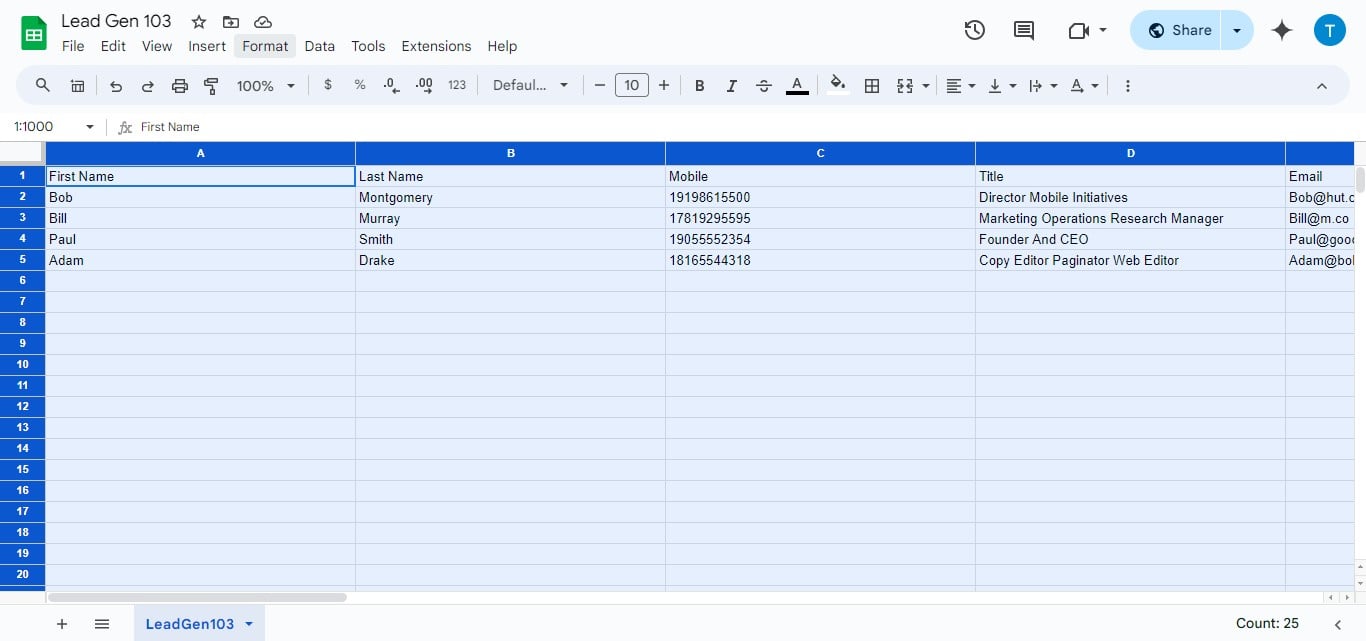
Click "Number"
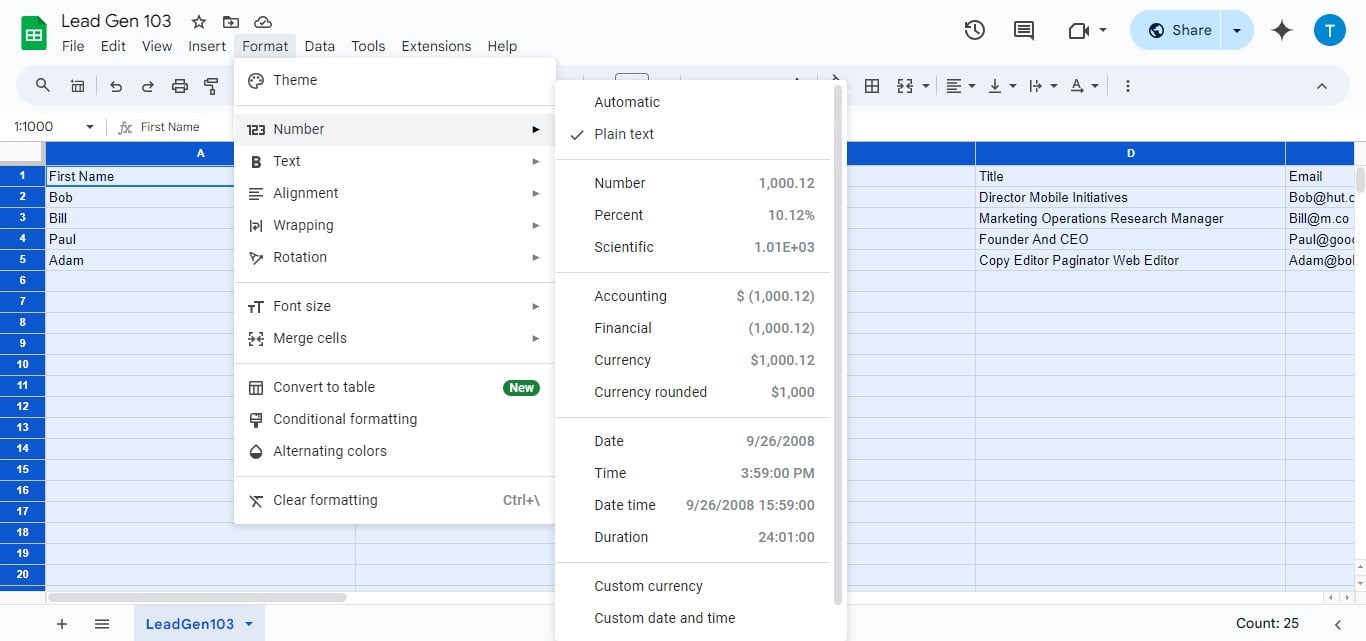
Select "Plain text"
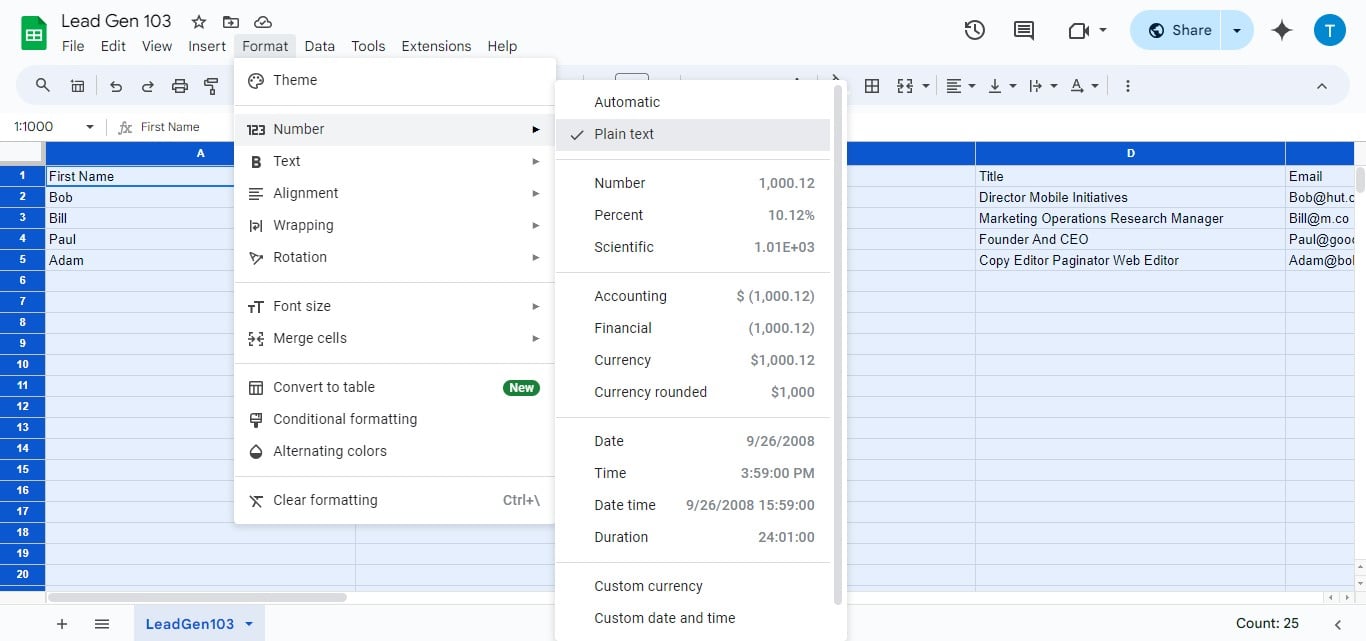
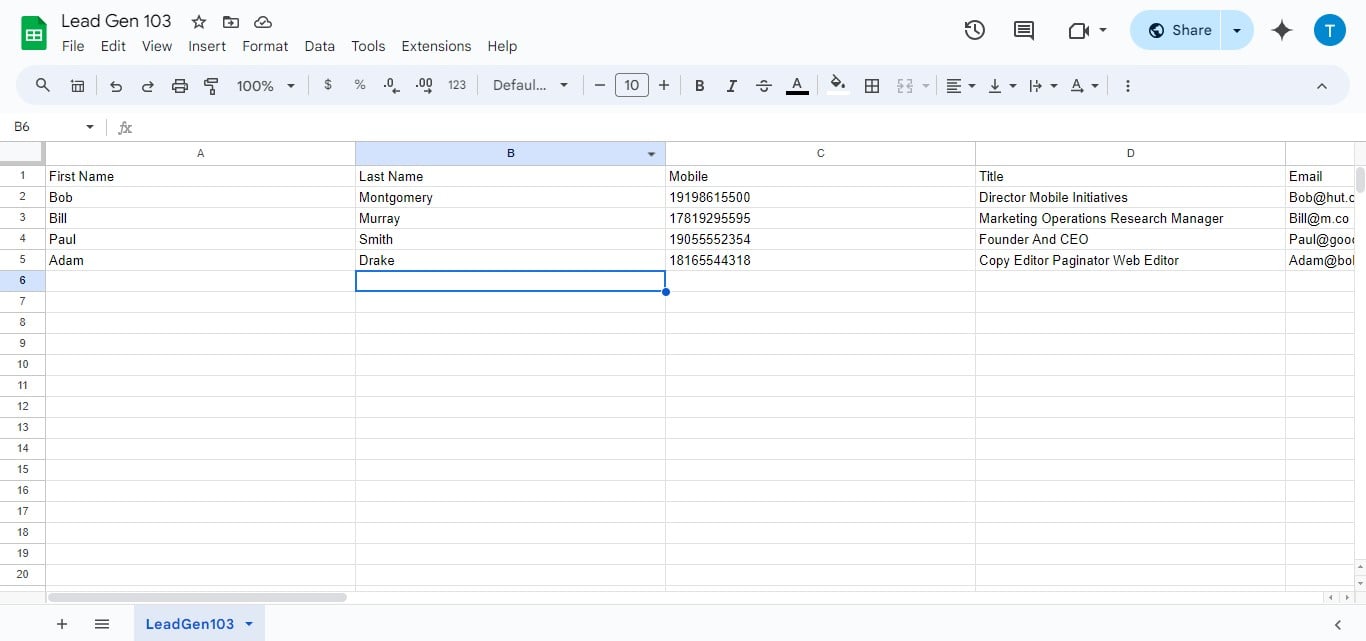
Confirmation: Your Google Sheets document is now correctly formatted for import into SMS-iT CRM. All cells are set to "Plain text" format, which helps prevent data misinterpretation during the import process.
Troubleshooting
Importing Leads and Troubleshooting Now that you've completed the initial setup, attempt to import your leads into the system. If you encounter any issues during the import process with your Google Sheets, don't worry. We've prepared a set of troubleshooting steps to help you resolve common problems. Please proceed to the next section for detailed troubleshooting suggestions if your import is unsuccessful.
Custom variables, email, and column characters
If you encounter problems importing your leads, verify the following: 1. Custom Variables: Ensure you have no more than 20 custom variables selected. 2. Email Column: The Email column must contain data and cannot be empty. 3. Column Names: Shorten any column names that exceed 20 characters.
Ungroup columns
Ungrouping Columns
Check for grouped columns in your sheet. Grouped columns are indicated by a line as shown in the red box in the image. Ungrouping is necessary for successful data import.
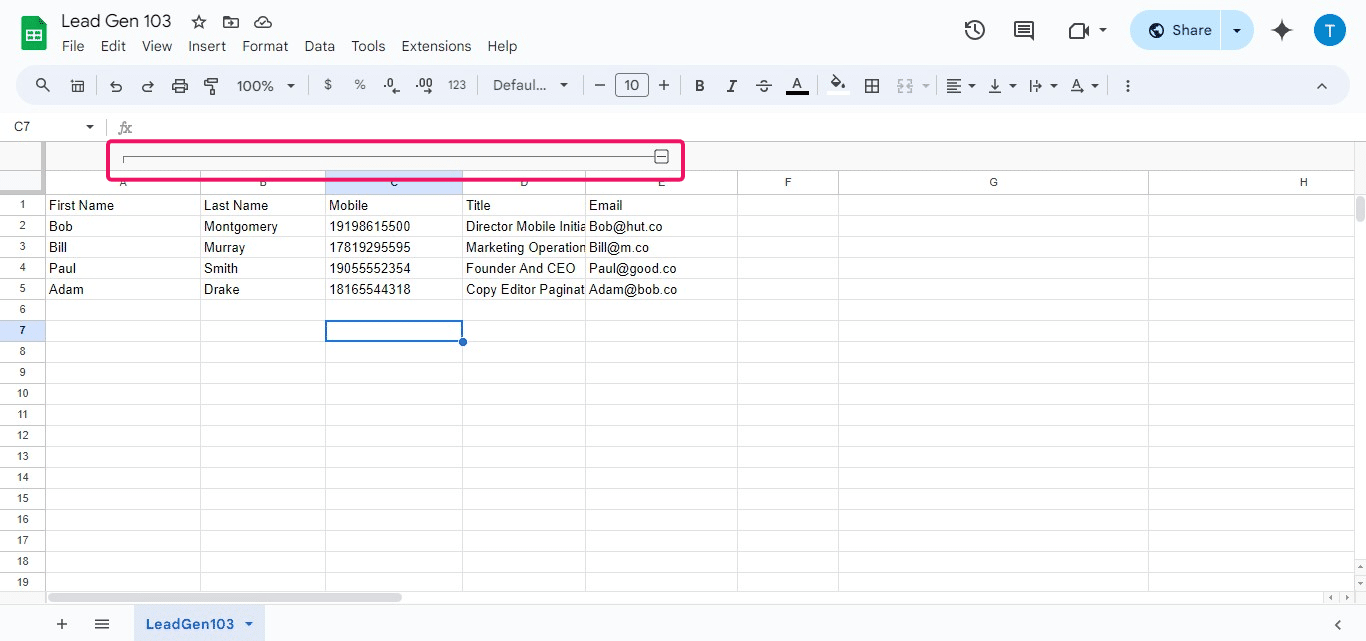
Identify the grouped columns in your sheet. Click to select all the columns within the grouped section.
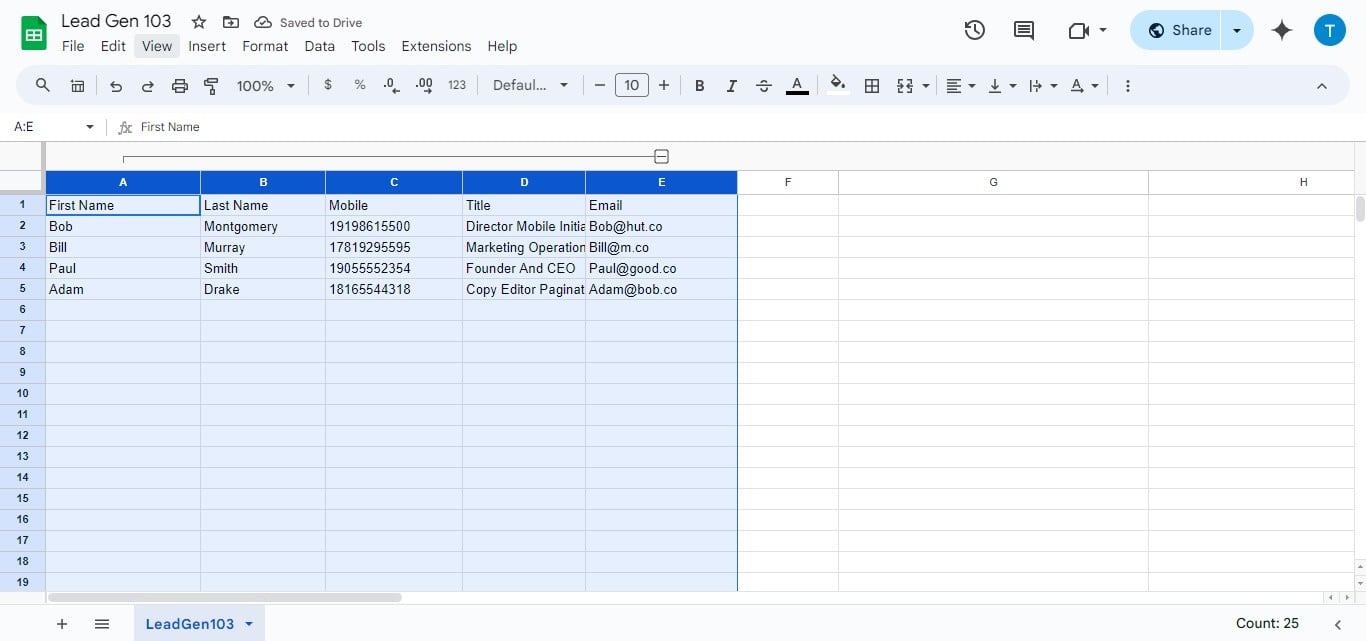
Click on "View"
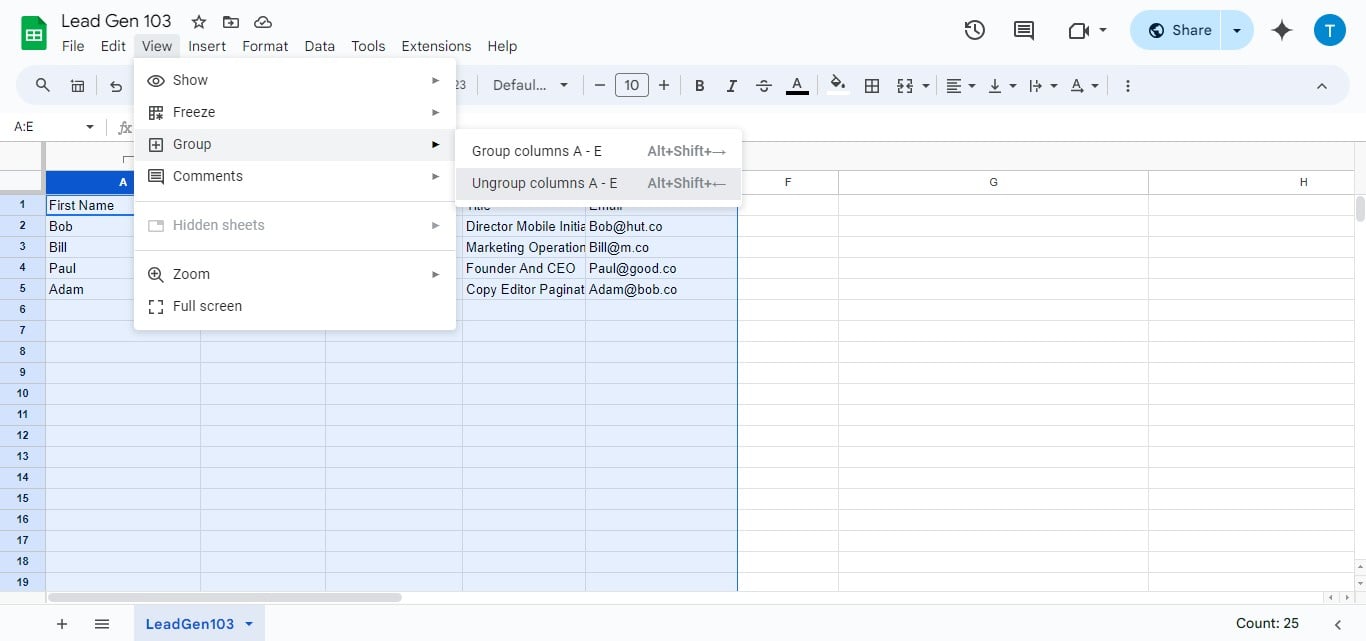
In the "View" dropdown menu, find and click on "Ungroup columns". A dialog box will appear, showing which columns are to be ungrouped (e.g., A-E). Confirm the ungrouping action.
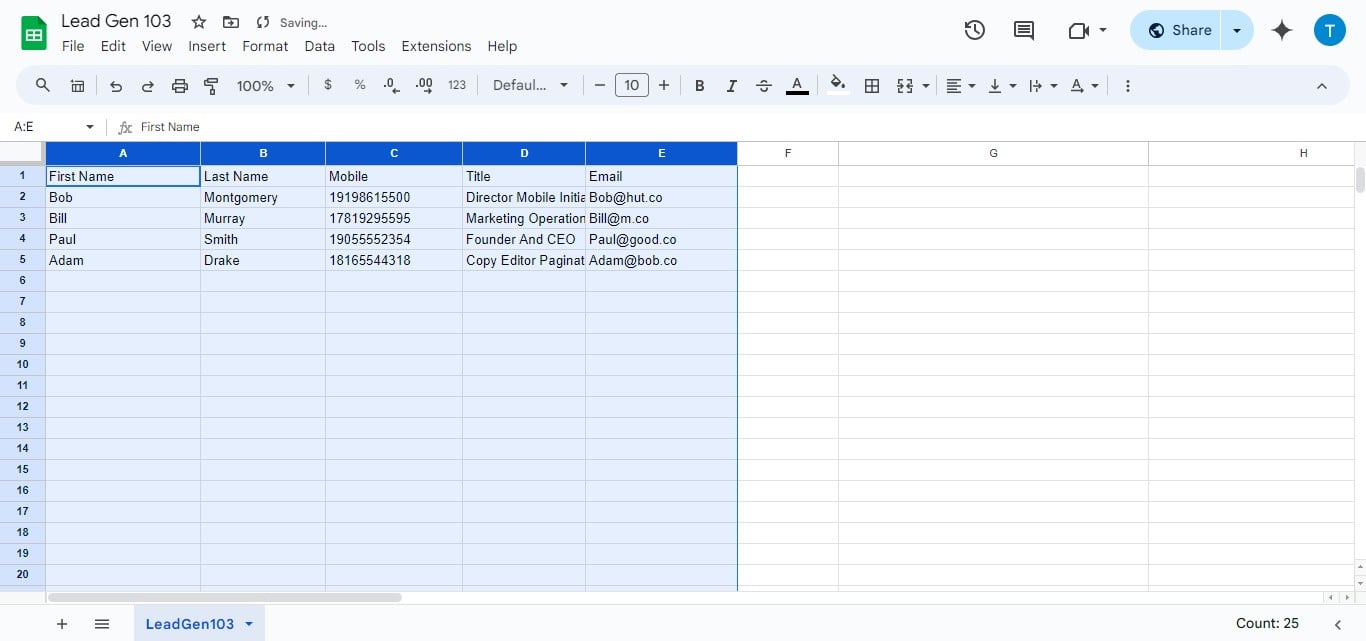
Your columns are now successfully ungrouped. This will allow for proper data import into the SMS-iT CRM.
Boolean
Handling Boolean Values If your sheet contains Boolean values (true/false), they may cause import errors. Google Sheets returns these as Boolean data types instead of text, which can interfere with the import process.
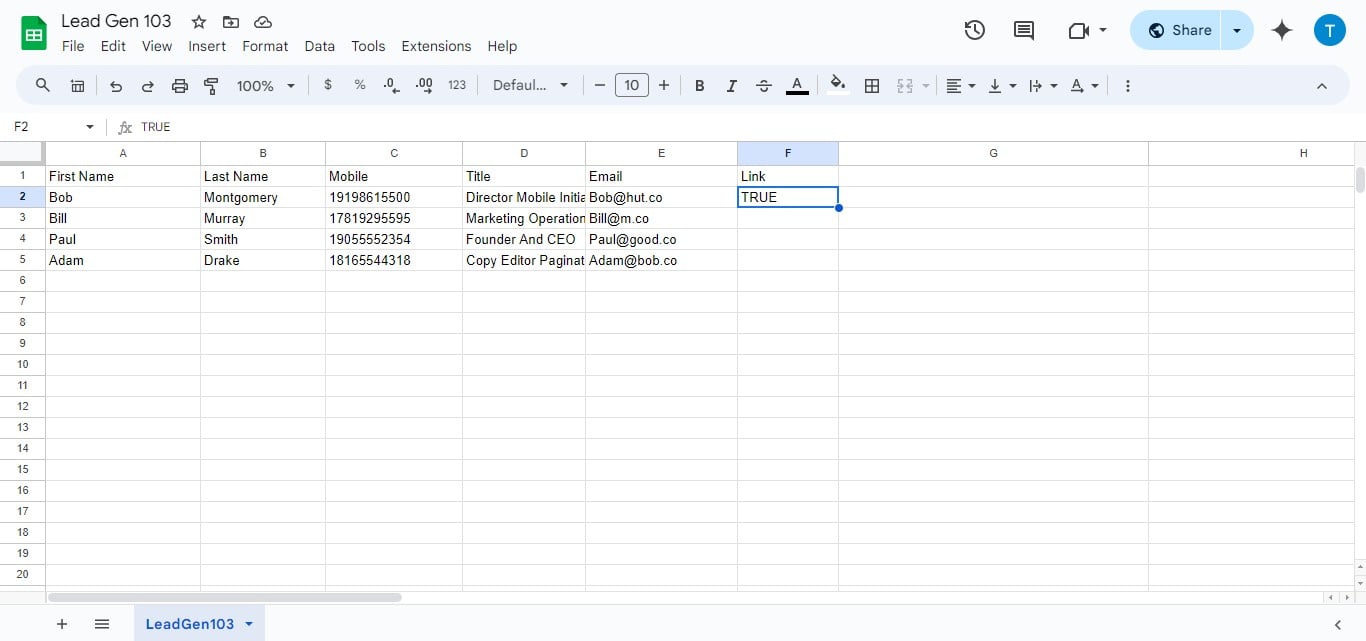
Removing Boolean Values:
Identify any columns containing Boolean (true/false) values. Remove or convert these values to text format to ensure successful import.
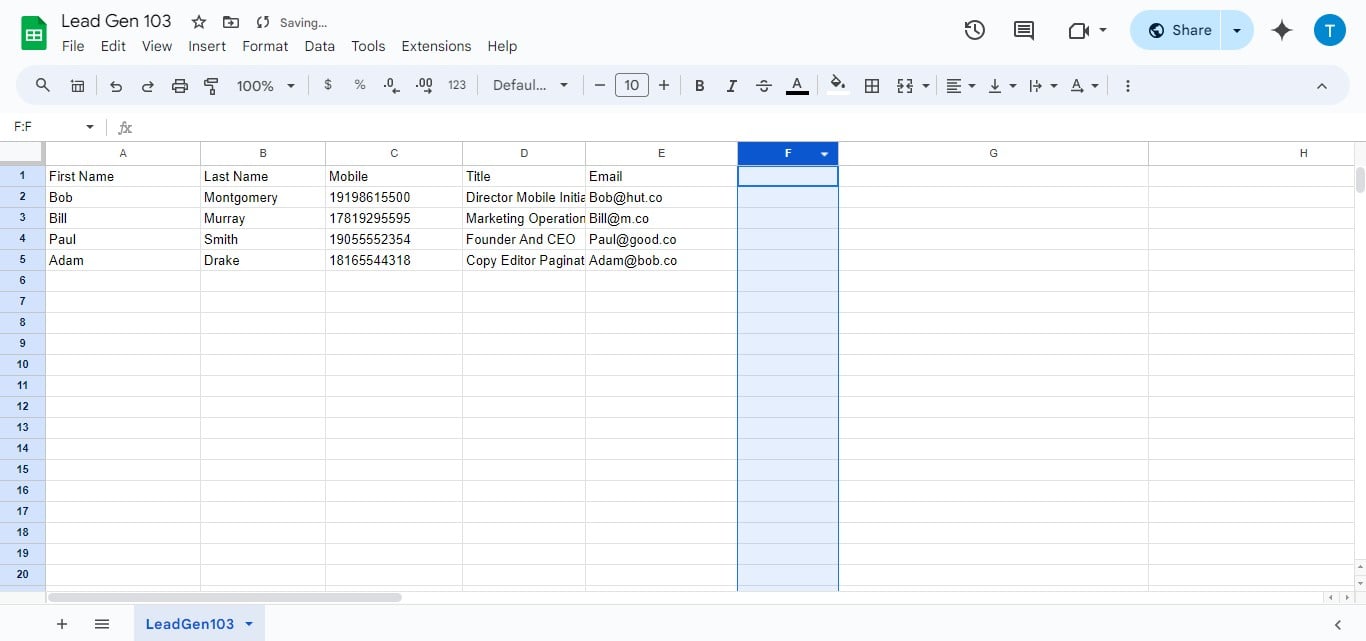
Closing Statement: By following this tutorial, you've optimized your Google Sheets document for seamless integration with SMS-iT CRM. This preparation ensures that your campaigns and lead management processes will run smoothly, leveraging the full power of the SMS-iT CRM platform. Embrace this efficient data import method to streamline your workflow and enhance your overall CRM experience.