

Conference Room
Learn how to set up and manage professional conference calls with SMS-iT CRM's easy-to-use Voice Conference feature.
Navigate to https://aicpanel.smsit.ai/home
Introduction to SMS-iT CRM's Voice Conference Feature
SMS-iT CRM offers a versatile voice conferencing feature designed for small and mid-sized businesses. The system enables seamless setup and management of conference calls, making it easy to create, edit, and manage conference rooms directly from the user interface.
How It Works: 1. Creating Conference Rooms: Users can create new conference rooms by specifying the room name, extension, and other details. These rooms can be enabled or disabled as needed. 2. Managing Conference Rooms: The system provides an intuitive interface to manage existing conference rooms, including editing details or deleting rooms as necessary. 3. User-Friendly Interface: The dashboard offers easy navigation and controls, allowing users to quickly set up and configure their conference settings.
Benefits for Small and Mid-Sized Businesses: 1. Cost-Effective Communication: Enables businesses to conduct virtual meetings and reduce travel costs. 2. Scalability: Suitable for businesses of varying sizes, supporting growth and scalability. 3. Efficient Collaboration: Facilitates real-time communication and collaboration among team members, clients, and partners.
SMS-iT CRM's voice conference feature simplifies communication and enhances productivity, making it a valuable tool for businesses aiming to streamline their operations and improve internal and external communication.
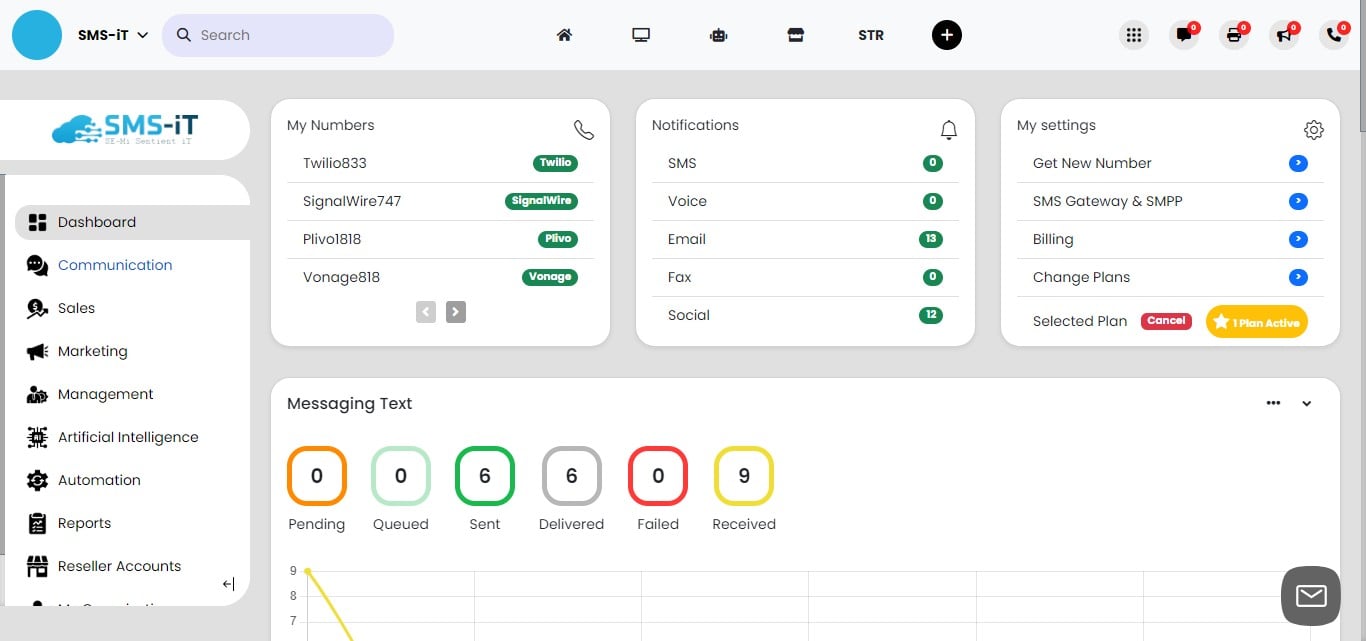
Click on "Communication"

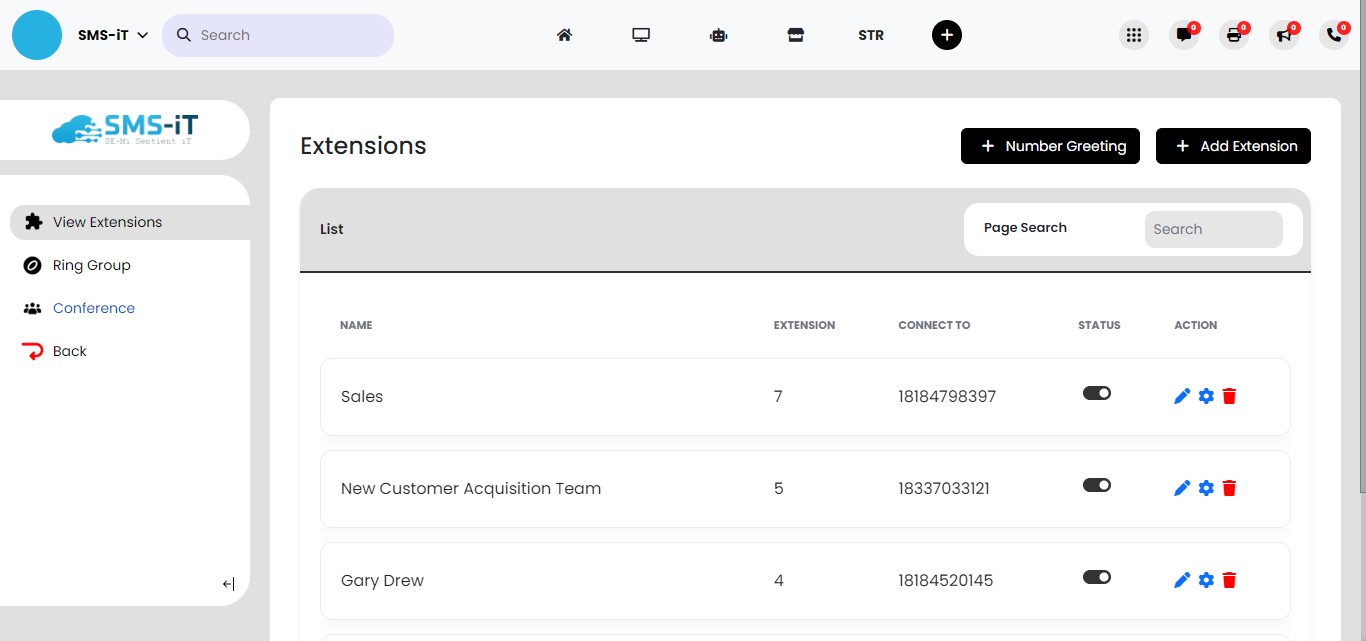
Click on "Conference"
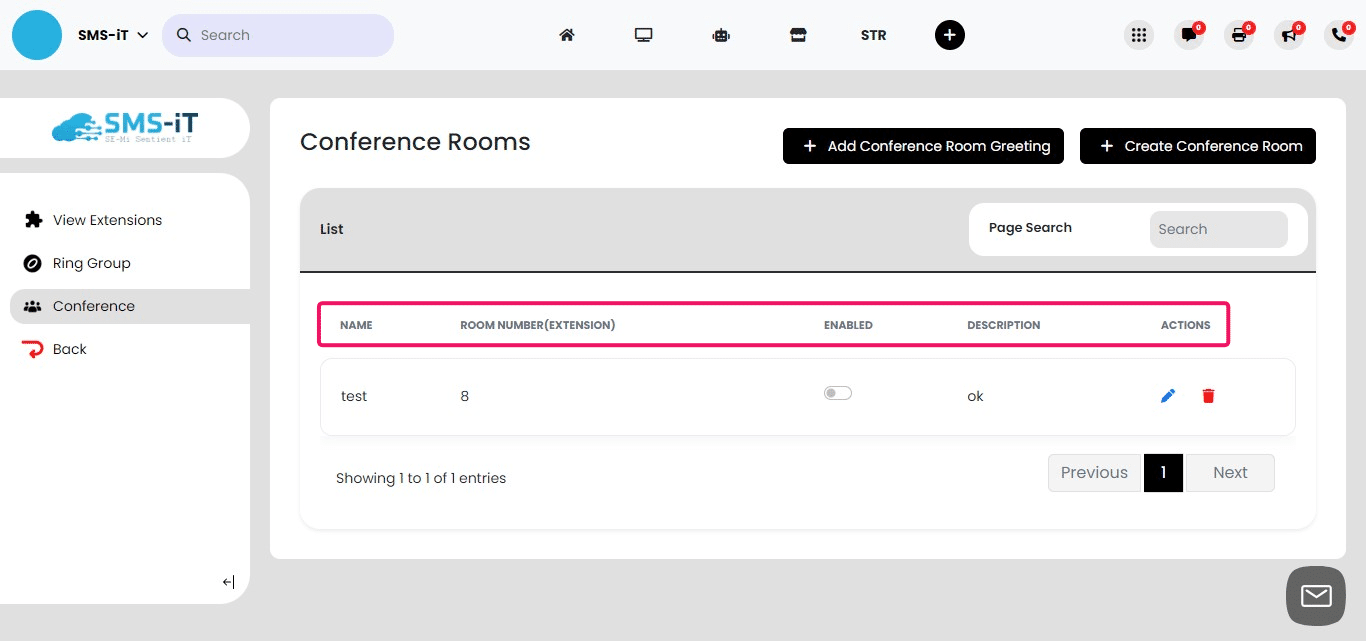
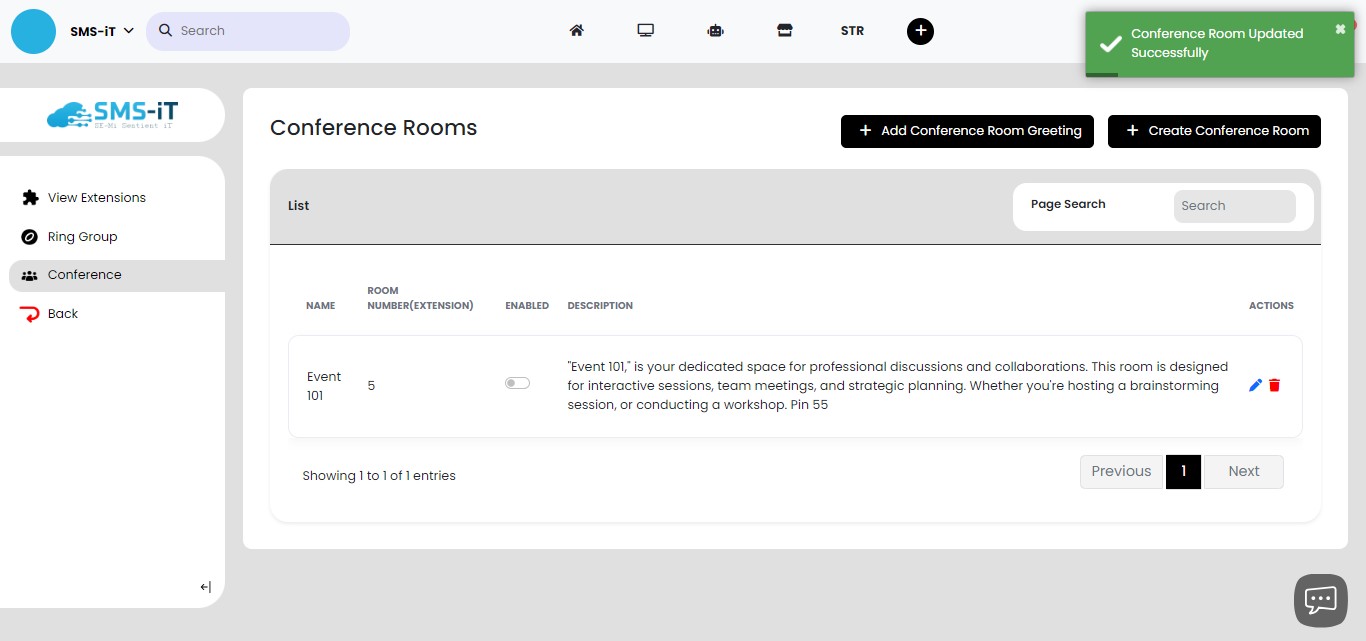
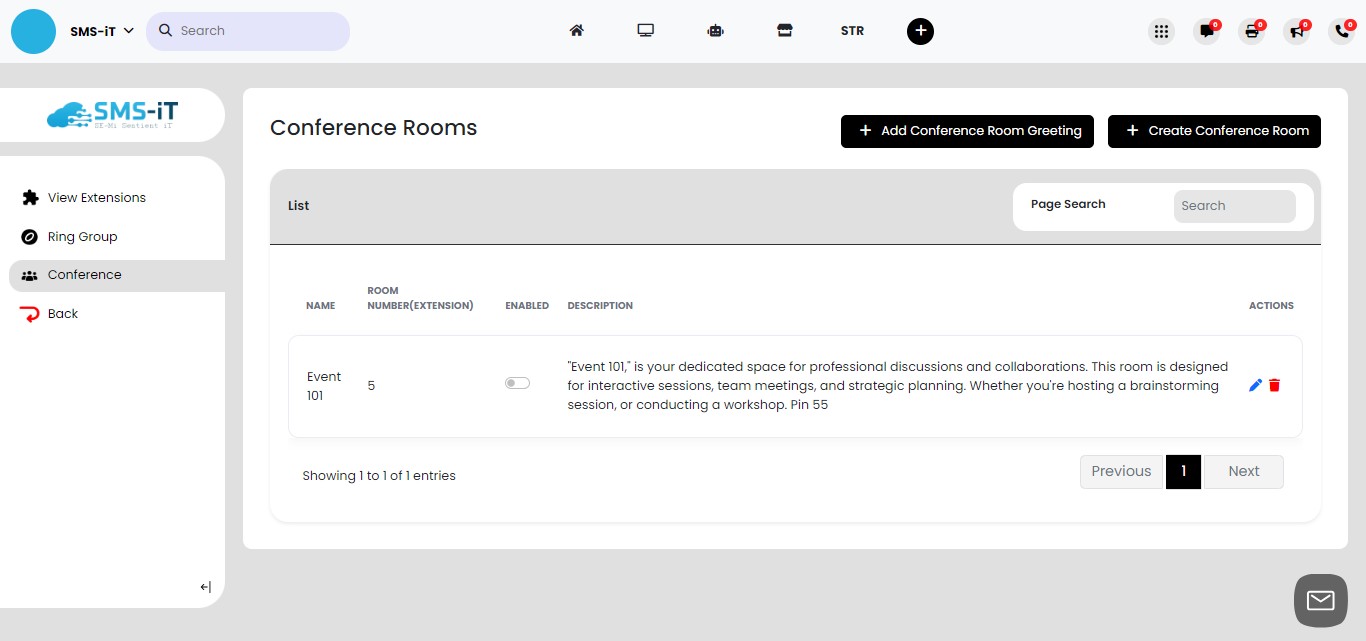
Conference Room Dashboard Overview The dashboard displays the following information for each conference room:
Name: The designated name of the conference room Room Number (Extension): The unique extension assigned to the room Enabled: A toggle switch to activate or deactivate the room Description: A brief overview of the room's purpose Actions: Options to edit or delete the room
Create Conference Room
Click on "Create Conference Room"
Connect To:
Select a phone number from the options provided. This number will be the one participants call to access the conference room.
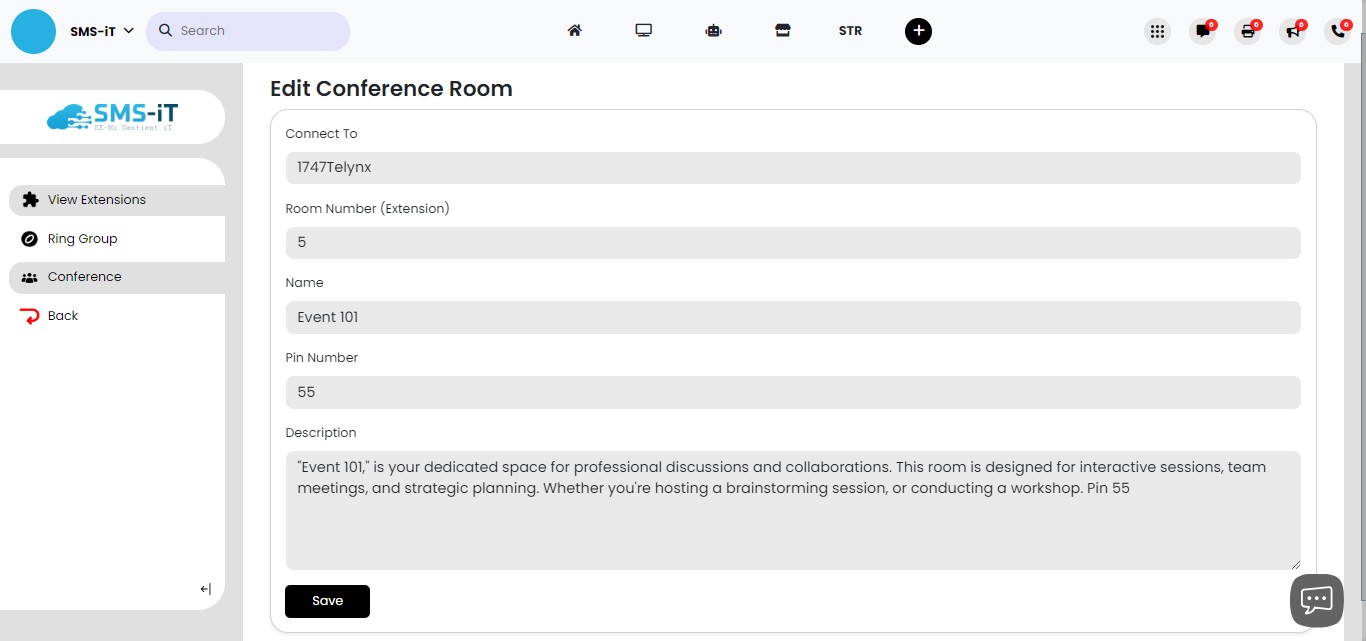
Room Number (Extension):
Choose an extension number for your conference room. This extension will be used by callers to connect to the specific room.
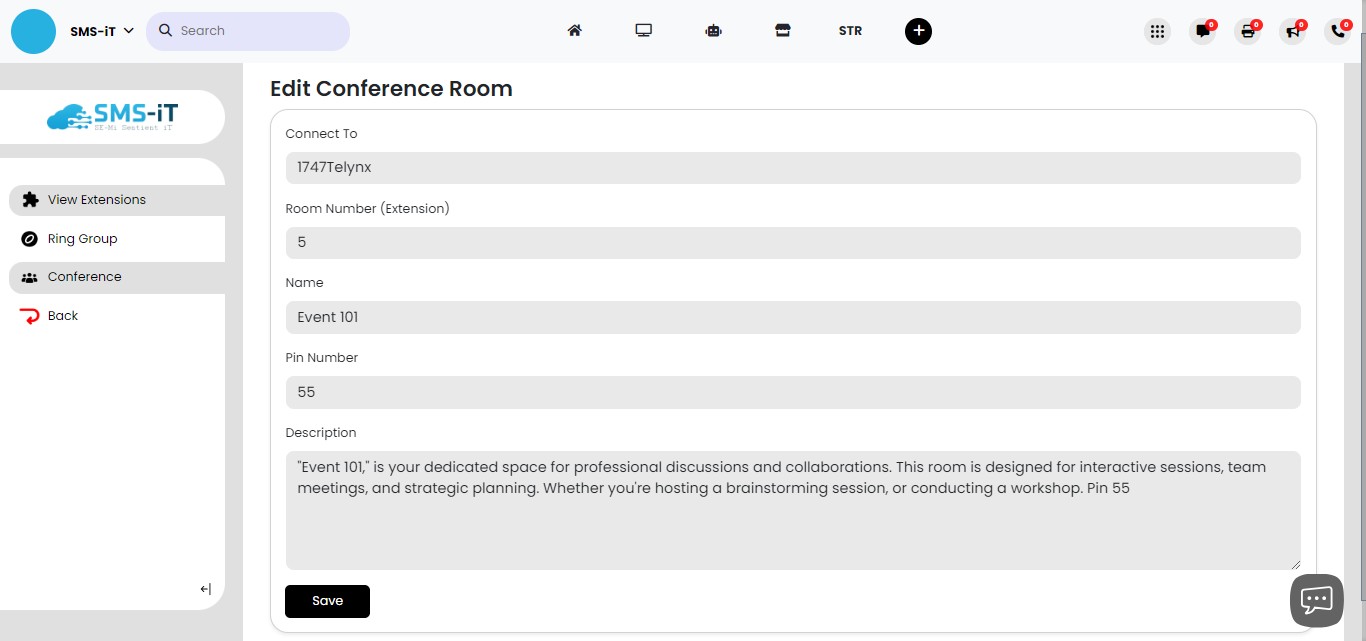
Name Your Conference Room:
Enter a descriptive name for your conference room. Choose a name that is easy to remember and relevant to its purpose. This name will appear on the dashboard for easy identification.
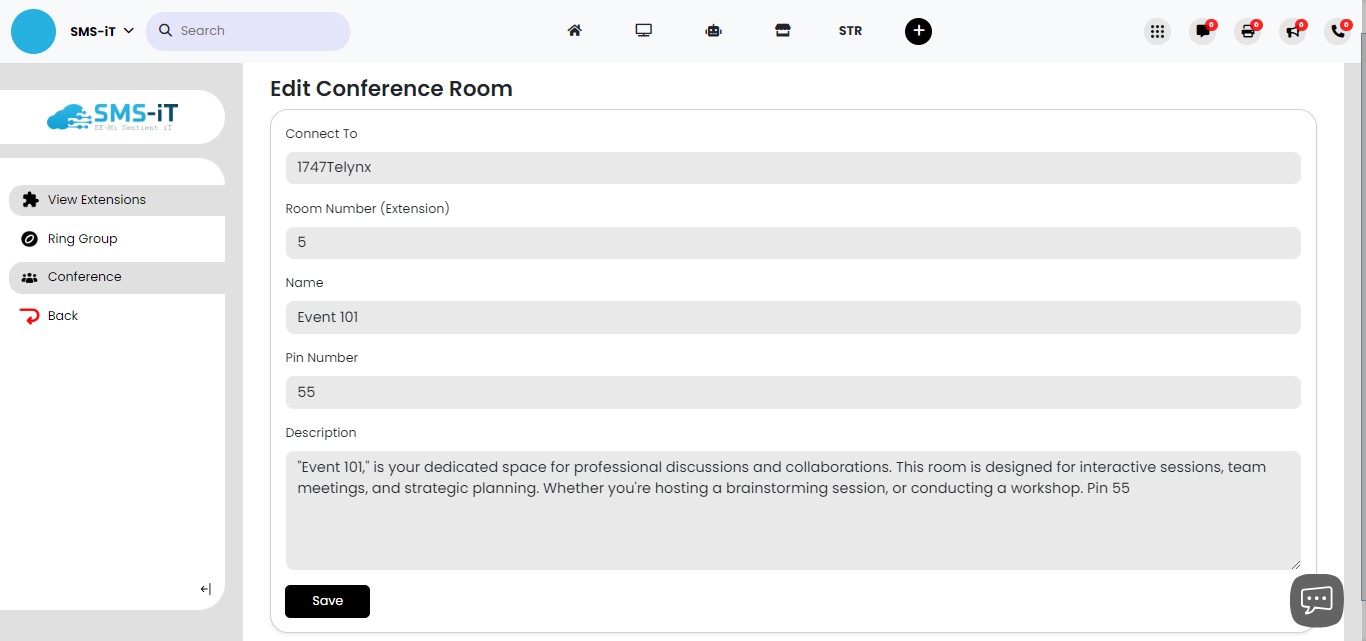
Set a PIN Number:
Create a unique PIN number for your conference room. This PIN will be required for participants to access the room. Choose a number that is secure yet easy for authorized users to remember.
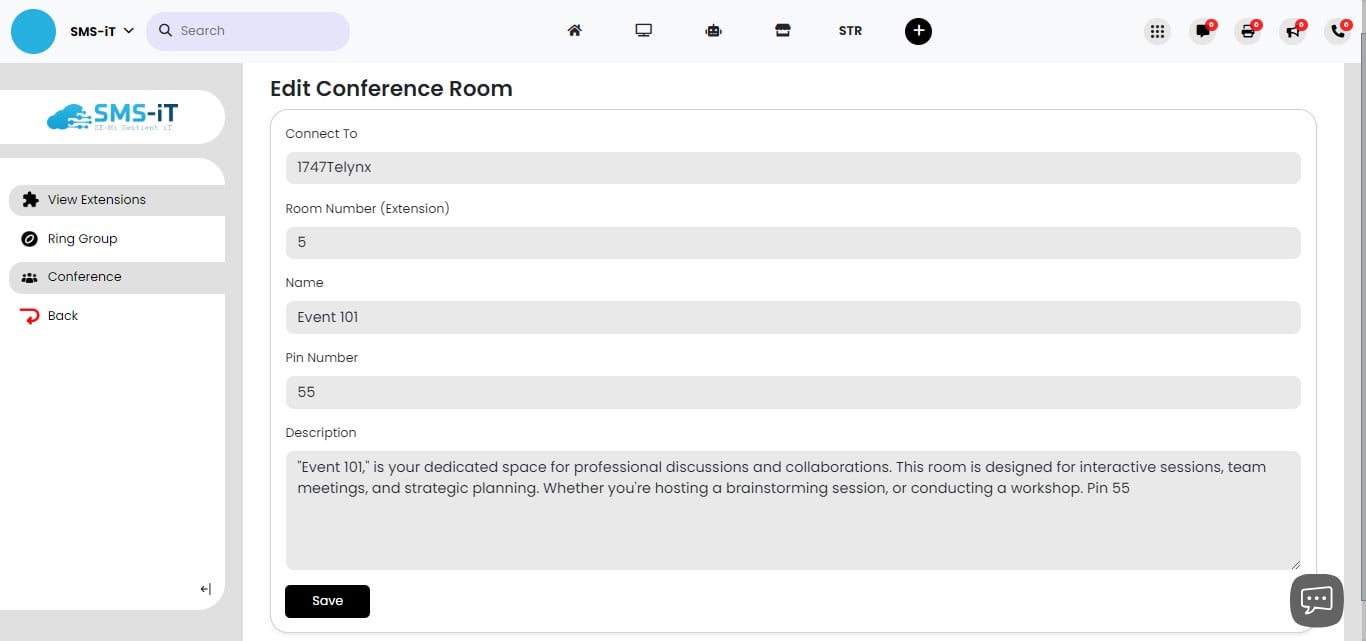
Add a Description:
Write a brief description of your conference room. Include relevant details such as its purpose or intended participants. This description will help you easily recognize the room on the dashboard.
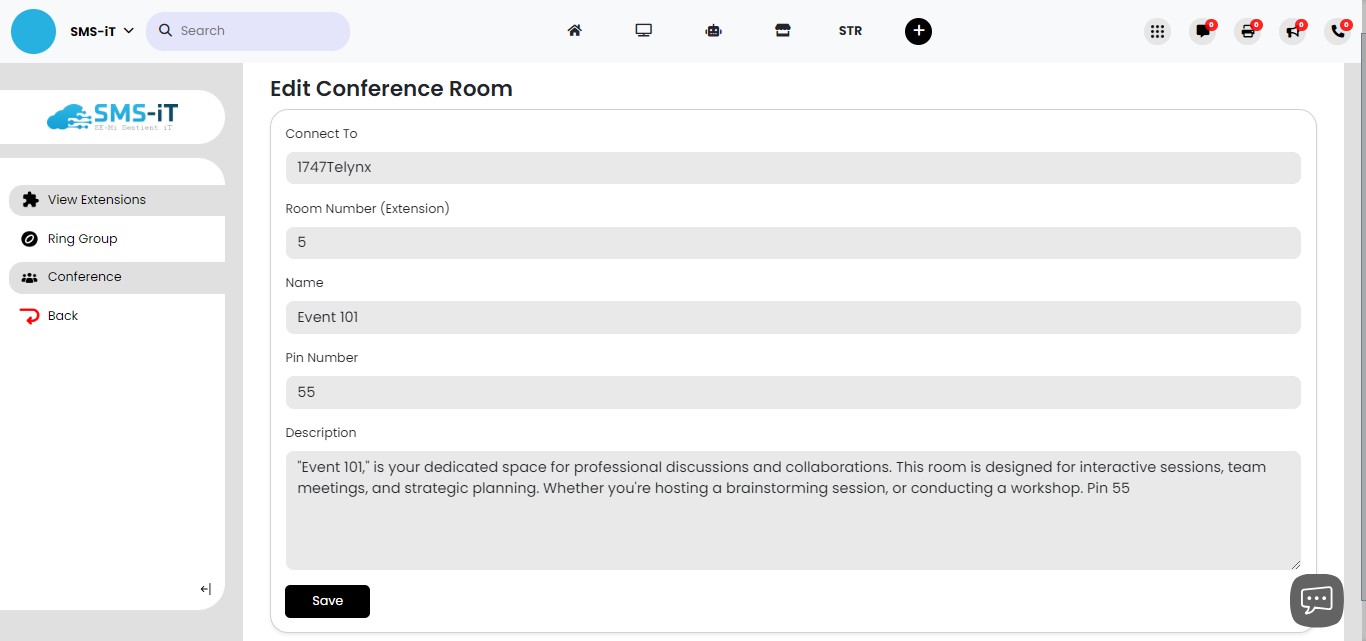
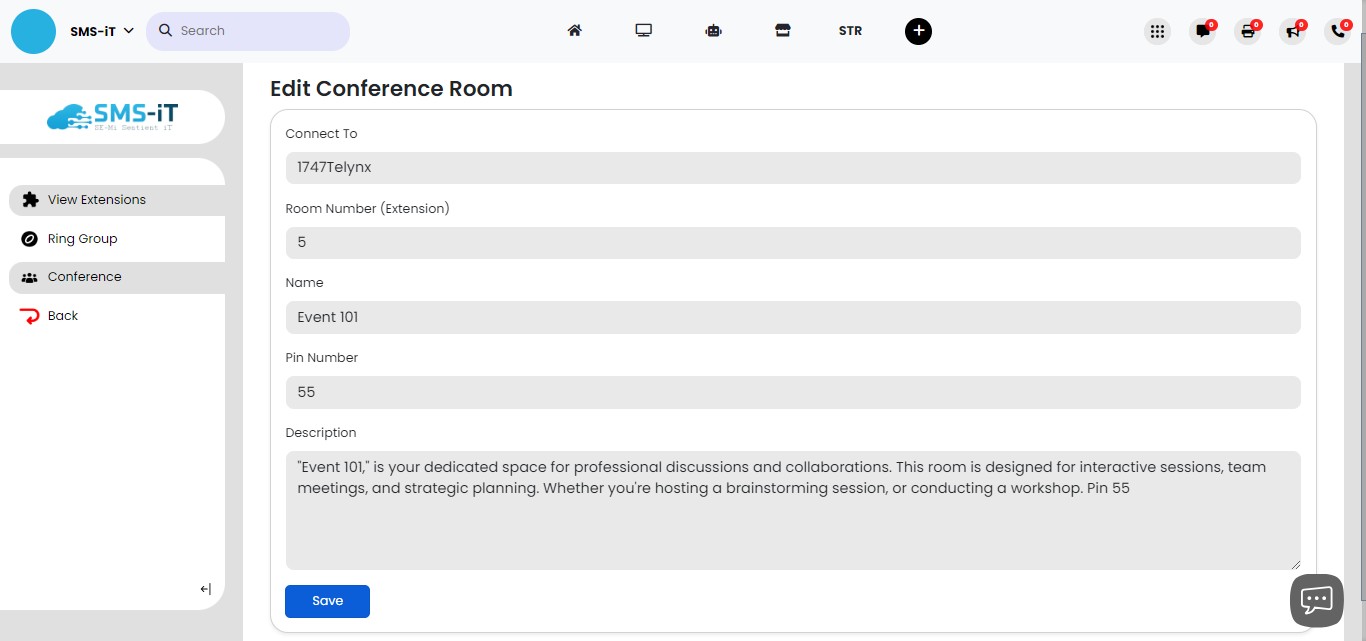
Finalizing Your Conference Room Setup To complete the creation of your conference room:
Review all the information you've entered. Make any necessary adjustments. Click the "Save" button to create your new conference room.
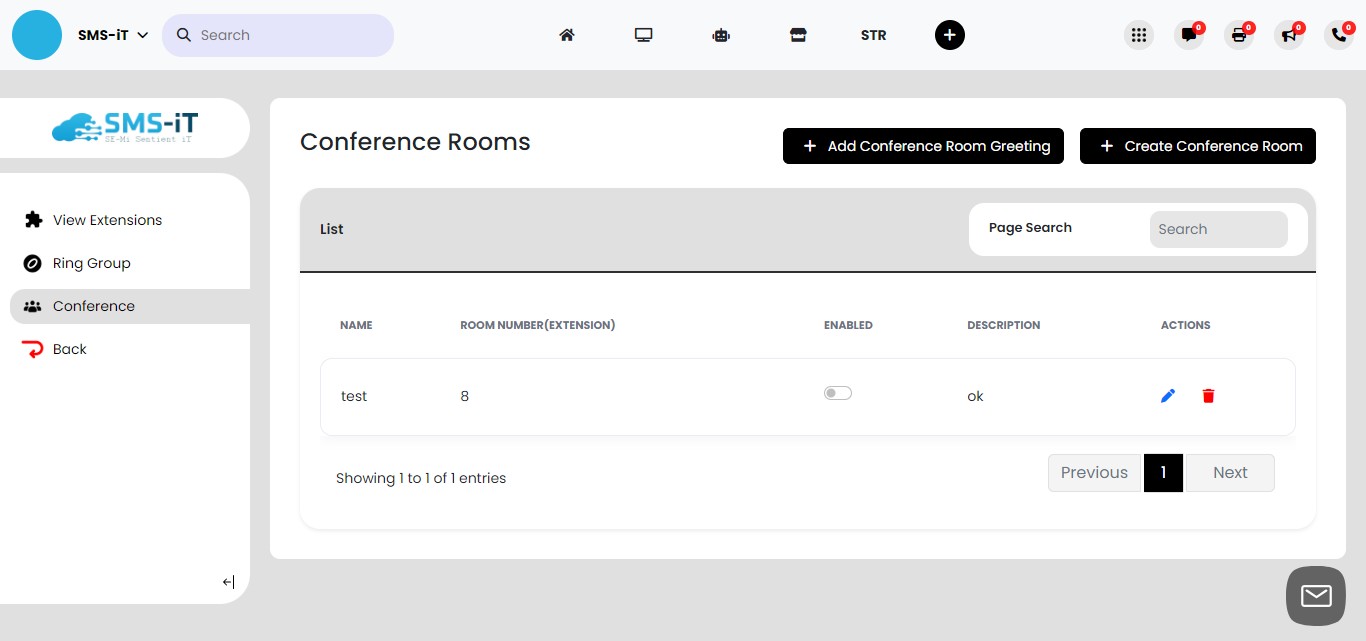
Conference Room Created Successfully Your new conference room has been saved and added to the dashboard. You can now see it listed among your other conference rooms, if any exist.
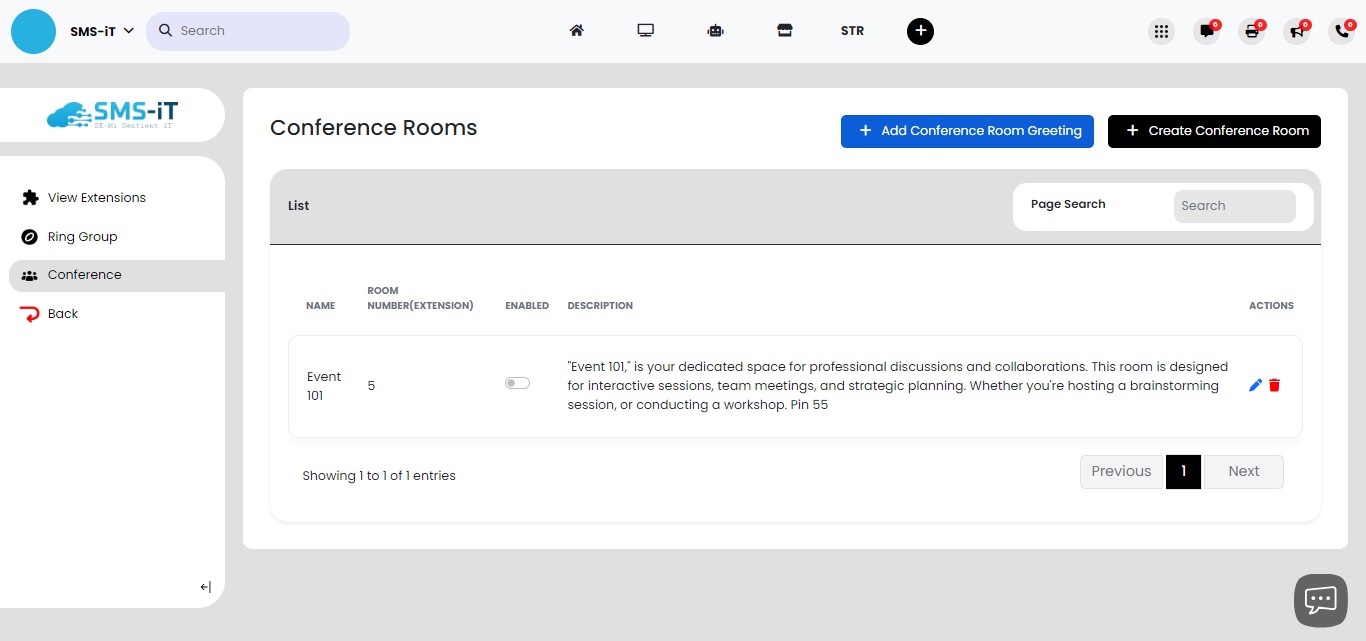
Conference room greeting
Click on "Add Conference Room Greeting"
Select a "Extension Number" from the pull-down menu. Compose a greeting using one of the following methods: - Text-to-Speech: Choose the language for the voice to speak in. - Voice Recording: Record a custom greeting. - Upload Audio File: Use a pre-recorded audio file.
You can preview the recording using the audio player and make adjustments as needed
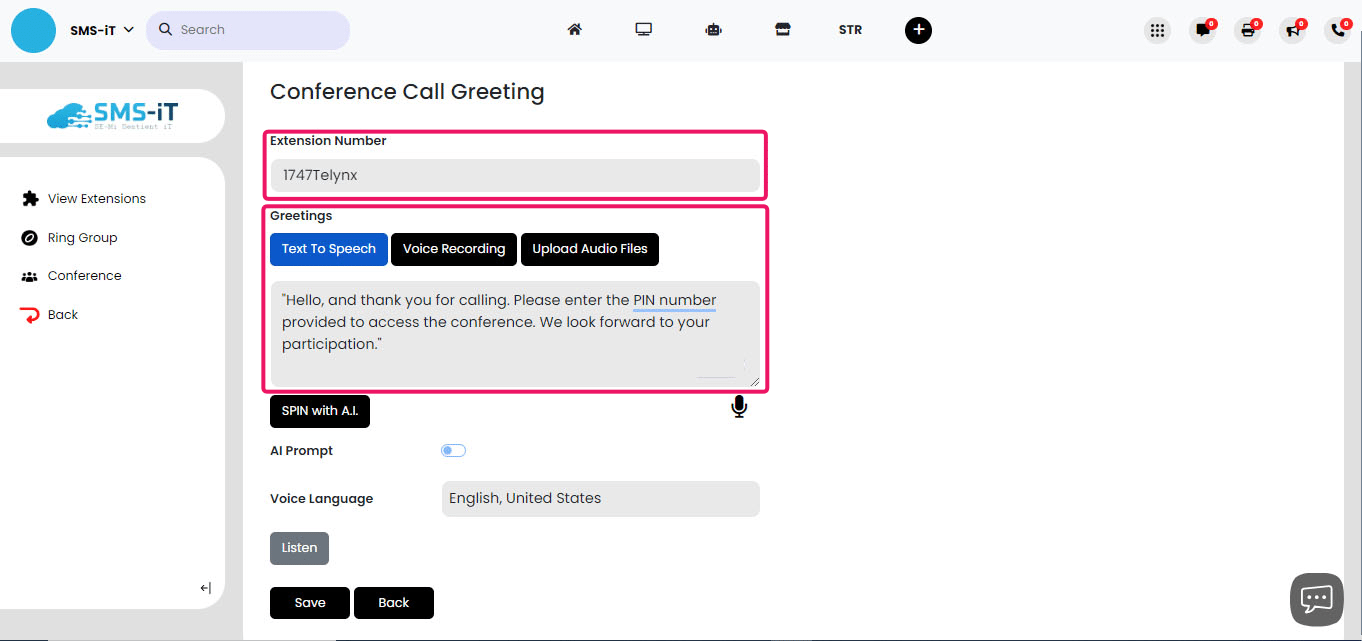
Saving Your Conference Room Greeting After creating and reviewing your greeting:
Ensure you're satisfied with the content and audio quality. Click the "Save" button to set this greeting for your conference room.
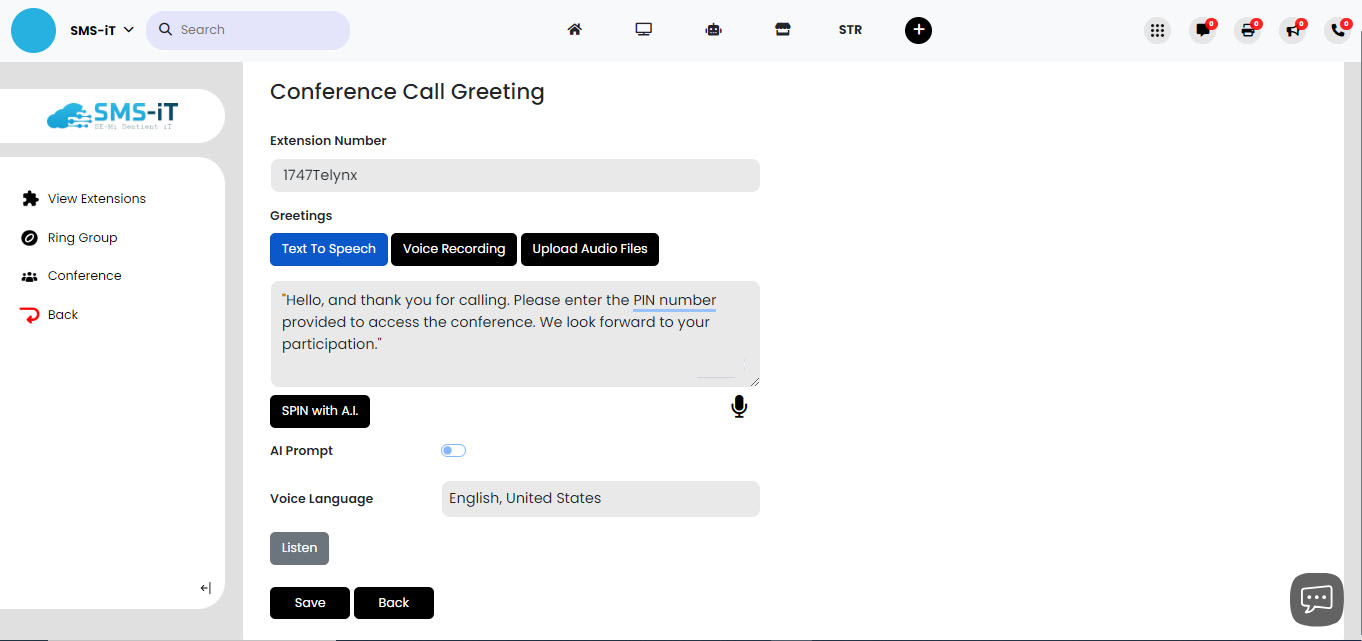
Enable conference room
Activating Your Conference Room To make your conference room available for use:
Click the switch to turn it on (it should change color and position). This action activates your conference room, making it ready for calls.
Conference Room Successfully Activated Your conference room is now enabled and ready to receive calls. Participants can join the conference using the designated phone number, extension, and PIN you've set up.
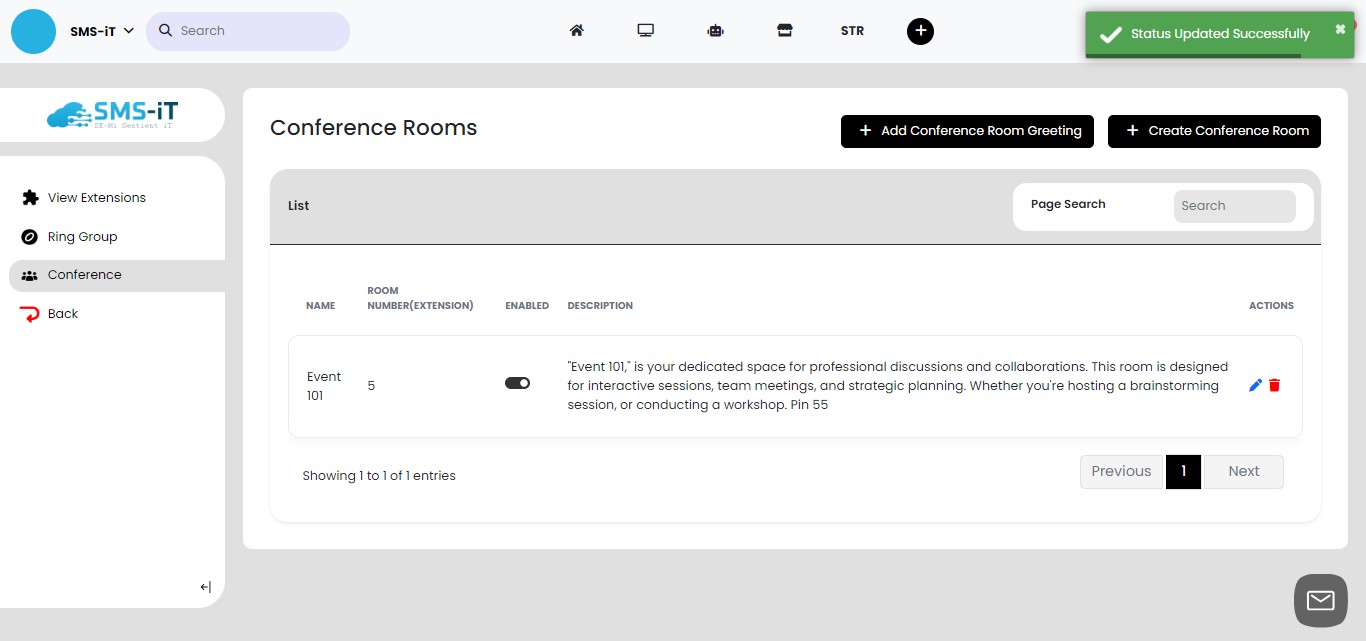
Congratulations! You've successfully set up and activated your conference room. It's now ready for use, allowing seamless communication among your team members and clients.
SMS-iT CRM's Voice Conference feature offers a user-friendly solution for creating and managing conference rooms. This tool is particularly beneficial for solo entrepreneurs, marketing agencies, and small to mid-sized businesses across various industries. It enables cost-effective, scalable, and efficient communication, enhancing collaboration without the need for extensive technical knowledge. The simple step-by-step process for setting up conference rooms, adding greetings, and activating them makes it accessible for users of all technical levels. By streamlining virtual meetings and reducing travel costs, this feature helps businesses of all sizes optimize their operations, improve team coordination, and maintain strong client relationships. Whether you're a growing startup or an established local business, SMS-iT CRM's conference tool adapts to your needs, supporting your communication requirements as your business evolves.